
Beyond being just a document editor, this module ensures that information:
-
Has version control
-
Goes through an approval workflow
-
Is communicated to the right people
-
Maintains an auditable history
Module availability
The Documents module operates under a cross-functional logic within the system, meaning its use does not depend on a single management system.
-
It is included at no additional cost in the Compliance system under the Enterprise plan.
-
In other systems (ORM, AML, Audit, ISMS), it is not included by default, but it can be purchased as an add-on.
-
In the Compliance system under the Starter and Basic plans, it is not included, but it can also be purchased as an add-on.
💡 Important:
The module is purchased only once and becomes available across all the systems you have active. It is not necessary to acquire it for each system, as it is a cross-functional module.
How to create a document?
1. Go to the “Documents” module.
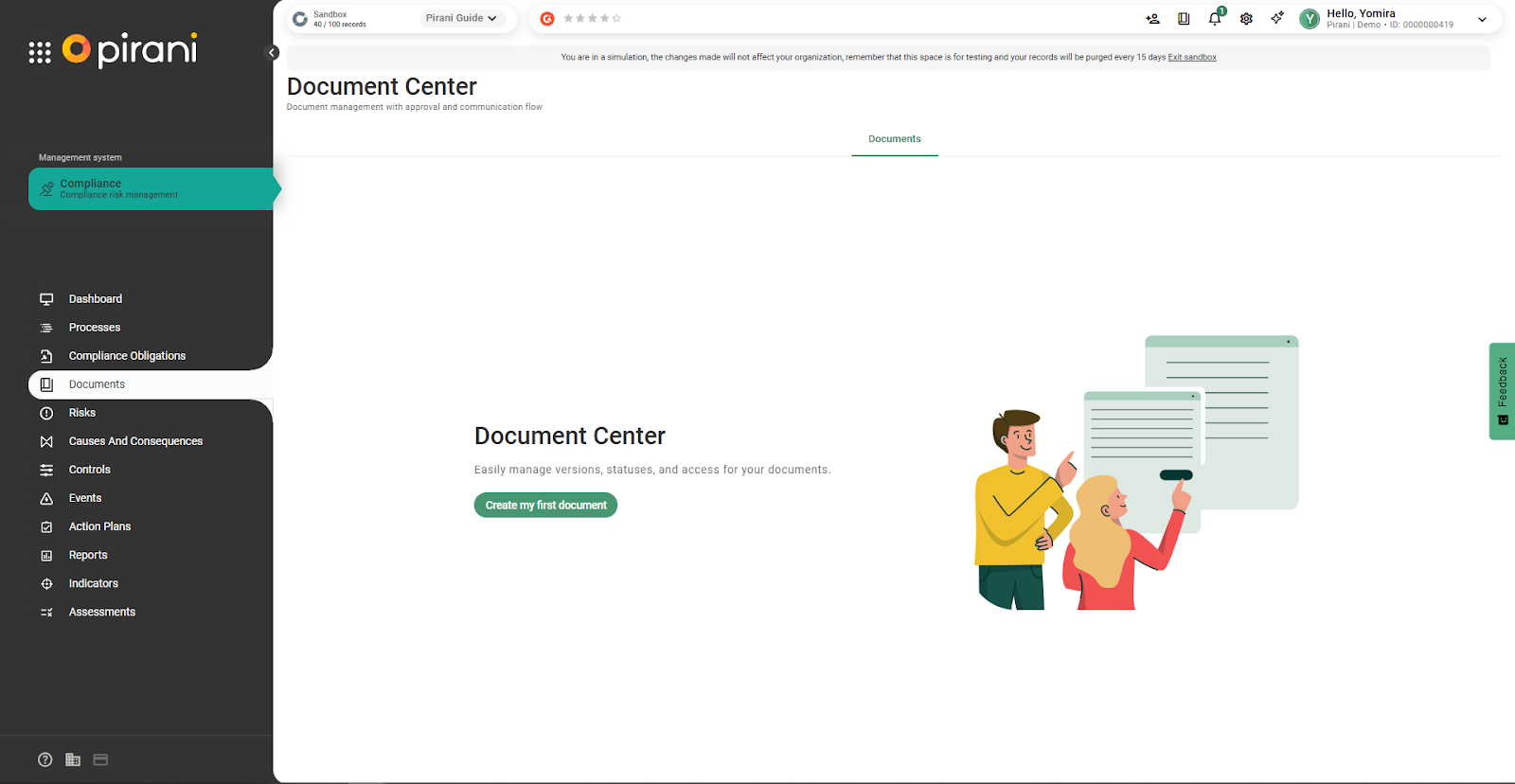
Choose how to start:
- From scratch: to have full control over the document.
- From template: if you want to start with a predefined base.
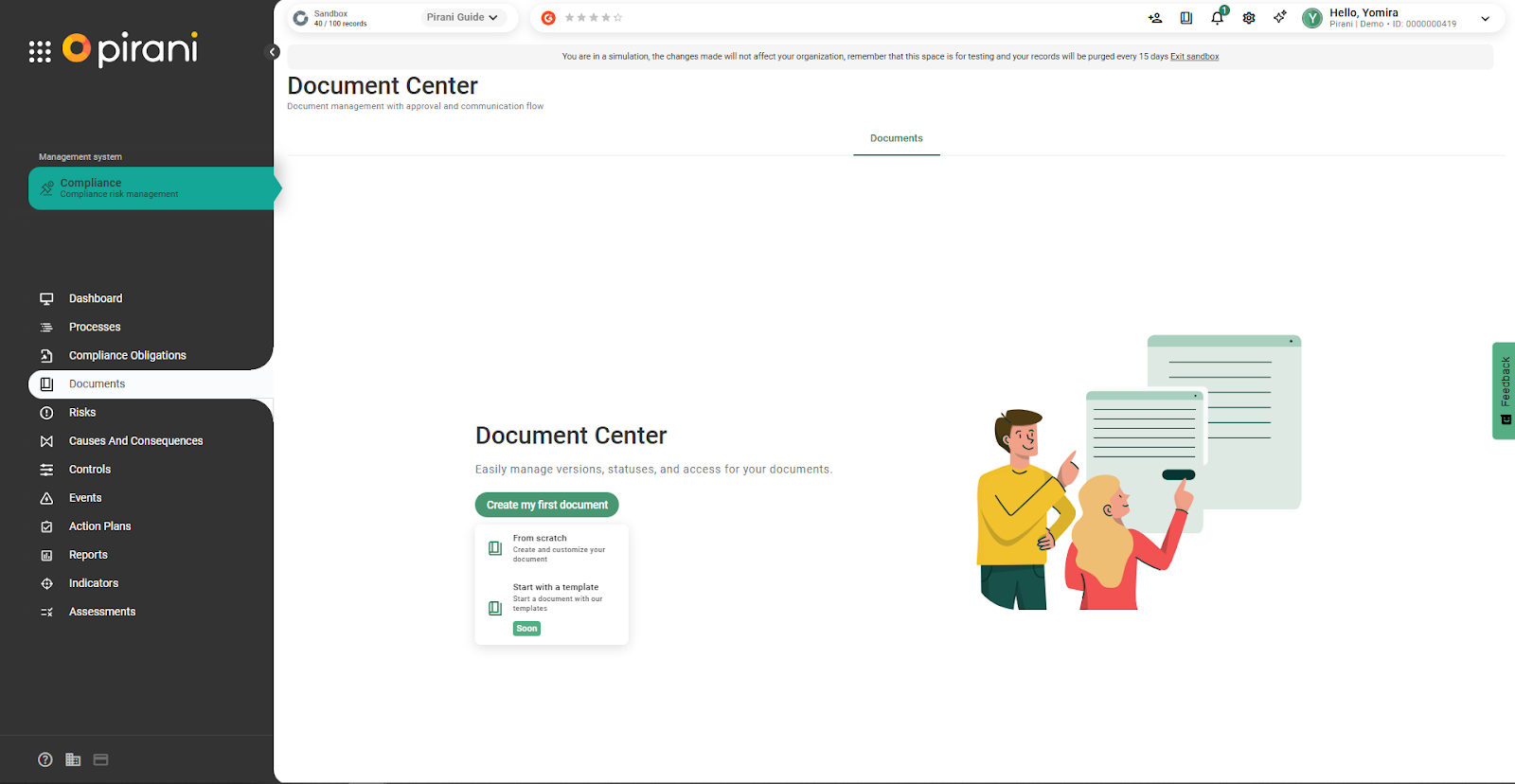
How to create a document from scratch?
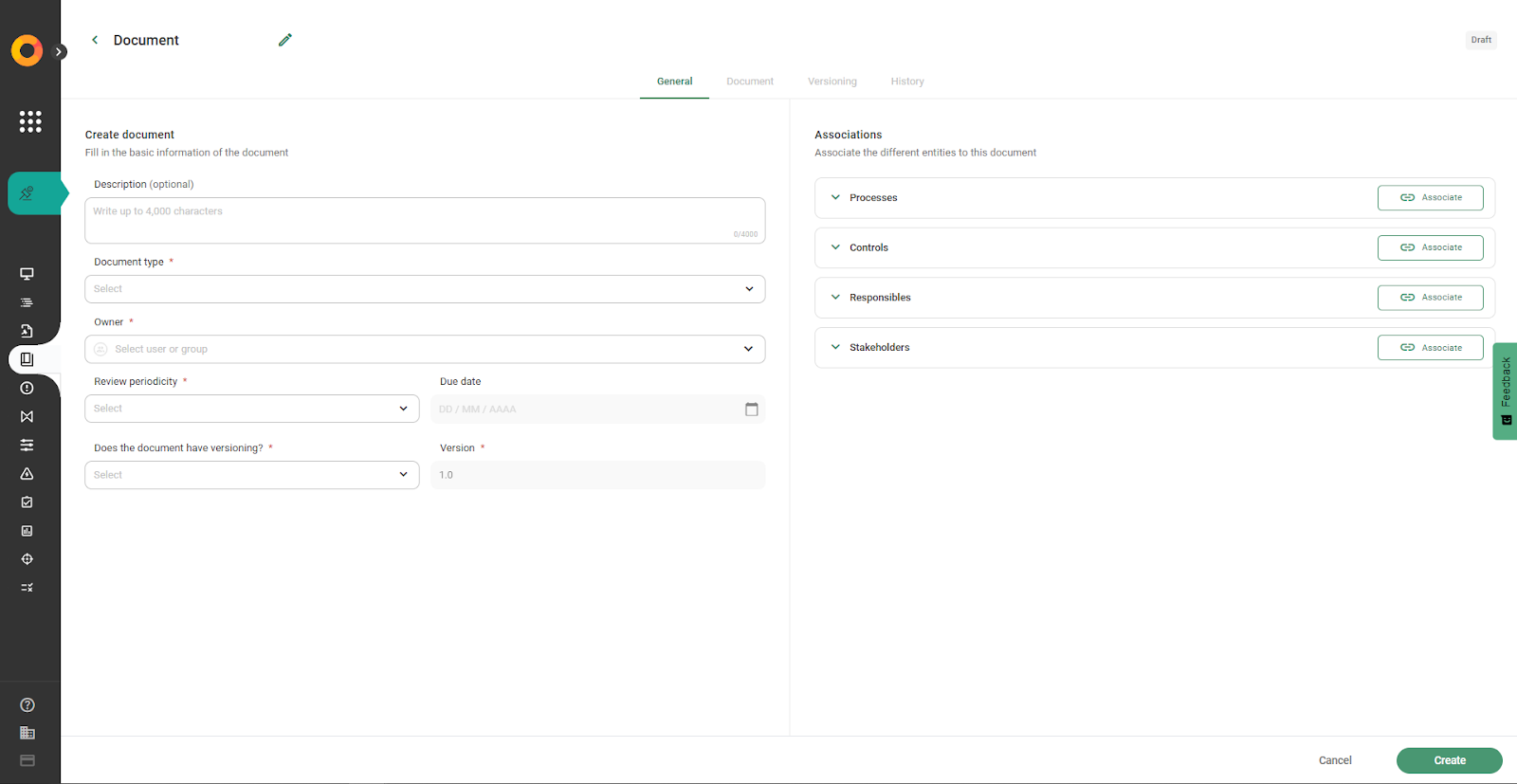
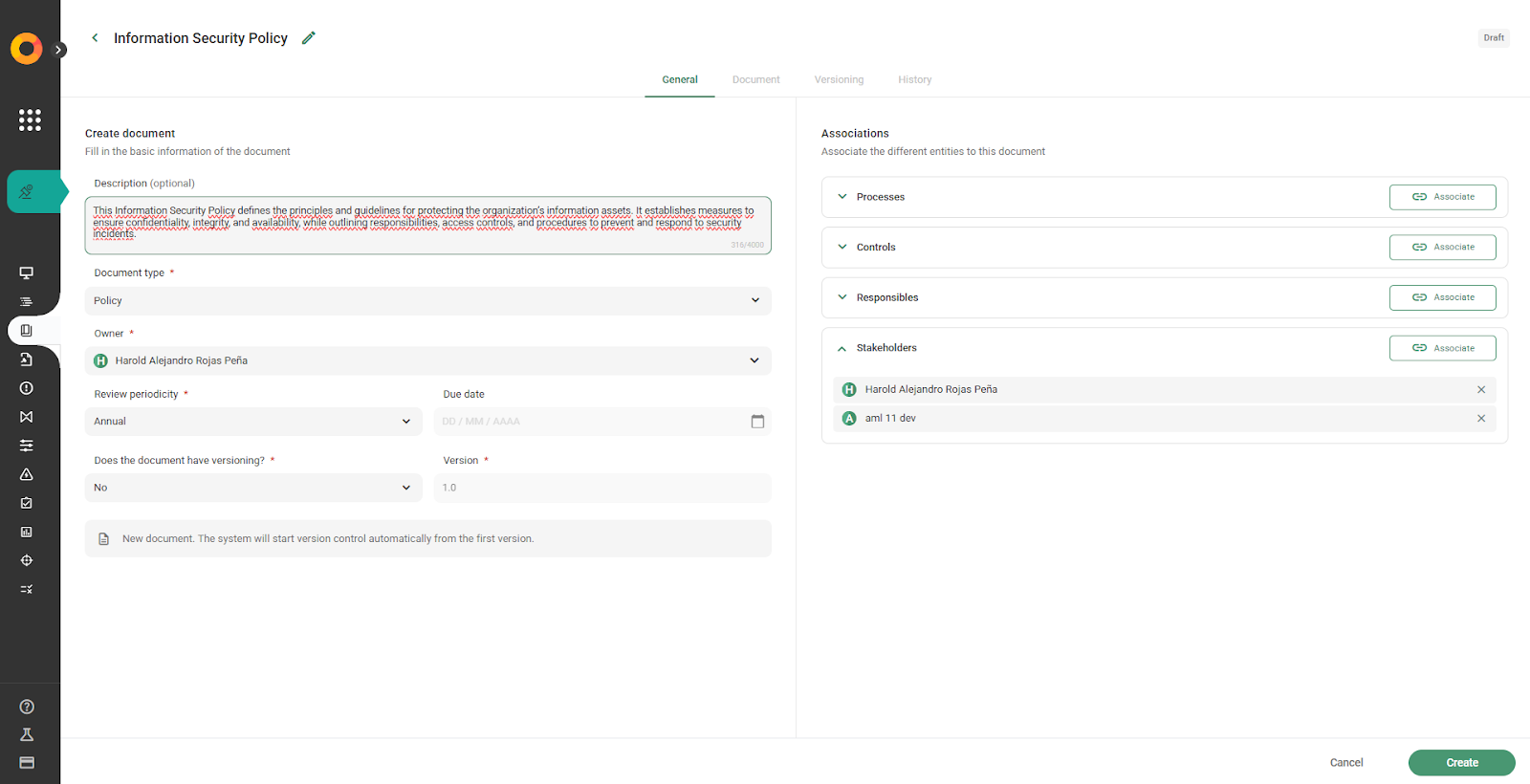
Set up the basic information
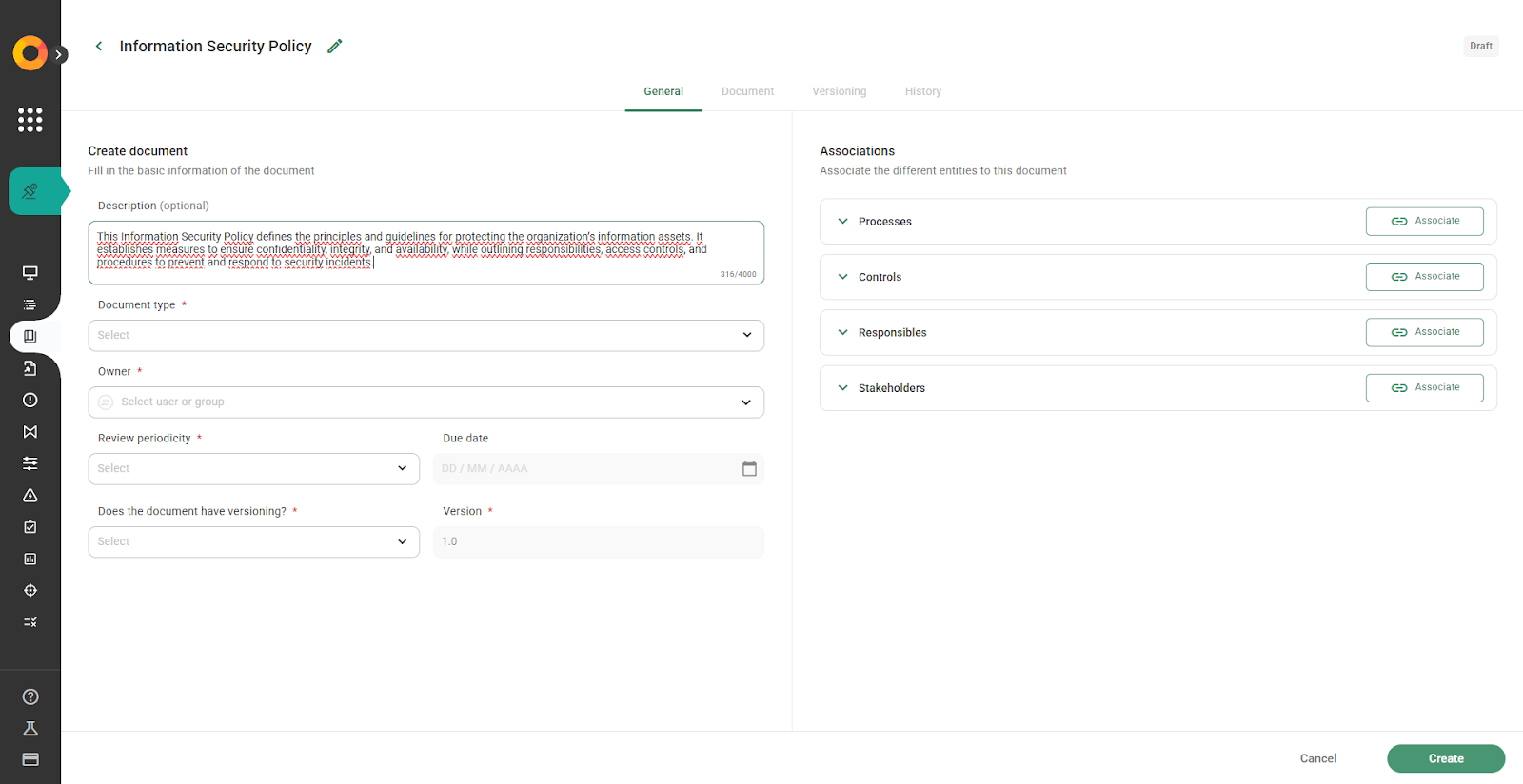
1.Enter a name for the document.
Example: Security Policy
2. Add a description that summarizes the purpose of the document.
3. Select the document type, according to ISO 9001 standards (policy, procedure, guideline, manual, code, or process).
Note: Custom document types cannot be added at this time.
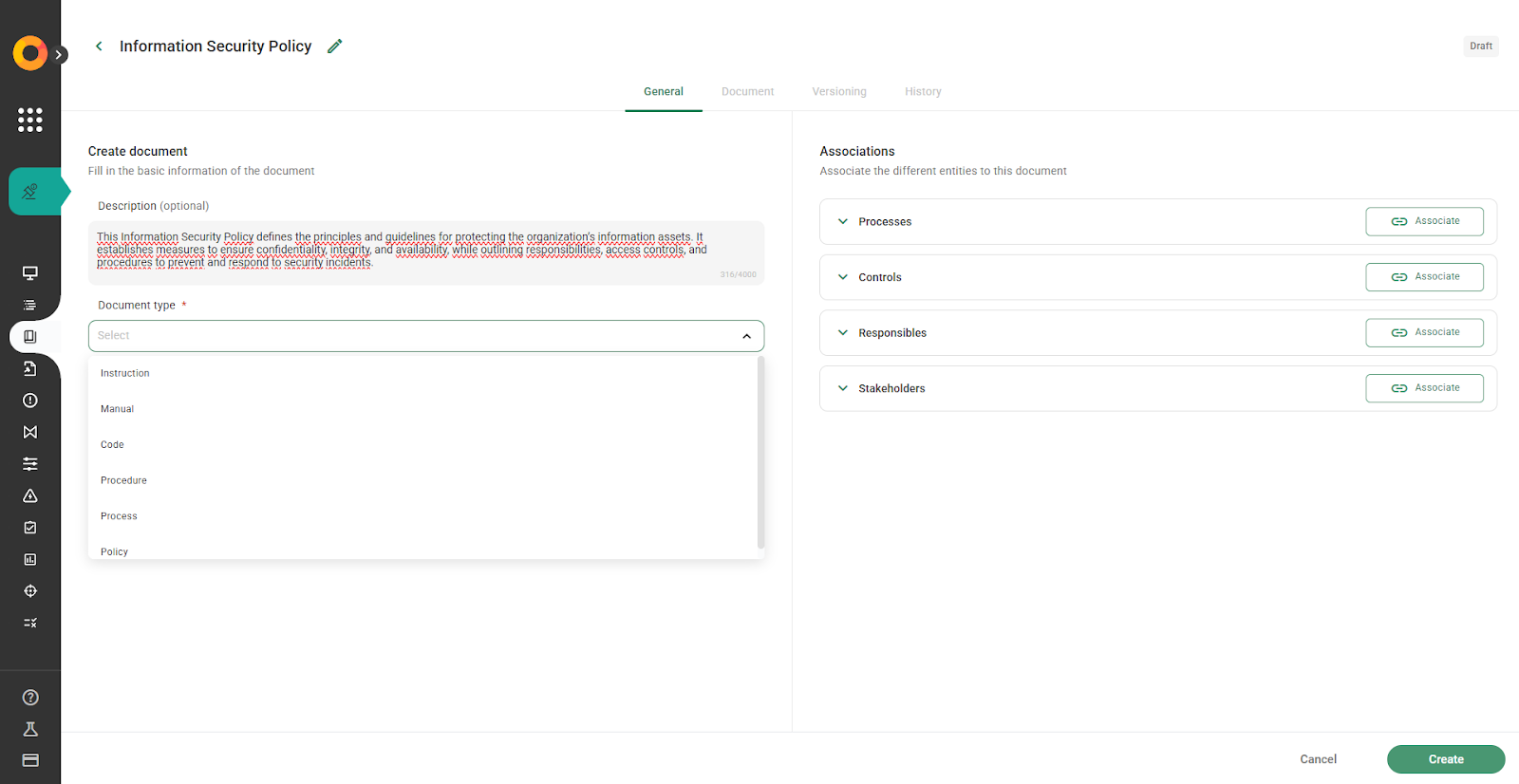
4. Define the owner: this is the person responsible for keeping the document updated and approved.
💡 Example: the security policy may have the Information Security Leader as the responsible owner.
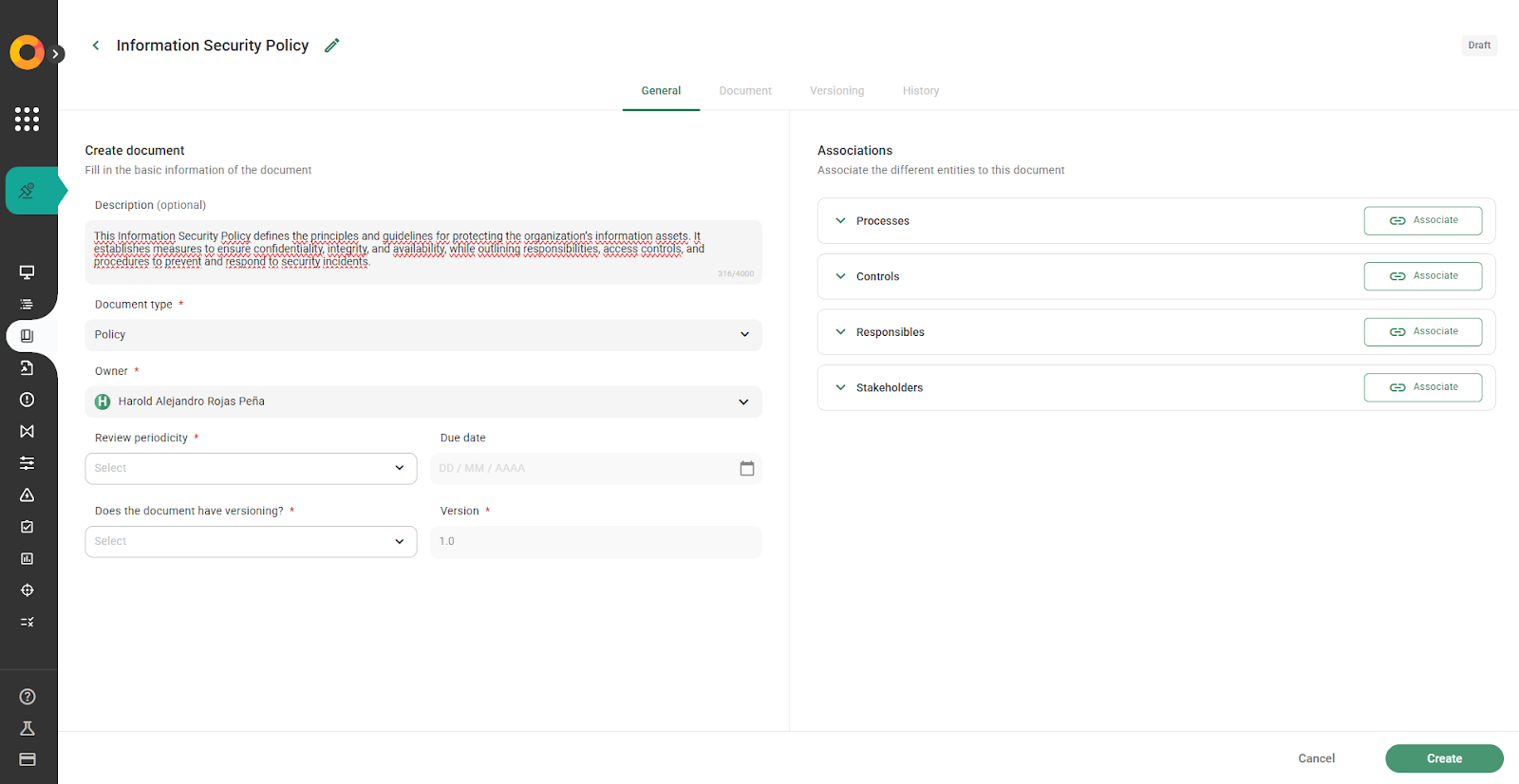
5. Set the review frequency: annual, semi-annual, quarterly, monthly, or custom.
- If you select Custom, you can specify a particular expiration date.
💡 Best practice: documents should be reviewed periodically because processes, risks, and regulations change.
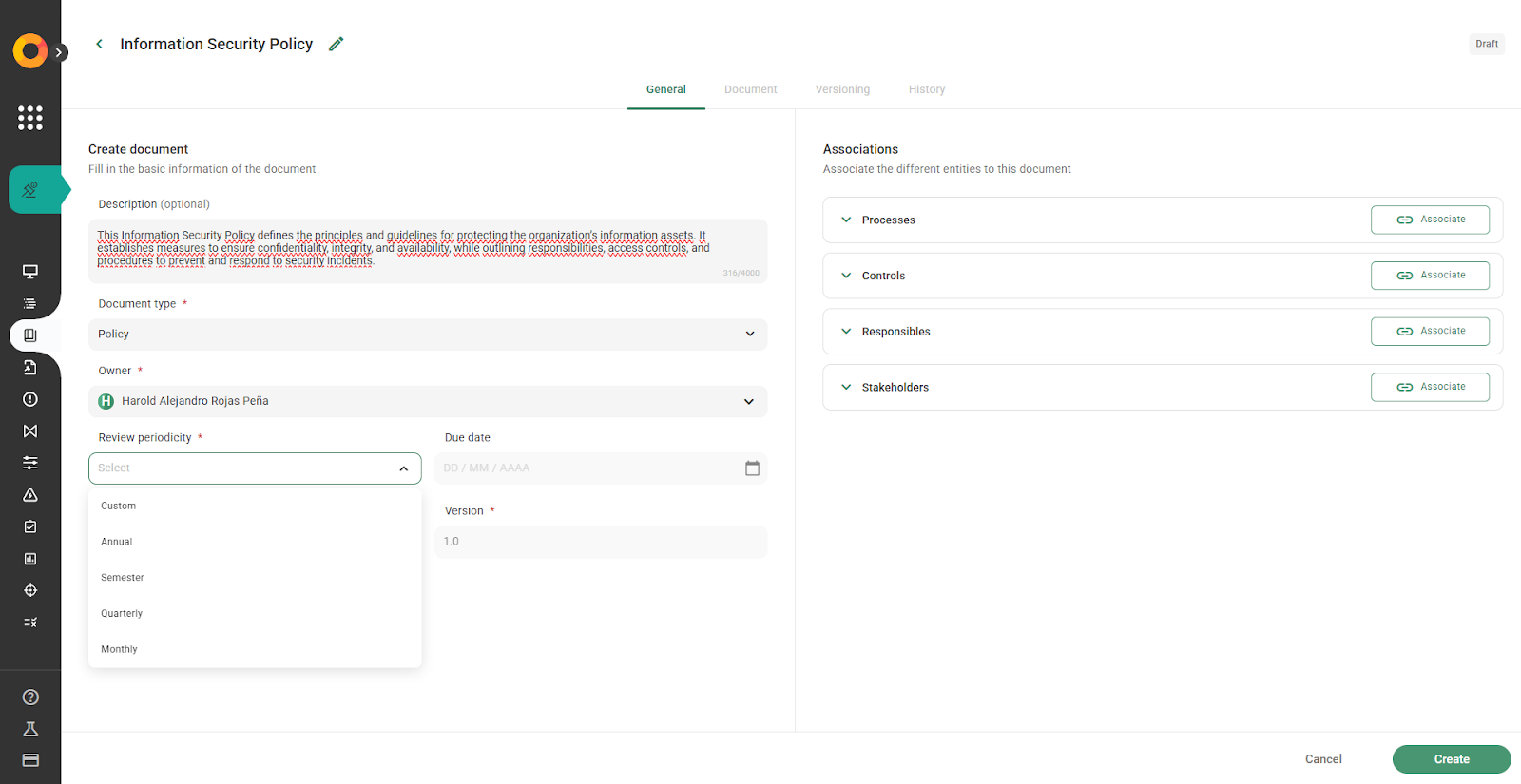
How does document versioning work?
Versioning allows you to keep a historical record of changes made to a document, which is essential for audit processes and traceability.
When creating a document
You must indicate whether the document already exists or if it is new. There are two scenarios:
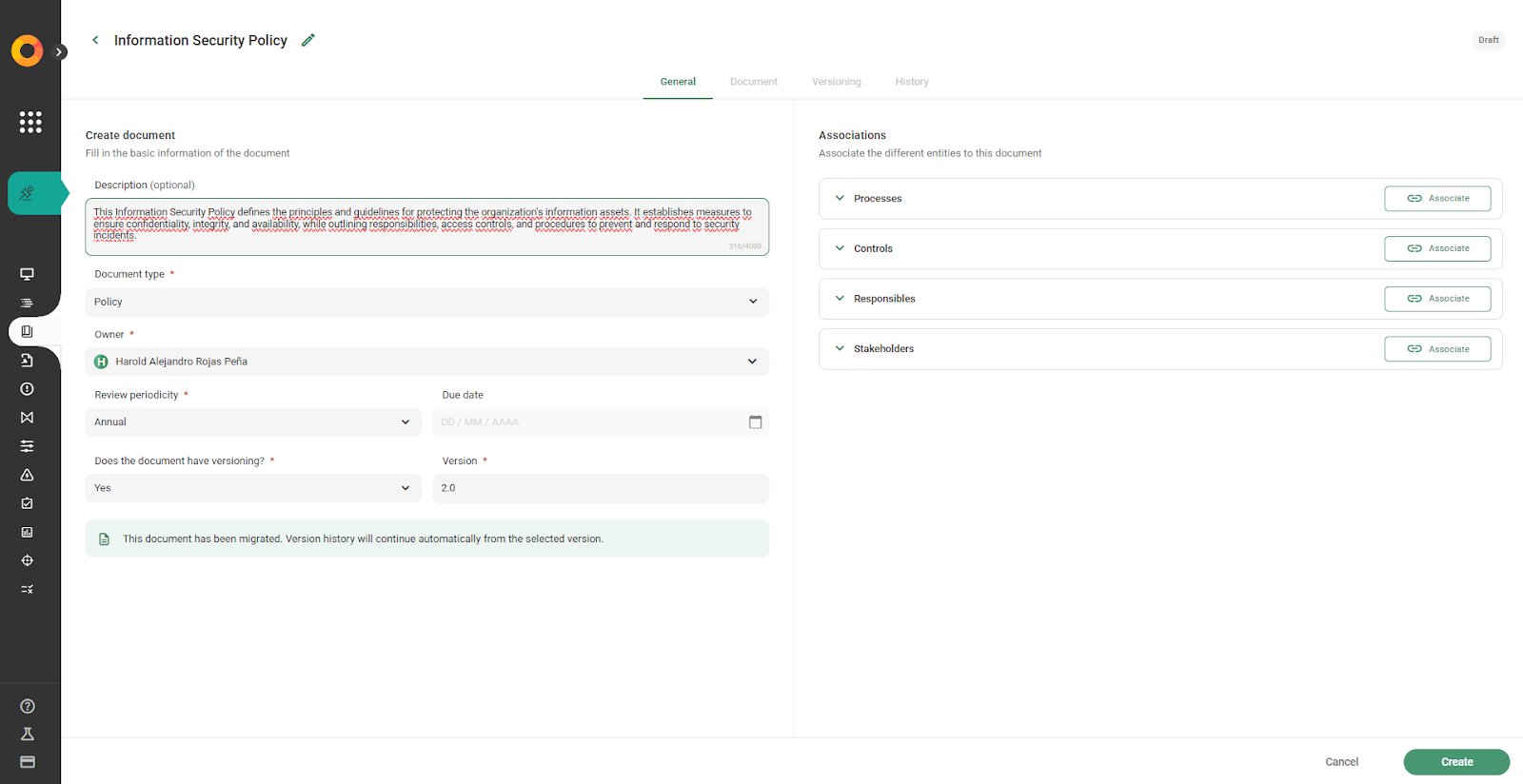
1. Existing document:
If the document comes from another system or already had previous versions:
- Select “Yes” in the existing version option
- Enter the current version (e.g., 2.0)
- The system will continue versioning from that point onward
💡 This ensures continuity of the history and prevents losing previous versions.
2. New document
If you are creating the document from scratch:
- Select “No” in the existing version option
- The system will automatically assign the initial version 1.0
💡 Important:
Correctly configuring versioning from the beginning ensures that each document maintains a complete, organized, and auditable version history.
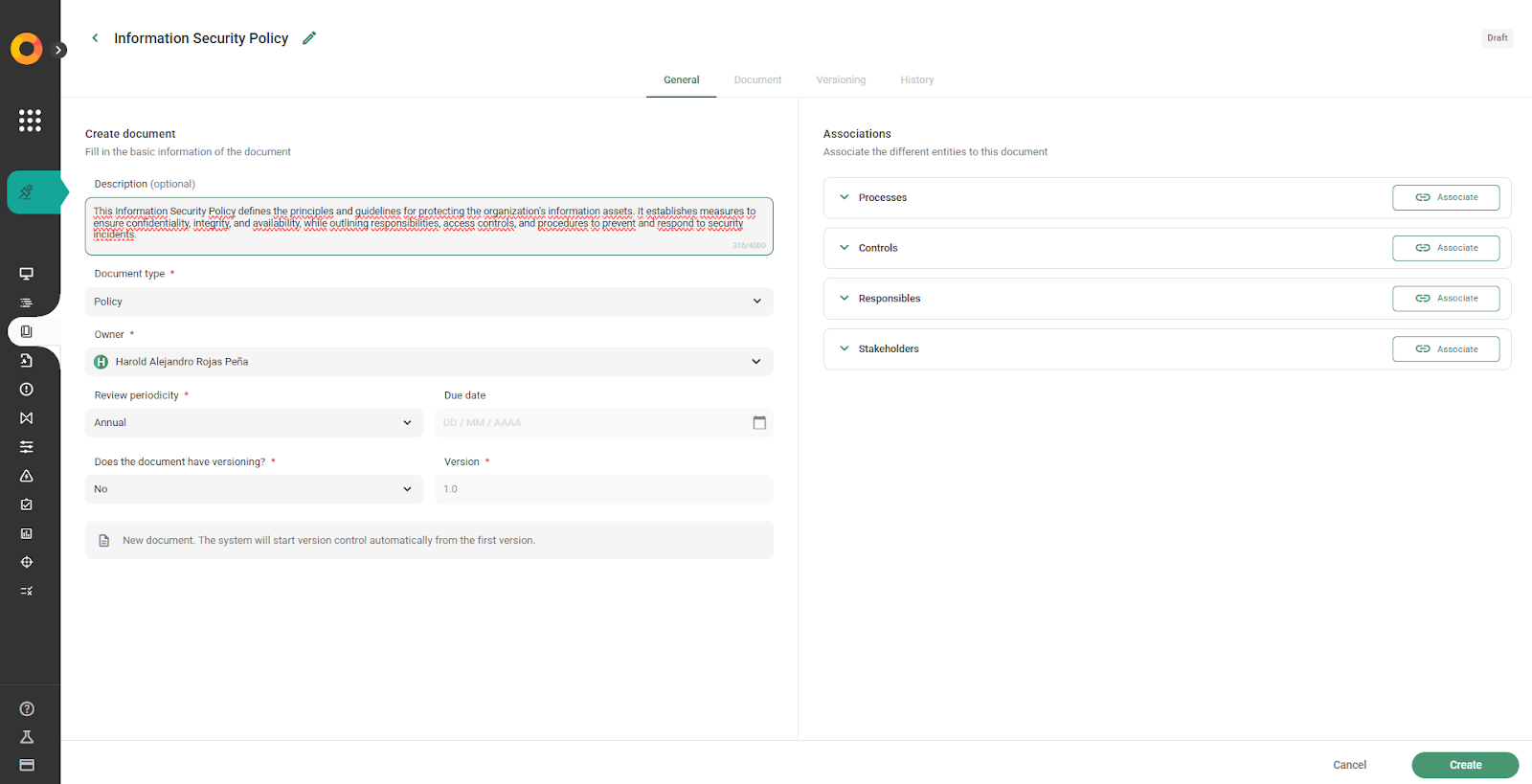
How do associations in a document work?
Associations allow you to link the document with other elements in the system and define who participates in its management and communication.
Types of associations
- Processes: link the document to affected processes.
- Controls: support controls with documentary evidence.
- Responsible groups: can edit, maintain, and manage the document.
- Stakeholders: must be aware of the document, but cannot edit it.
💡 Important:
Responsible groups manage the document; stakeholders participate in its dissemination and compliance.
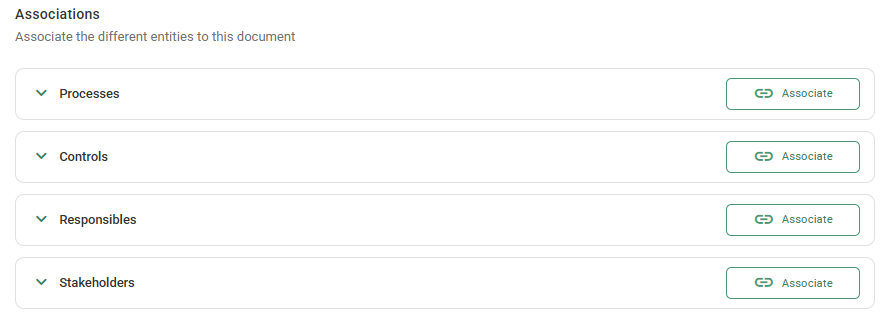
How to associate elements to a document?
1. Search for the process, control, responsible parties, or stakeholders you want to associate.
2. Select them.
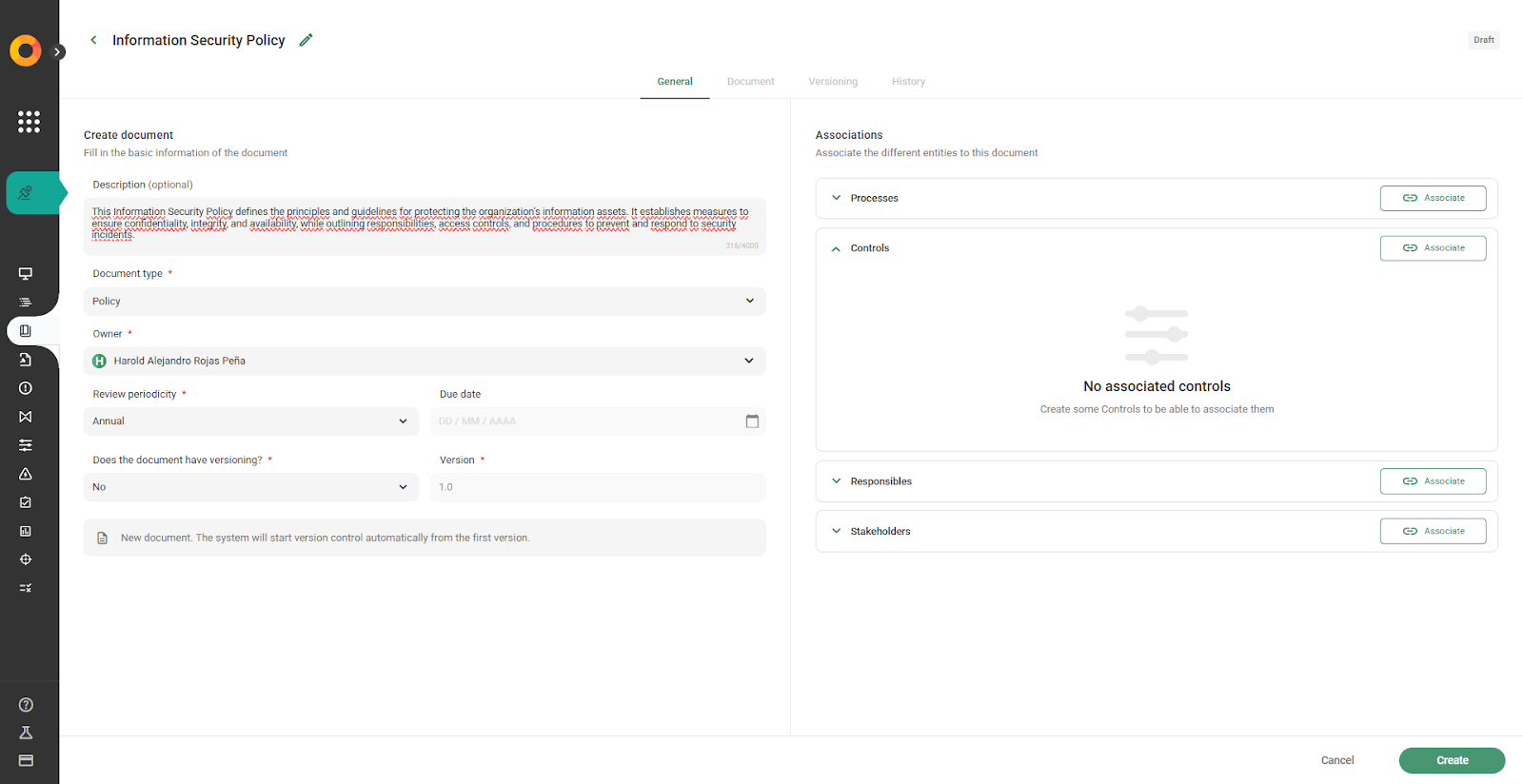
3. Click on “Associate”.
In the case of associating “Controls”
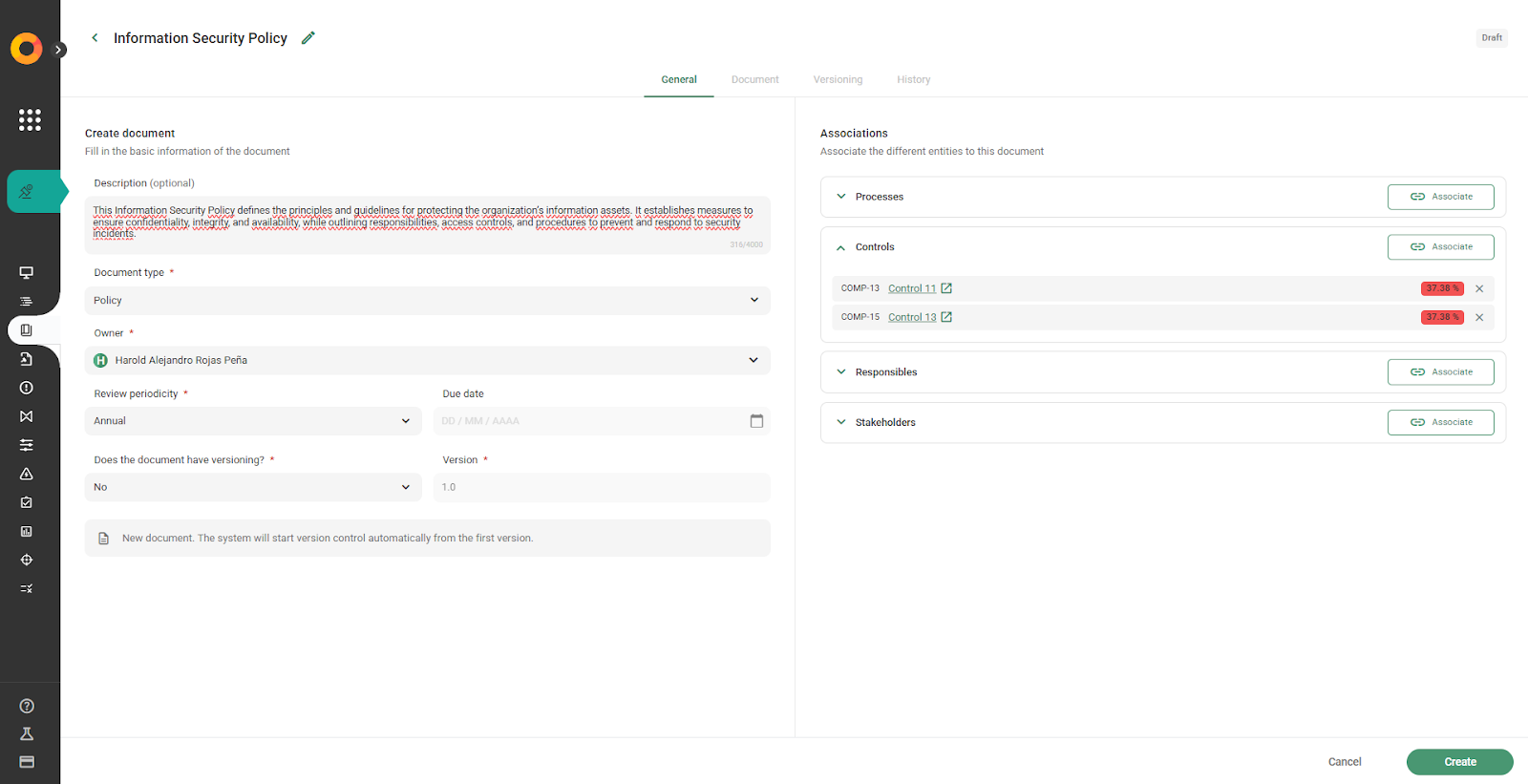
In the case of associating “Stakeholders”
What happens after clicking “Create”?
You have now created the document.
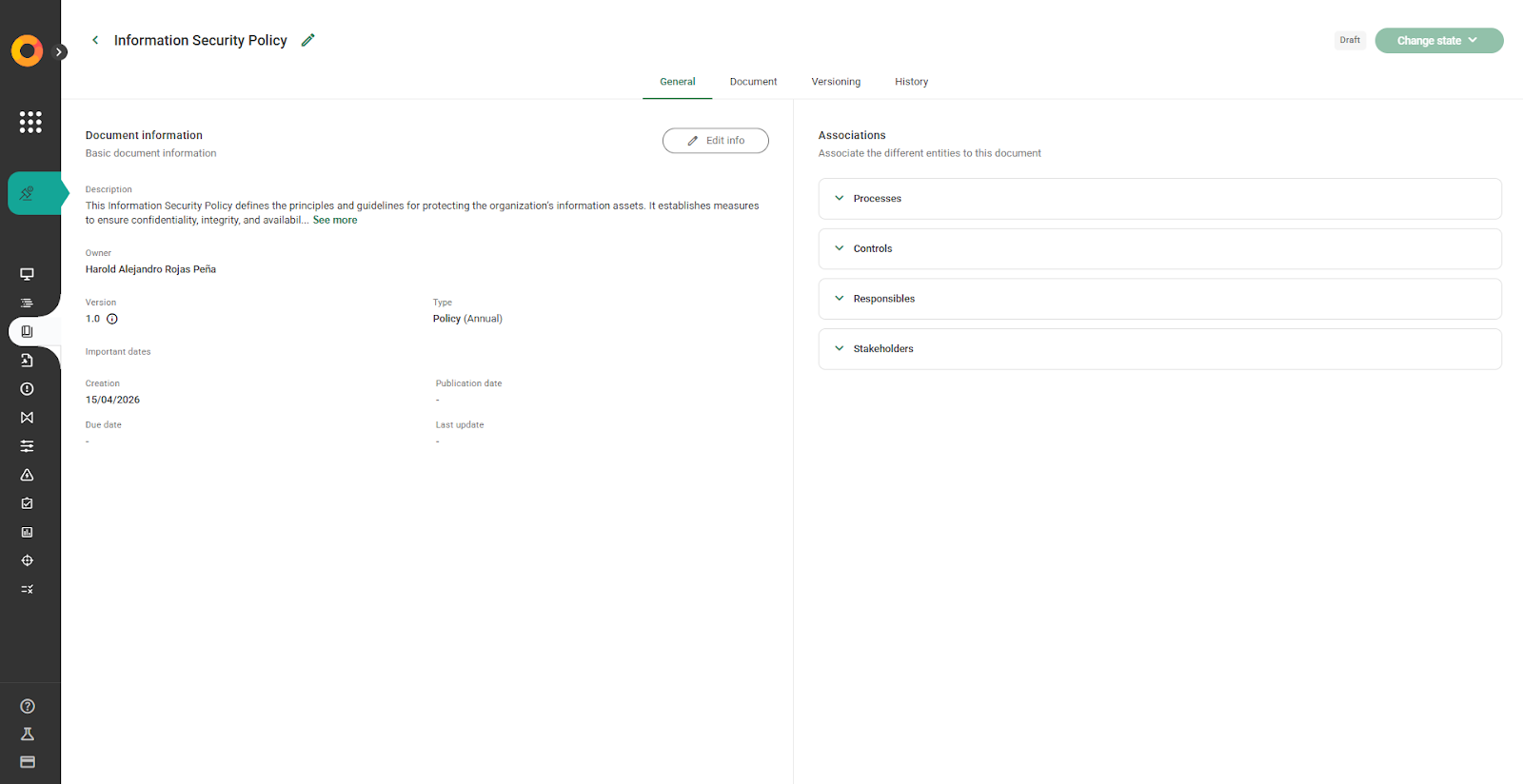
The document is saved in Draft status, and the system enables new sections to continue its management.
From this moment, you will be able to view and access the following tabs:
- Document: where you can create and edit the content.
- Versioning: where document versions are managed.
- History: where all actions performed are recorded.
Informational fields are activated, such as: publication date, last update, expiration date, and document status.
💡 While the document remains in draft status, these fields will have no values because the document has not yet been published.
How to create and edit document content
When the document is already in Draft status, it is time to start creating and editing it. The system works like a Word-style text processor, where you can build your document in an organized and visually clear way.
Step 1: Create the document
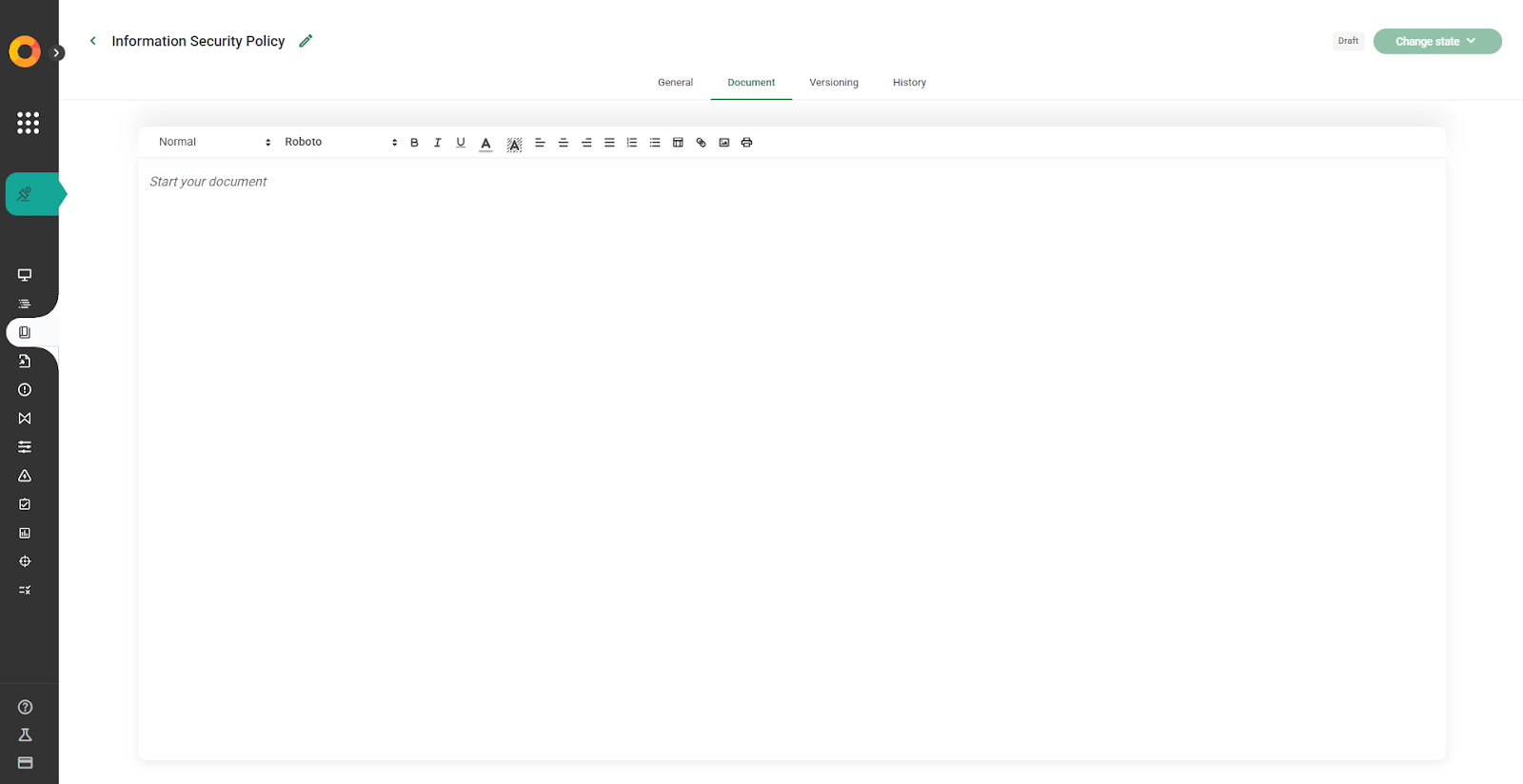
Click on “Document” and a text editor will open where you can copy, paste, and write the content.
Step 2: Apply basic formatting and elements
In the editor, you can work directly as you would in Word.
Keep formatting when pasting content: bullet points, numbering, bold text, and tables.
Create tables:
Click on “Create table” and define the number of rows and columns.
You can type directly into the cells.
Add links: Select the text and create links to other documents or pages.
Insert images: You can upload images to complement the document.
Text formatting:
- Underline, text color, background color
- Font type and size (default is Roboto)
- Alignment and lists: numbering, bullets, and paragraph alignment
💡 This allows the document to be visual while maintaining clarity in the information.
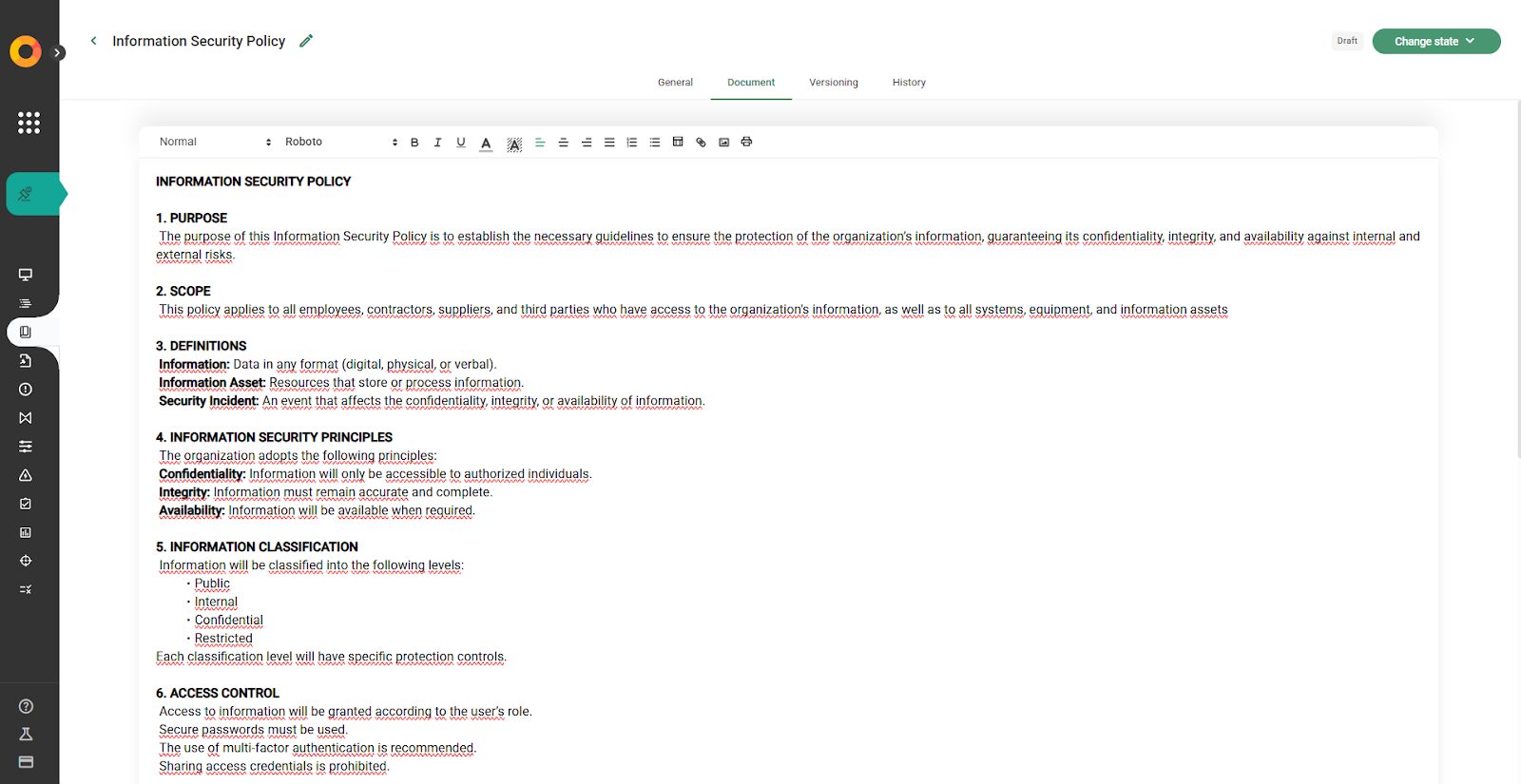
Step 3: Save and organize
- Once completed, the document is organized within the system.
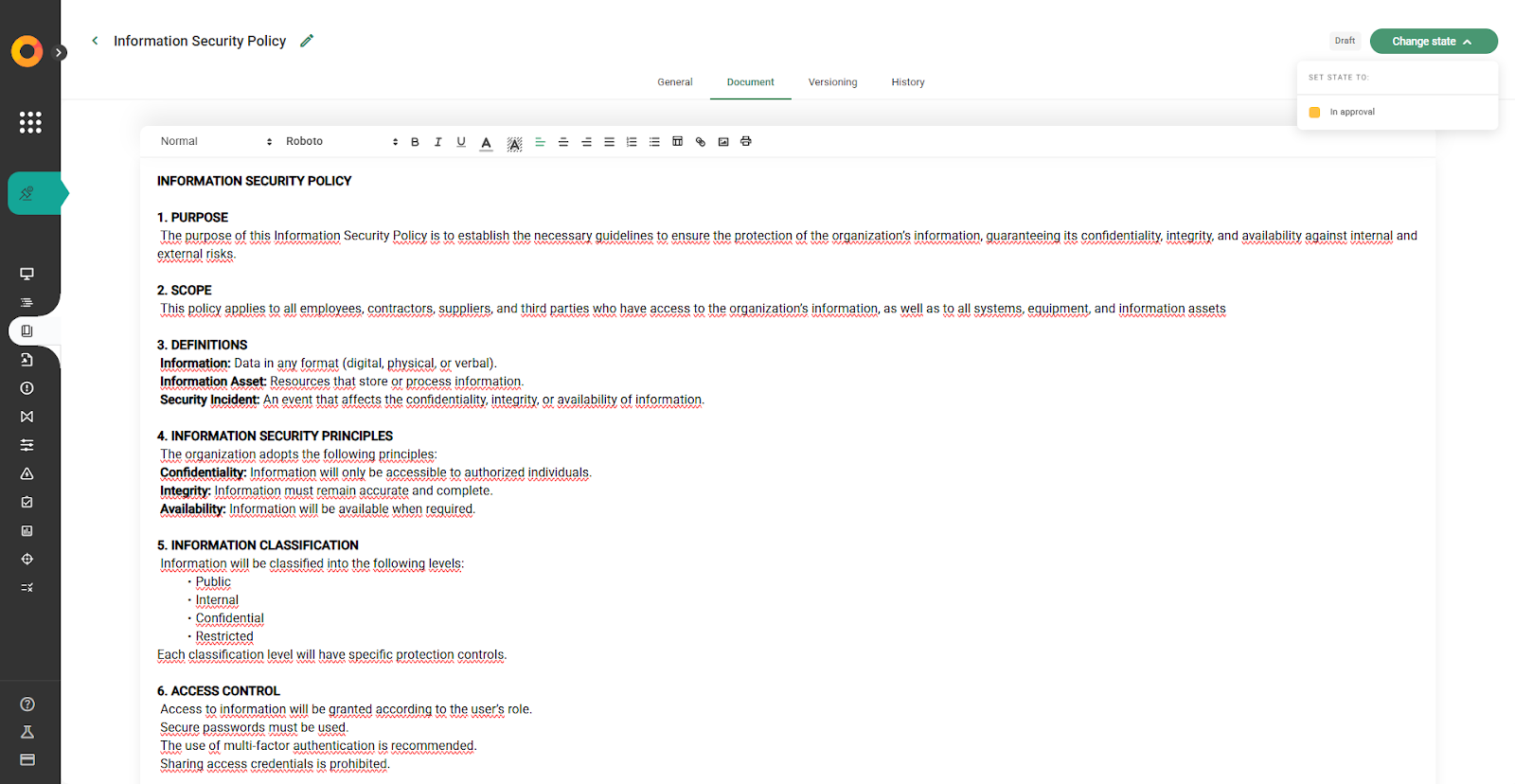
- You can continue editing it and change its status to “In approval” as appropriate.
How does the approval workflow work?
1.The responsible person can start the approval workflow from the document.
2. For now, the workflow is not configurable:Statuses: Draft → In approval → Published.
How to send a document for approval
Sending a document for approval allows it to be formally reviewed before publication, ensuring control and validation of the content.
1. Open the document you want to manage.2. Verify that the document is in Draft status.
3. Click on “Request approval”.
4. Select the approver, who will be responsible for reviewing the document.
💡 Only the creator, the owner/responsible person, and the module administrators can view the document. Responsible users receive a notification to review and approve the document.
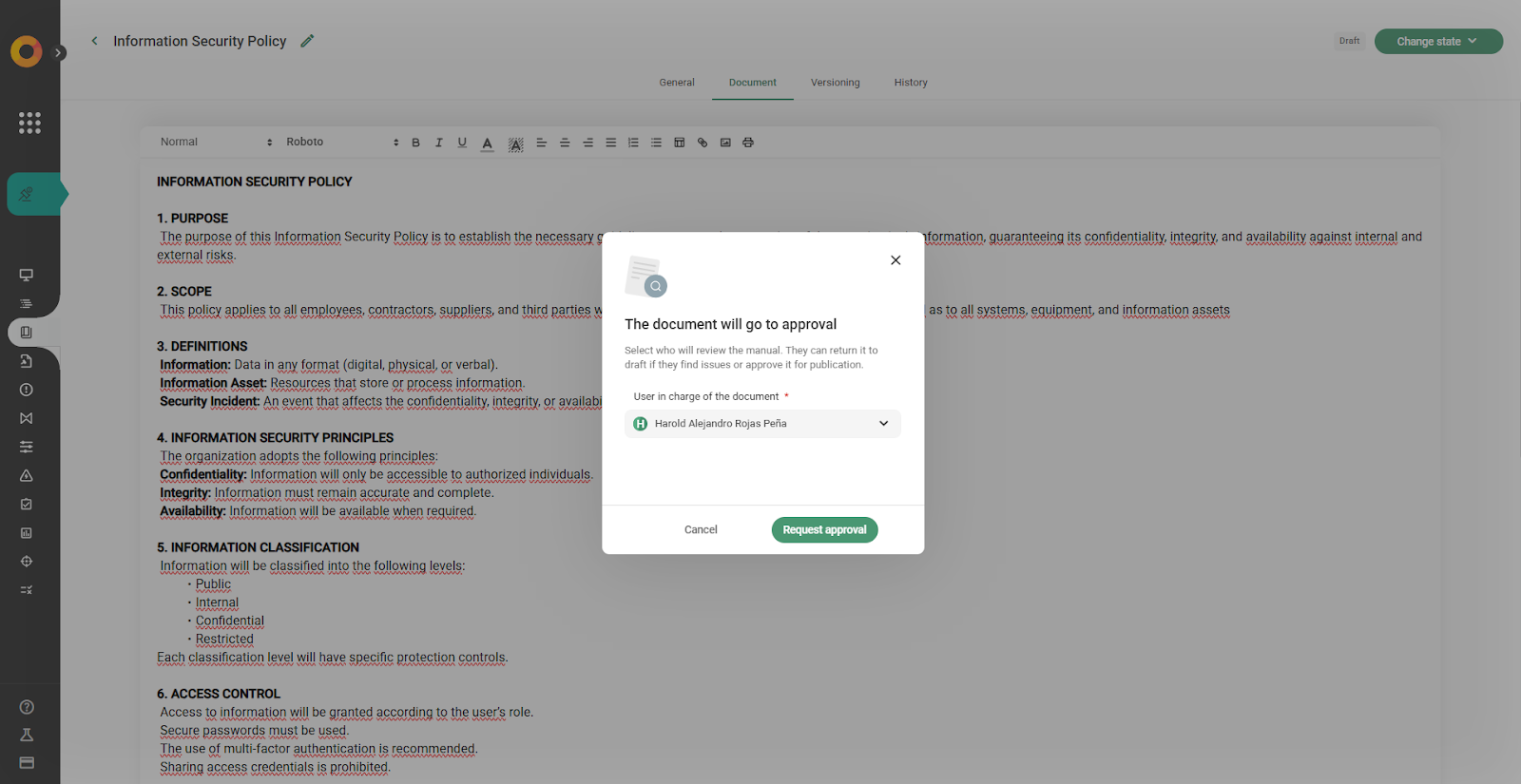
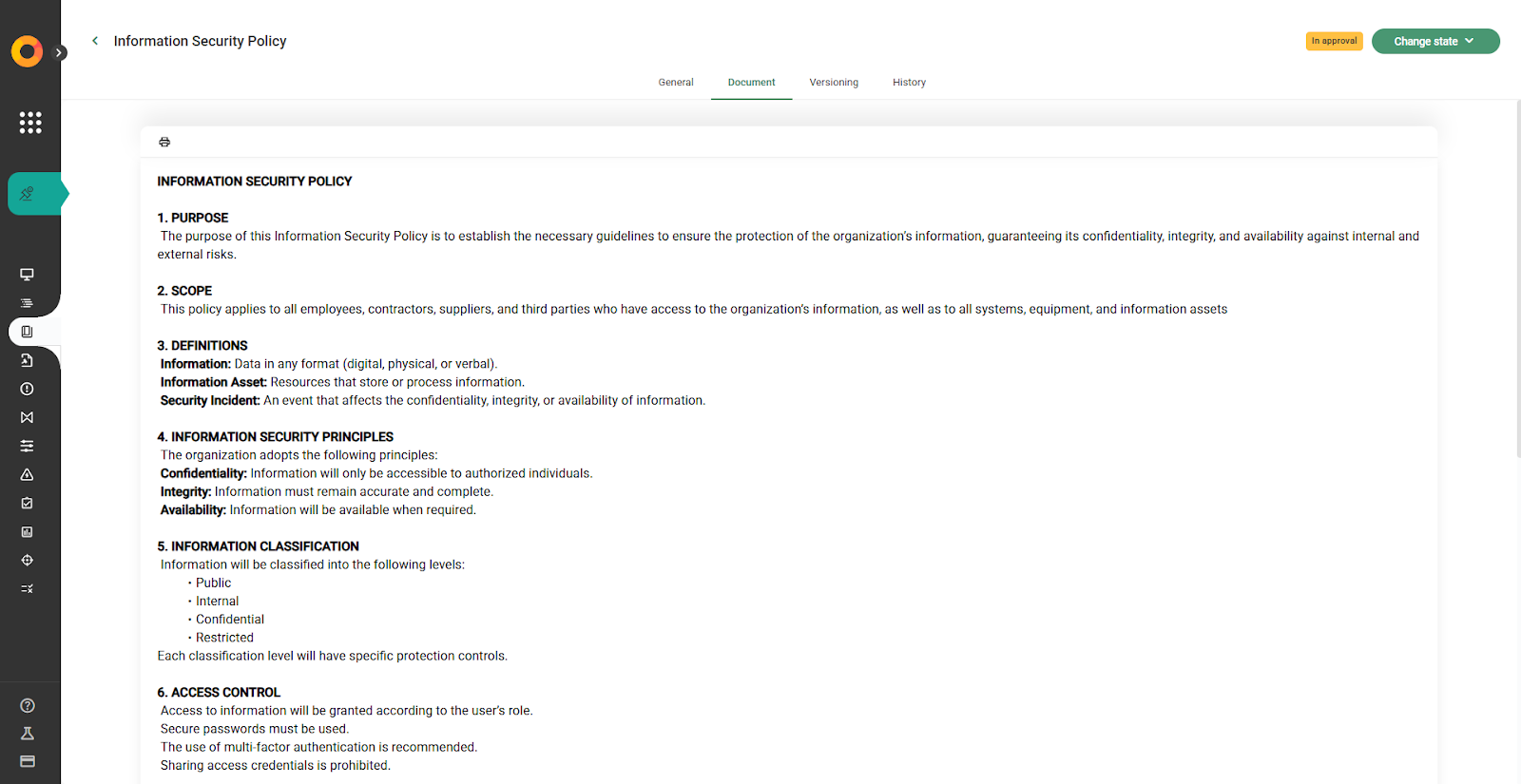
5.The document changes to “In approval” status, and the initial version is assigned (e.g., 1.0).
💡 Stakeholders do not receive notifications until the document is published.
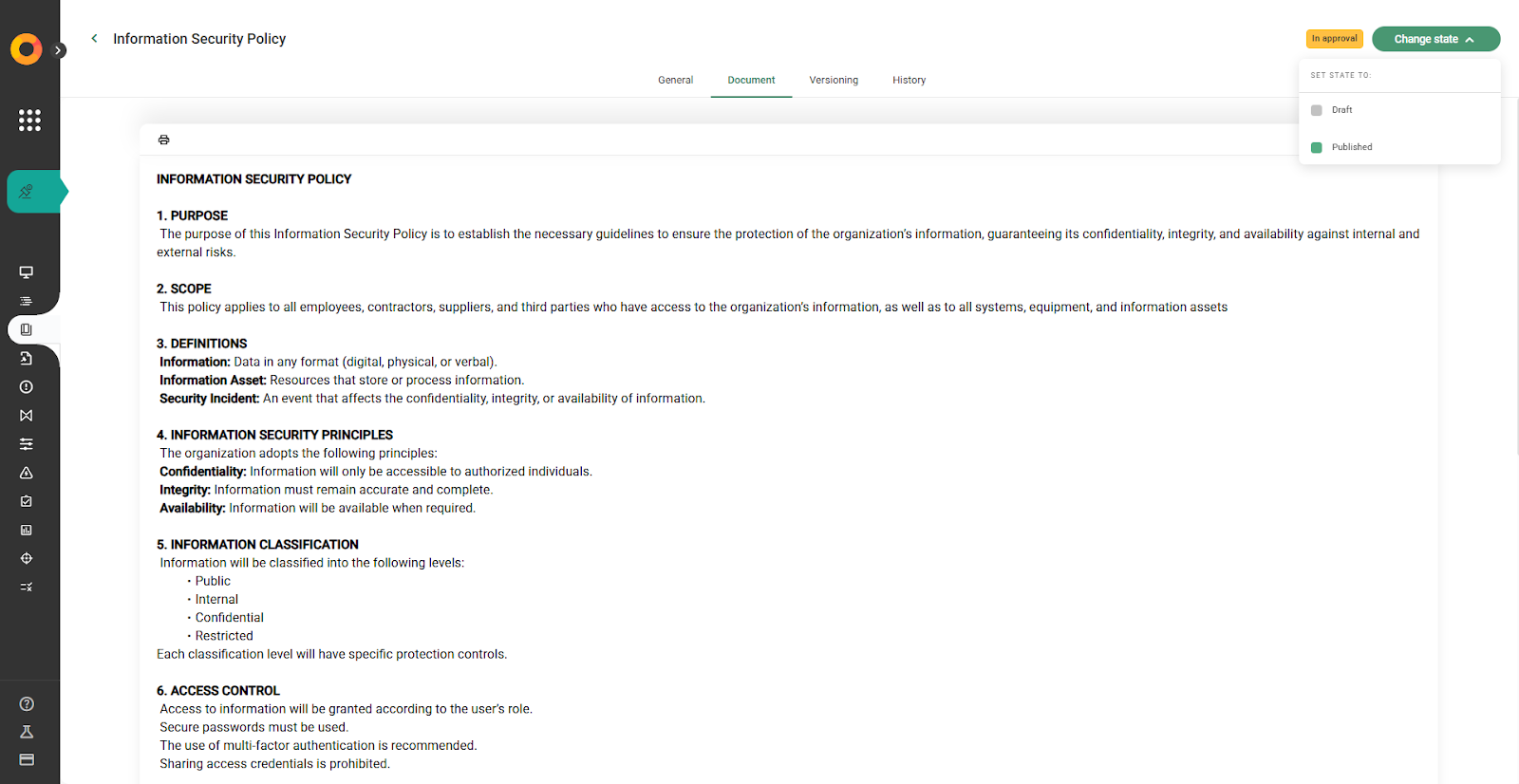
How does the “Send document” section work when publishing?
Open the document and select “Publish”.
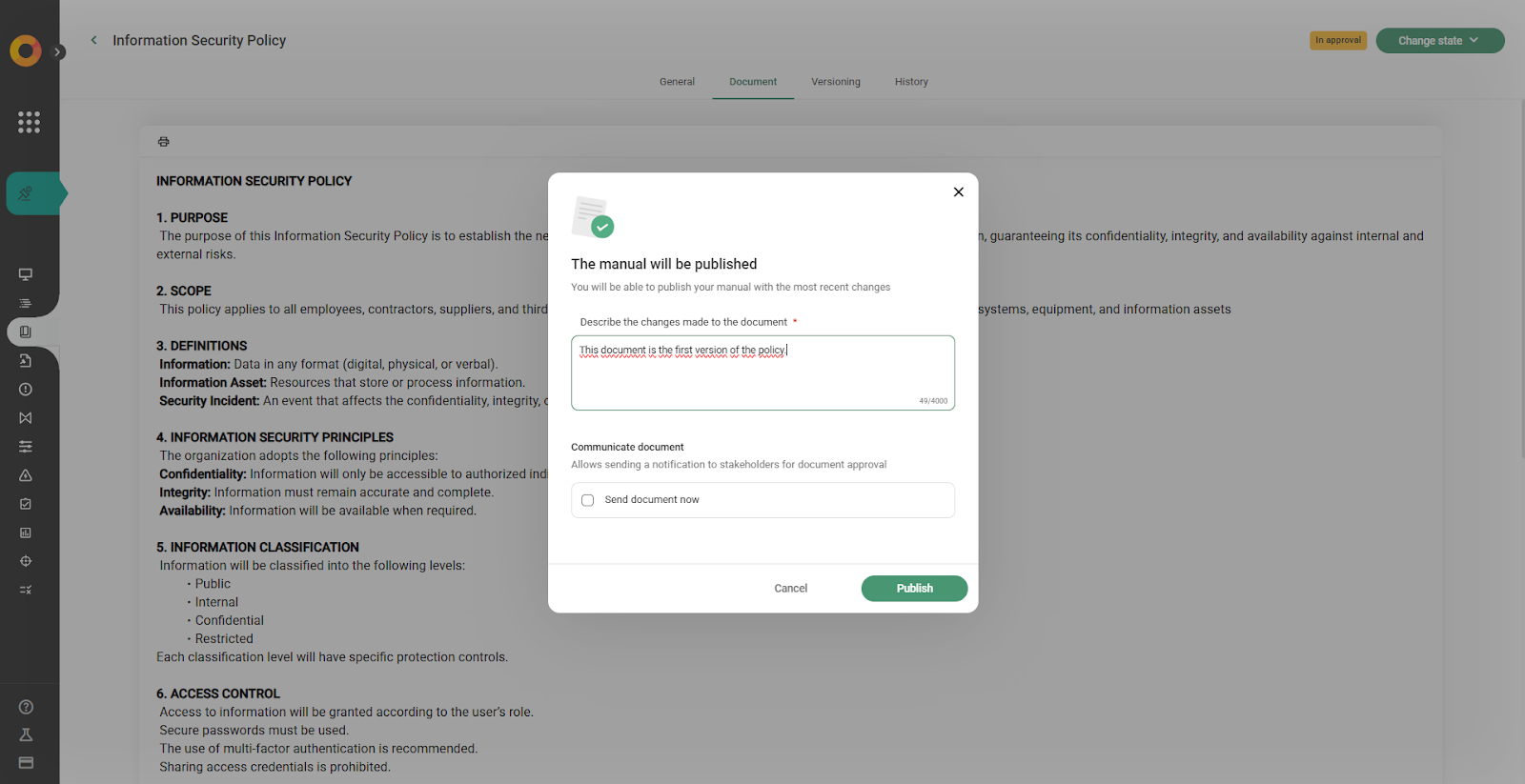
Describe what the document contains or what is being published.
Example: This document corresponds to the first version of the policy.
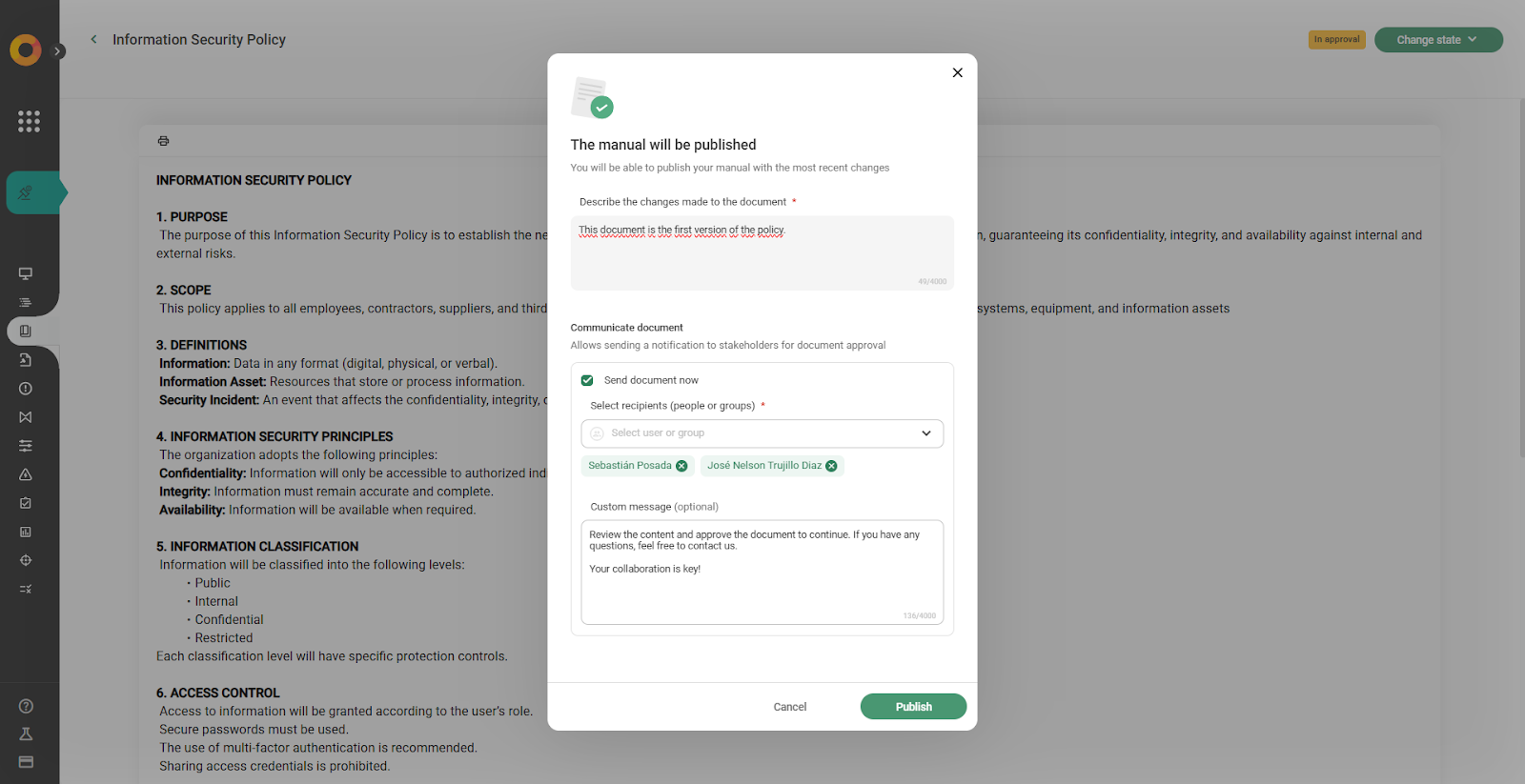
During document publication, the system enables the “Send document” section, which allows you to define which users will be notified about the new version.
In this section, you can select the recipients of the communication. This includes, among others, users who are stakeholders in the document. If stakeholders have not been defined previously, you can add them directly at this step before completing the publication.
If the document already has previously defined stakeholders, the system will automatically load them in this section. However, it is also possible to add new recipients at this step.
You can include both individual users and groups (for example, internal groups such as departments or teams). This way, you can ensure that all relevant people receive the notification.
Additionally, you will have the option to customize the invitation message that will be sent. In this message, you can indicate that a new version of the document is available and invite recipients to review it.
Once you click “Publish”, the system will automatically send an email and a notification to the selected users, informing them that a new version of the document is available.
Through this email or notification, recipients will be able to access and view the document according to the permissions assigned to them.
Important: Please note that this will include a message informing that a new document or a new version is available, along with a direct link to access it.
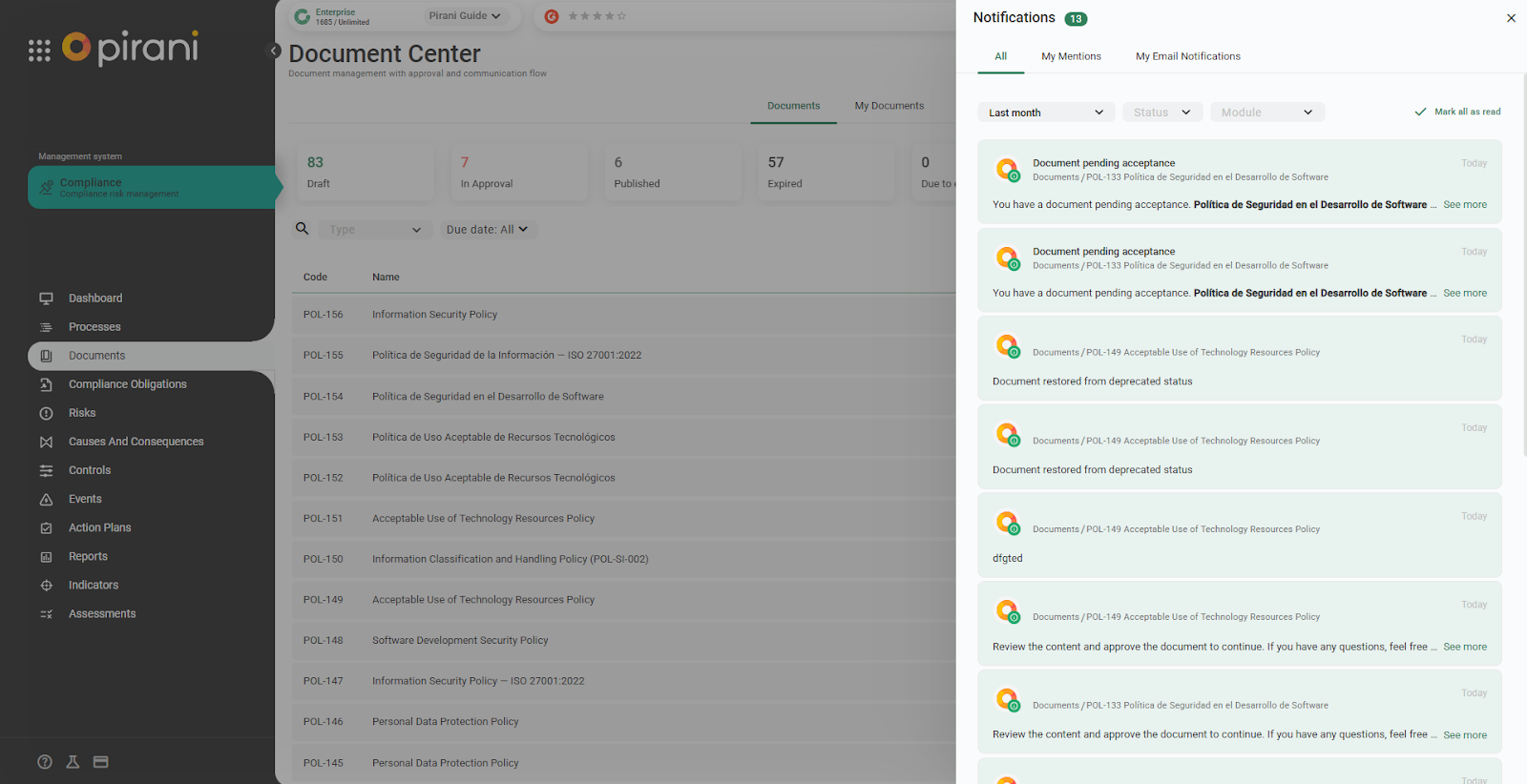
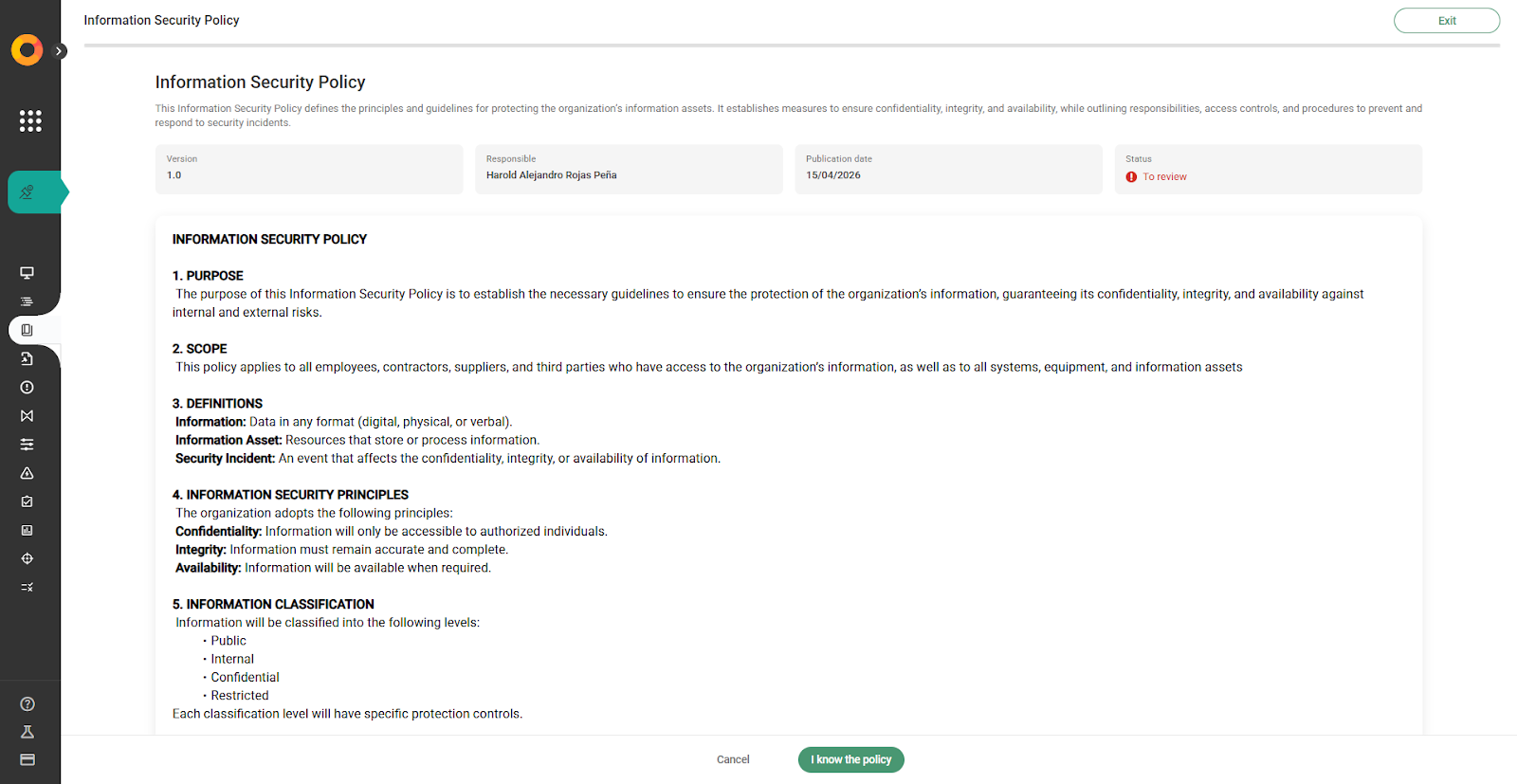
Through this link, recipients will be able to view, read, and manage the document according to the permissions assigned to them.
How to manage versions and changes
If, after some time, the document needs to be updated, it can be moved back to Draft status.
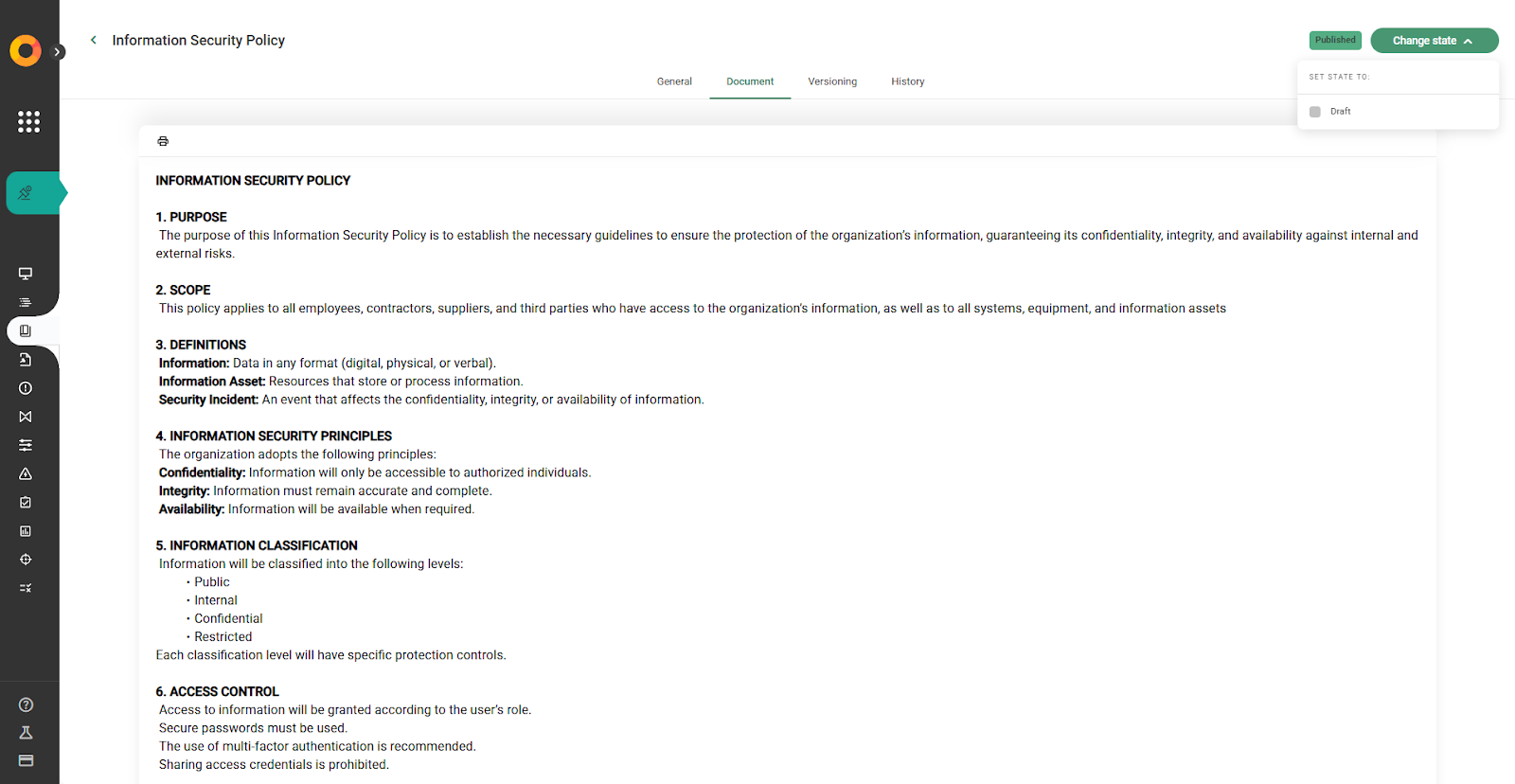
In this case, the previously published version will remain visible to users and stakeholders. However, the document administrator or manager will work on a draft version, allowing them to make the necessary adjustments before publishing it again.
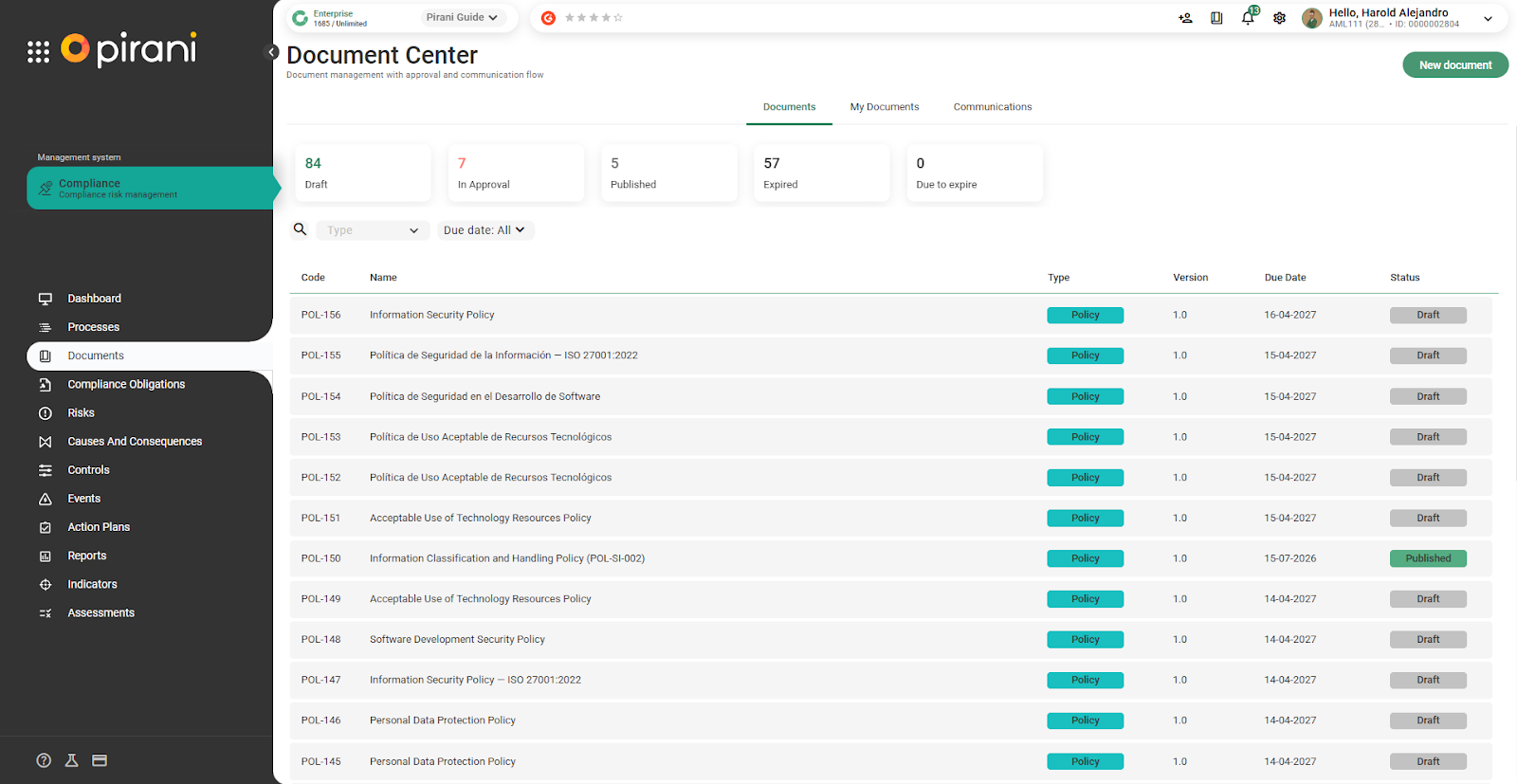
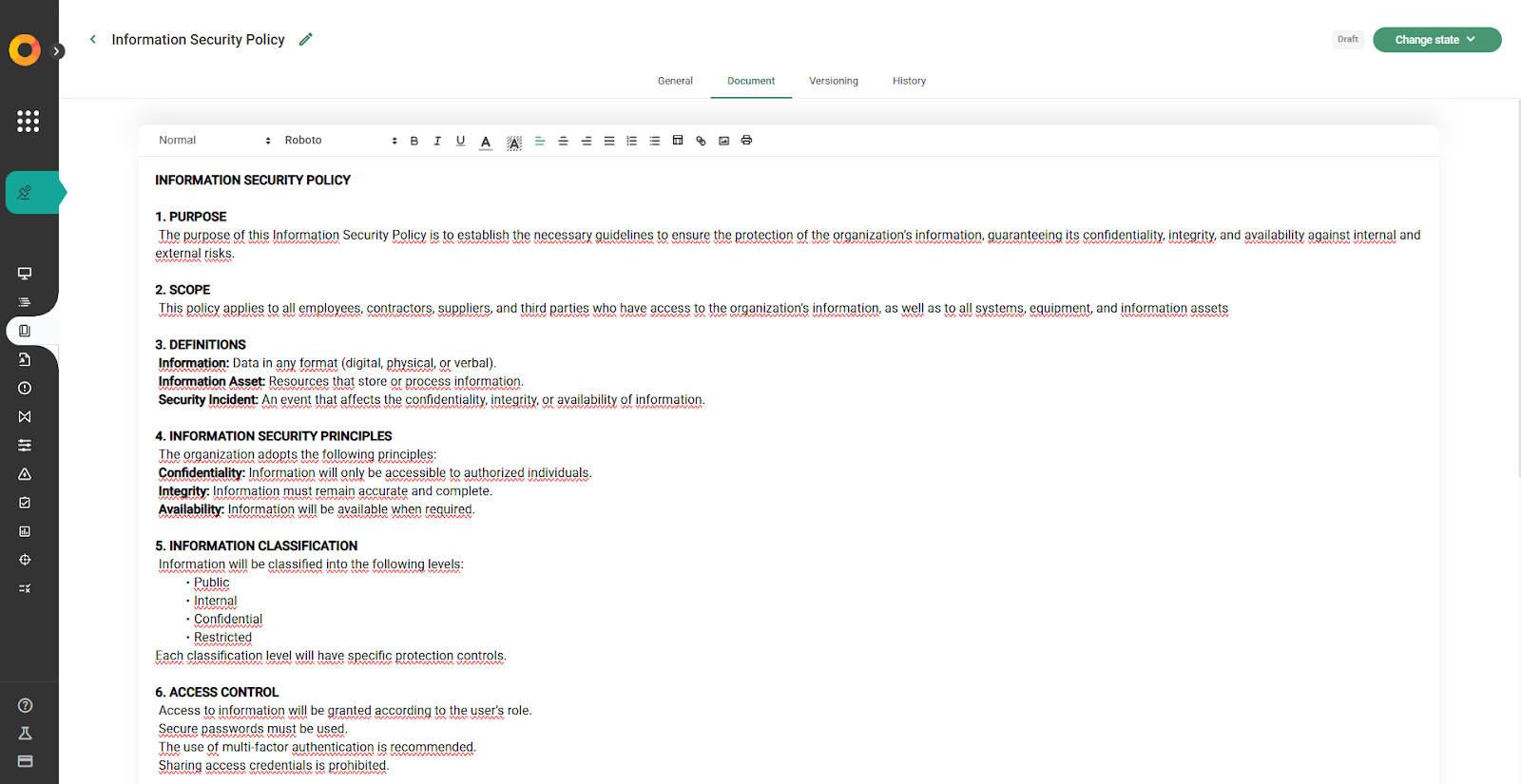
Later, you indicate that you will proceed to update the document, either by fully modifying it, adjusting it, or editing it.
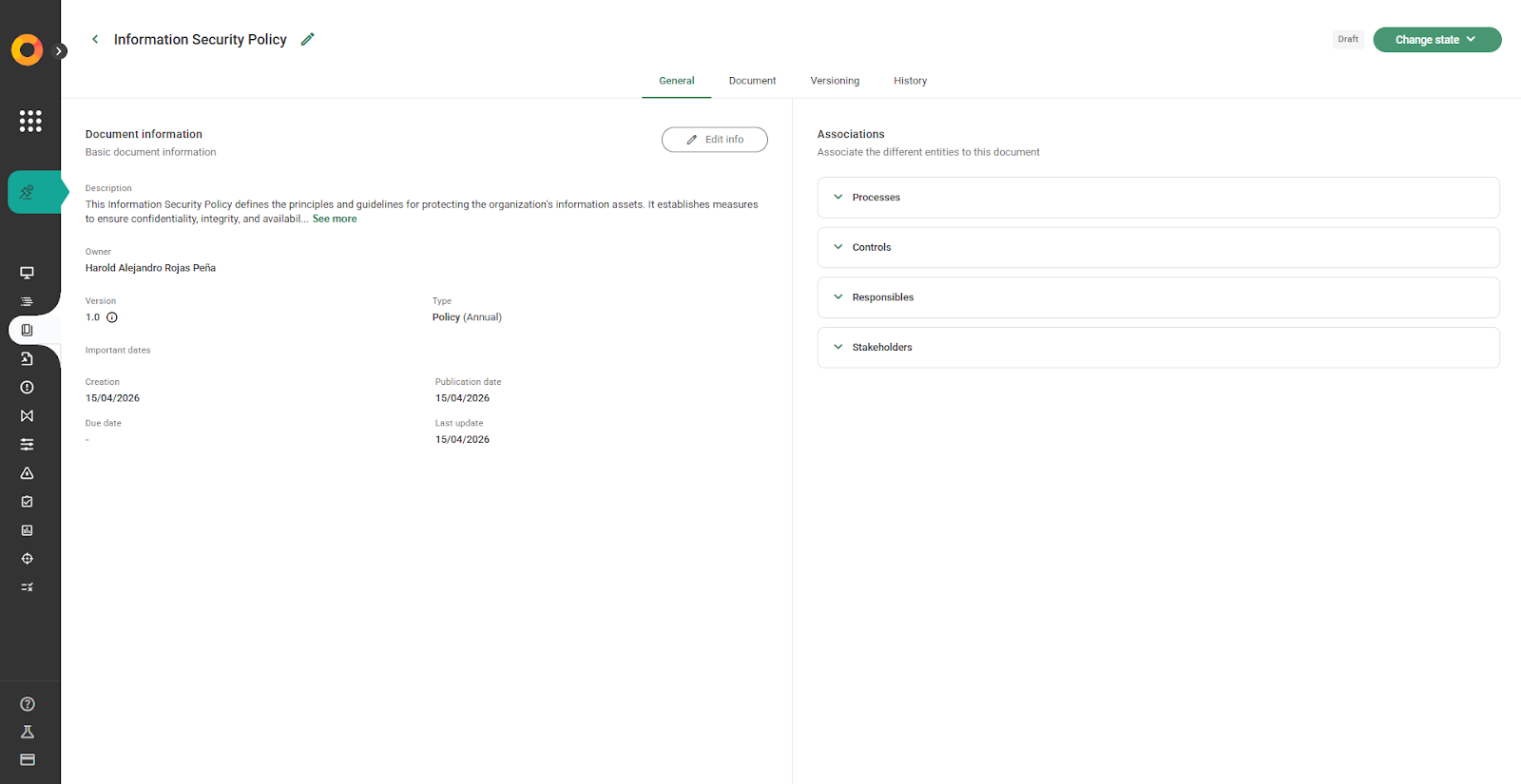
In the general section there are no changes; version 1.0 is retained, as shown below.
Perfect, I’ve made the change. I will now send it for approval.
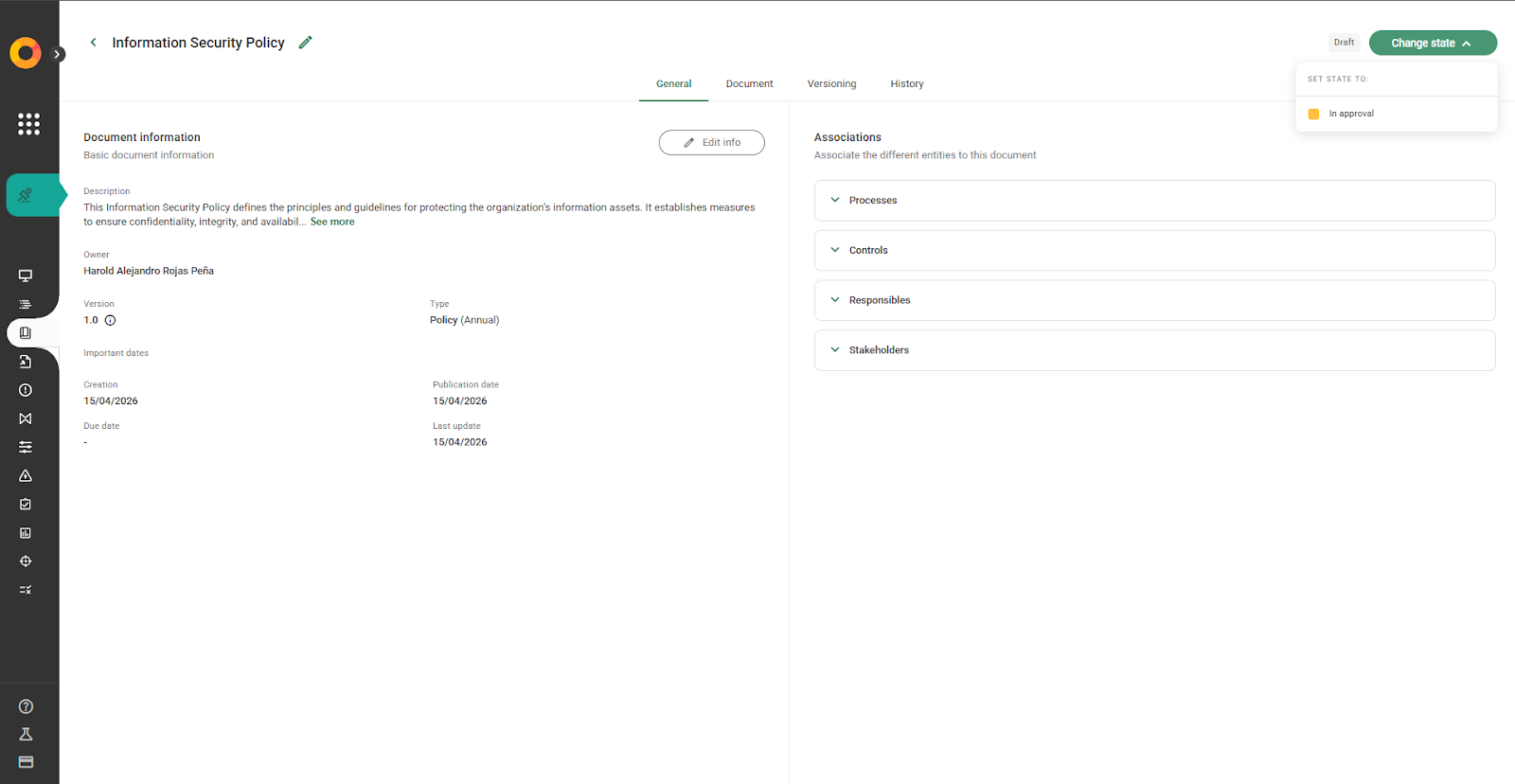
Then, the approval is requested.
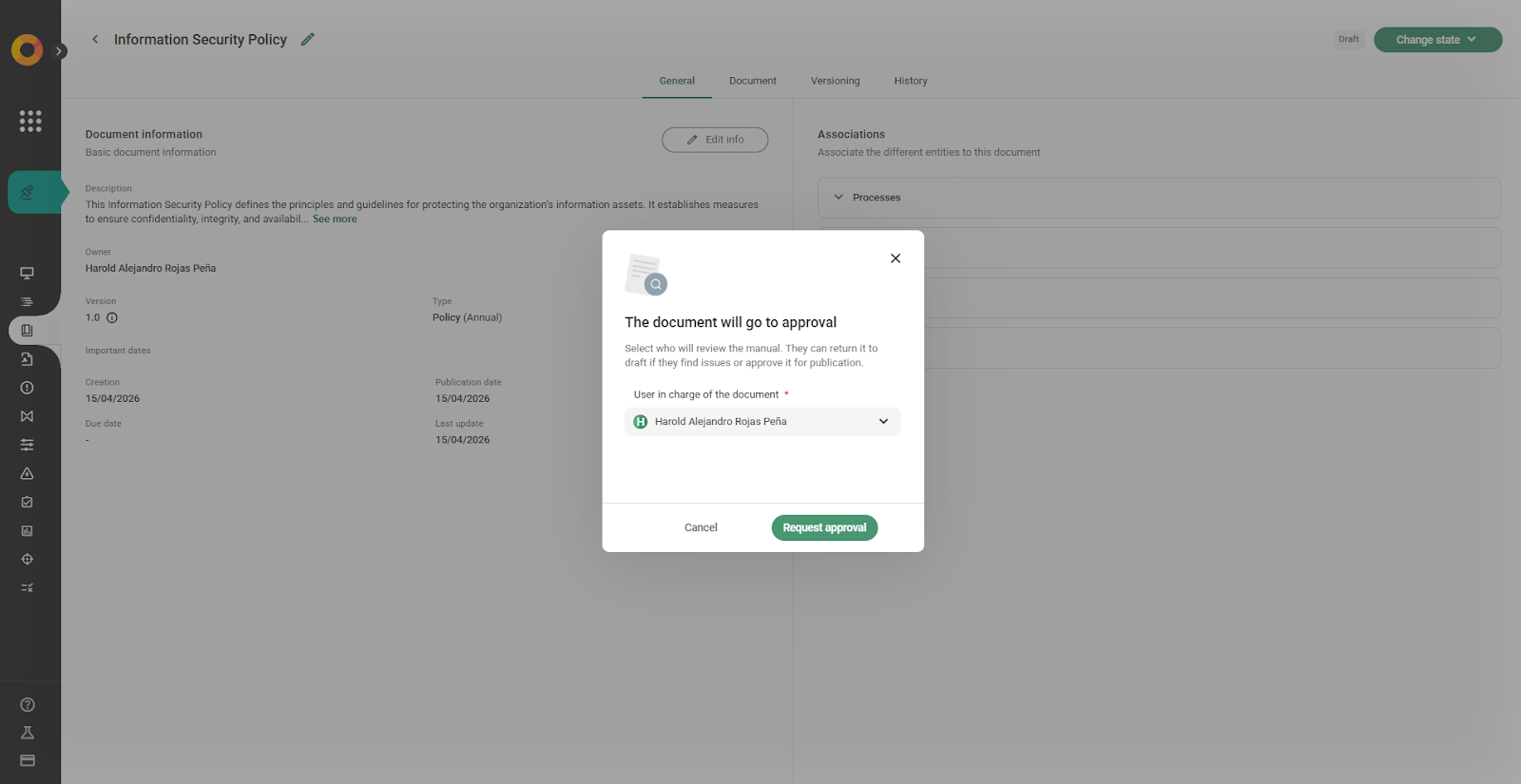
The document remains in approval status and retains version 1.0, since it has not yet been published.
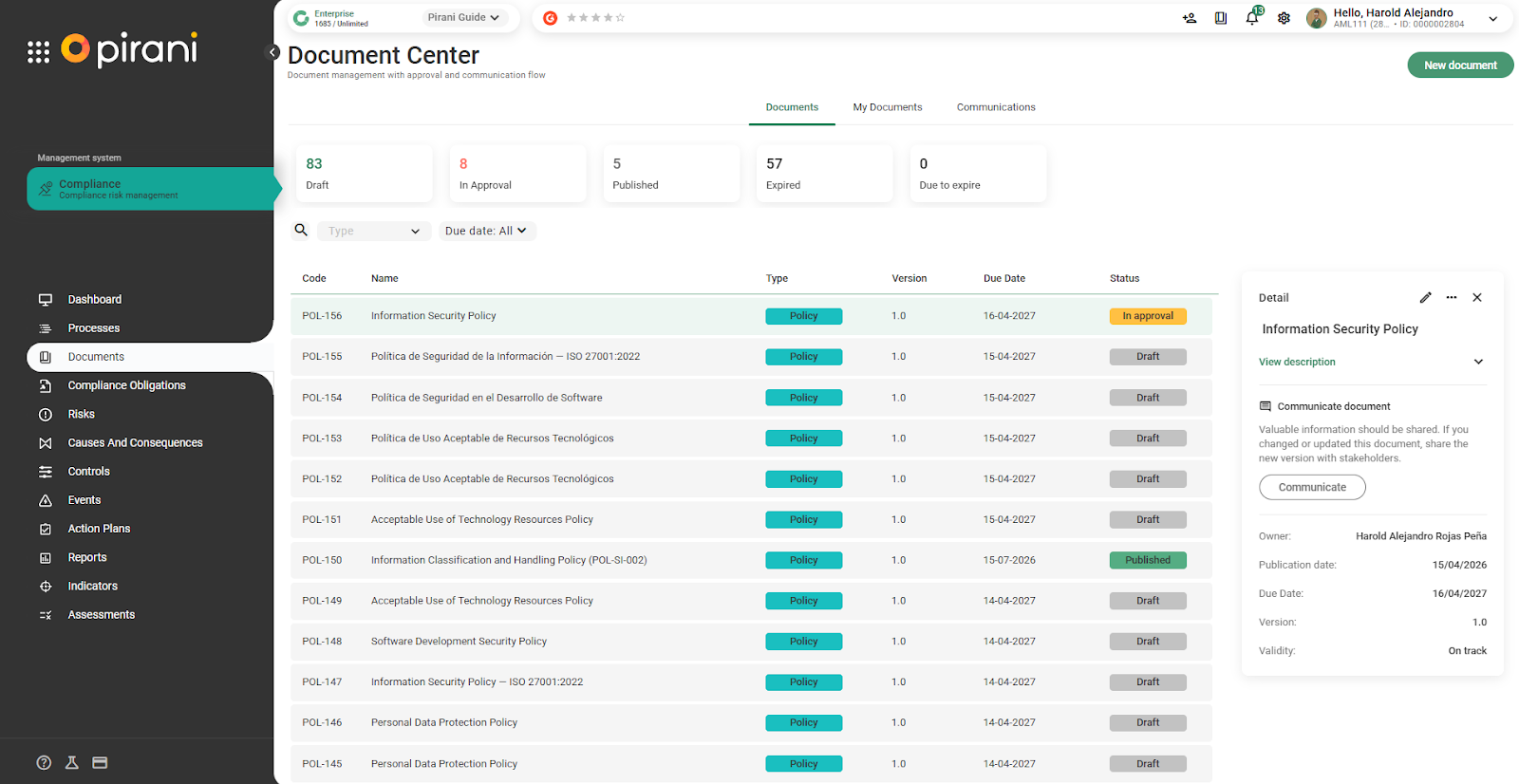
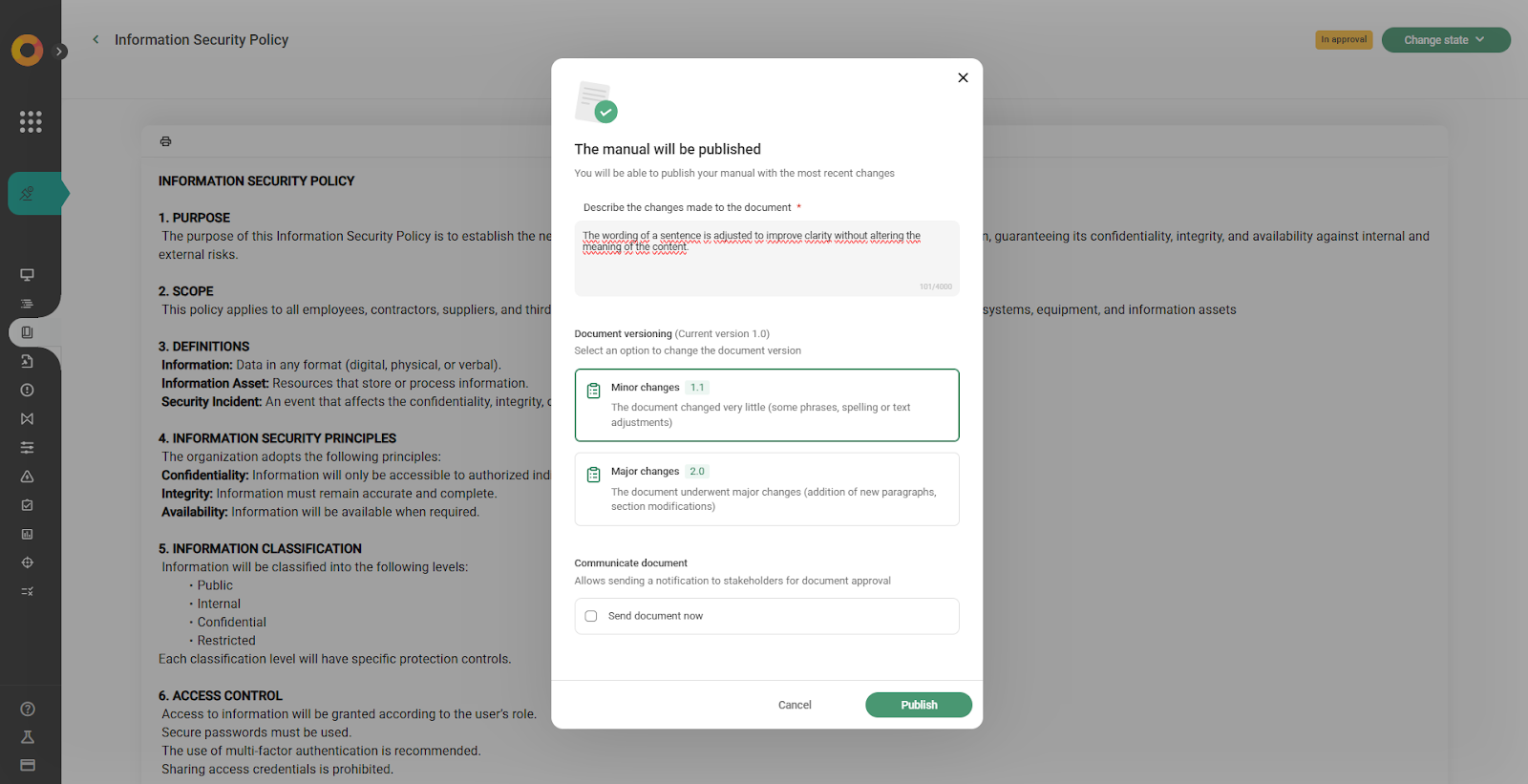
After confirming that everything has been properly reviewed and that the scope has been modified, the document is published.
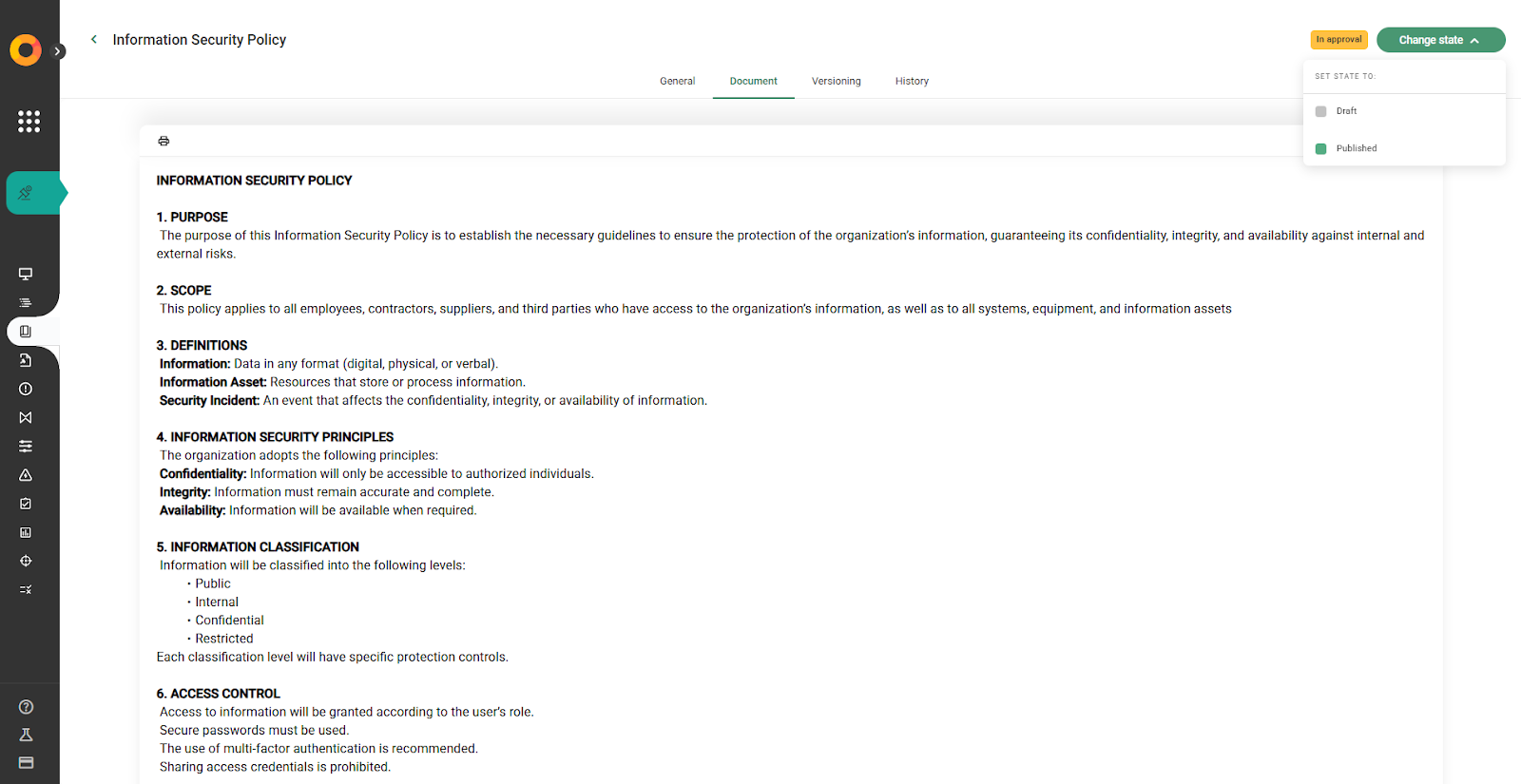
At this point, the view changes and the system displays the details of the changes made to the document. In this case, the wording of a sentence is adjusted to improve clarity without changing the meaning of the content.
Next, the system prompts you to classify the type of change: whether it corresponds to a minor version or a major version.
In this case, it is a minor change, since only the wording of a sentence was adjusted, without affecting the overall structure of the document.
In version management:
- A minor change increases the digit on the right while keeping the main version number unchanged (for example, from 1.0 to 1.1).
- A major change increases the main version number and resets the right-hand digit (for example, from 1.0 to 2.0).
Generally:
- A minor change is considered when there are small adjustments, such as text corrections, spelling fixes, or specific modifications.
- A major change is considered when there are significant modifications, such as adding new sections, structural changes, or important content updates.
For this case, a minor change is selected.
Additionally, it is decided not to send communication, since the adjustment made is minor and does not require notification.
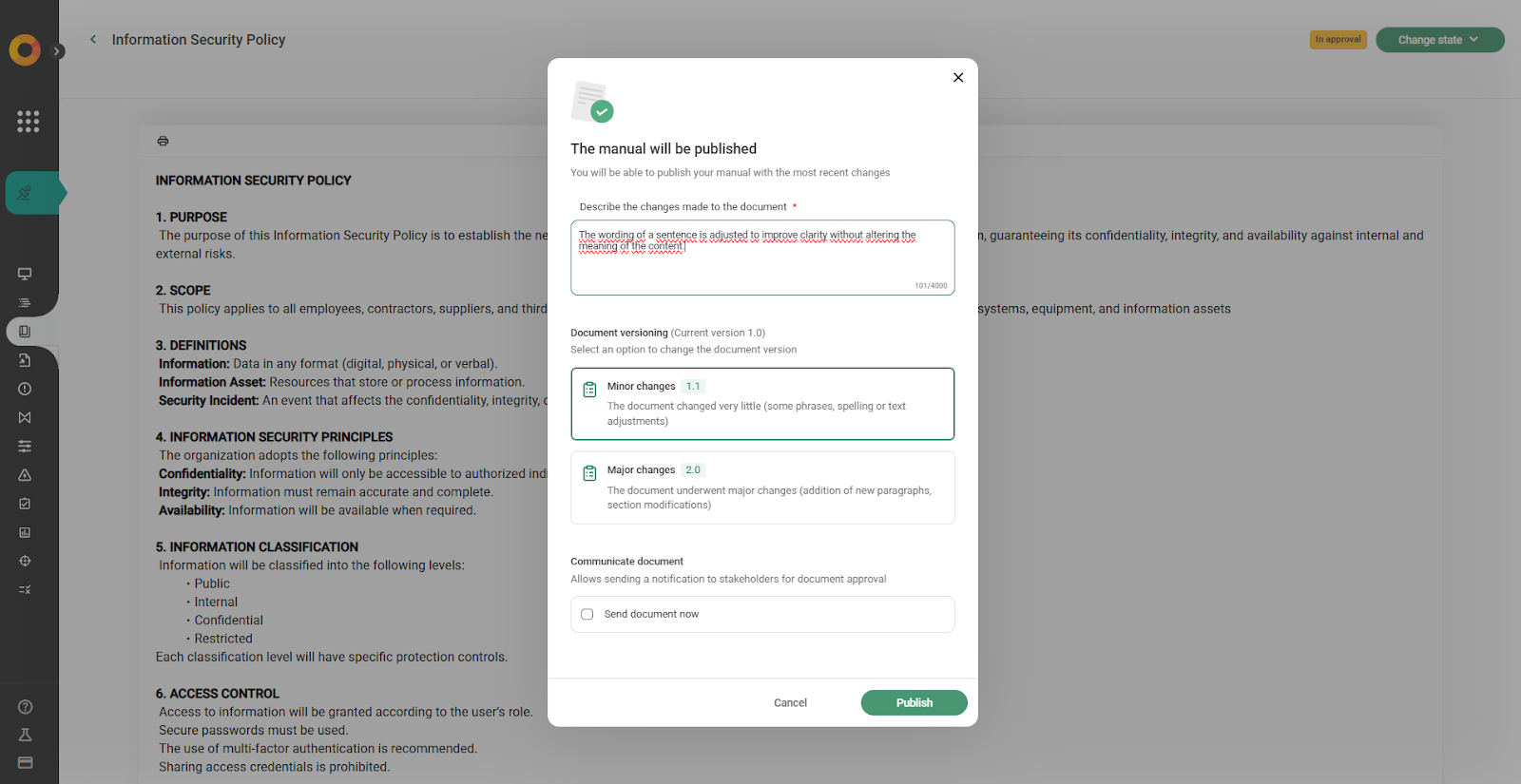
In the case of a major change, the document is communicated to the stakeholders, and recipients such as individuals or groups can be added, as well as the message being customized.
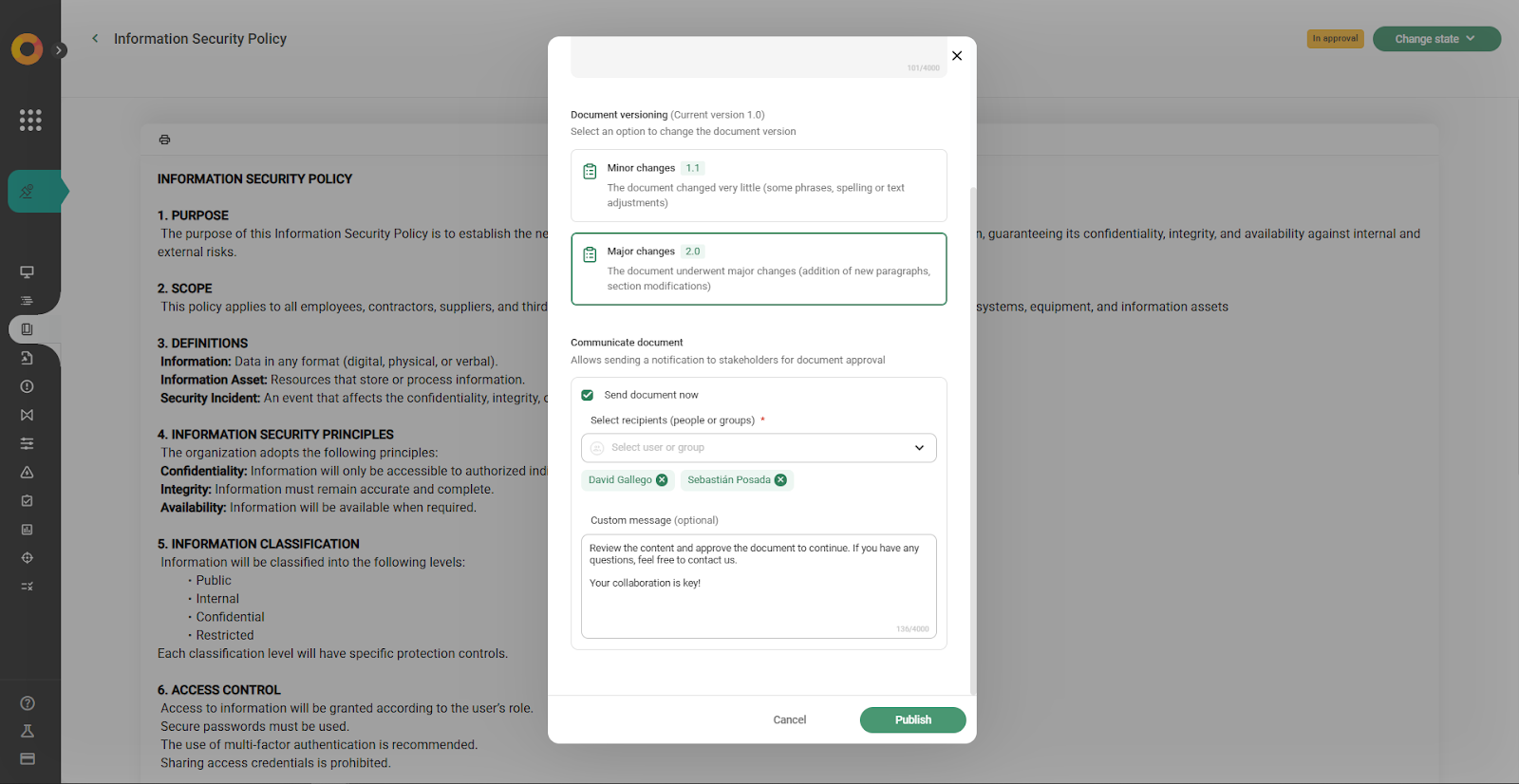
Finally, the document is published, and it is updated in the system.
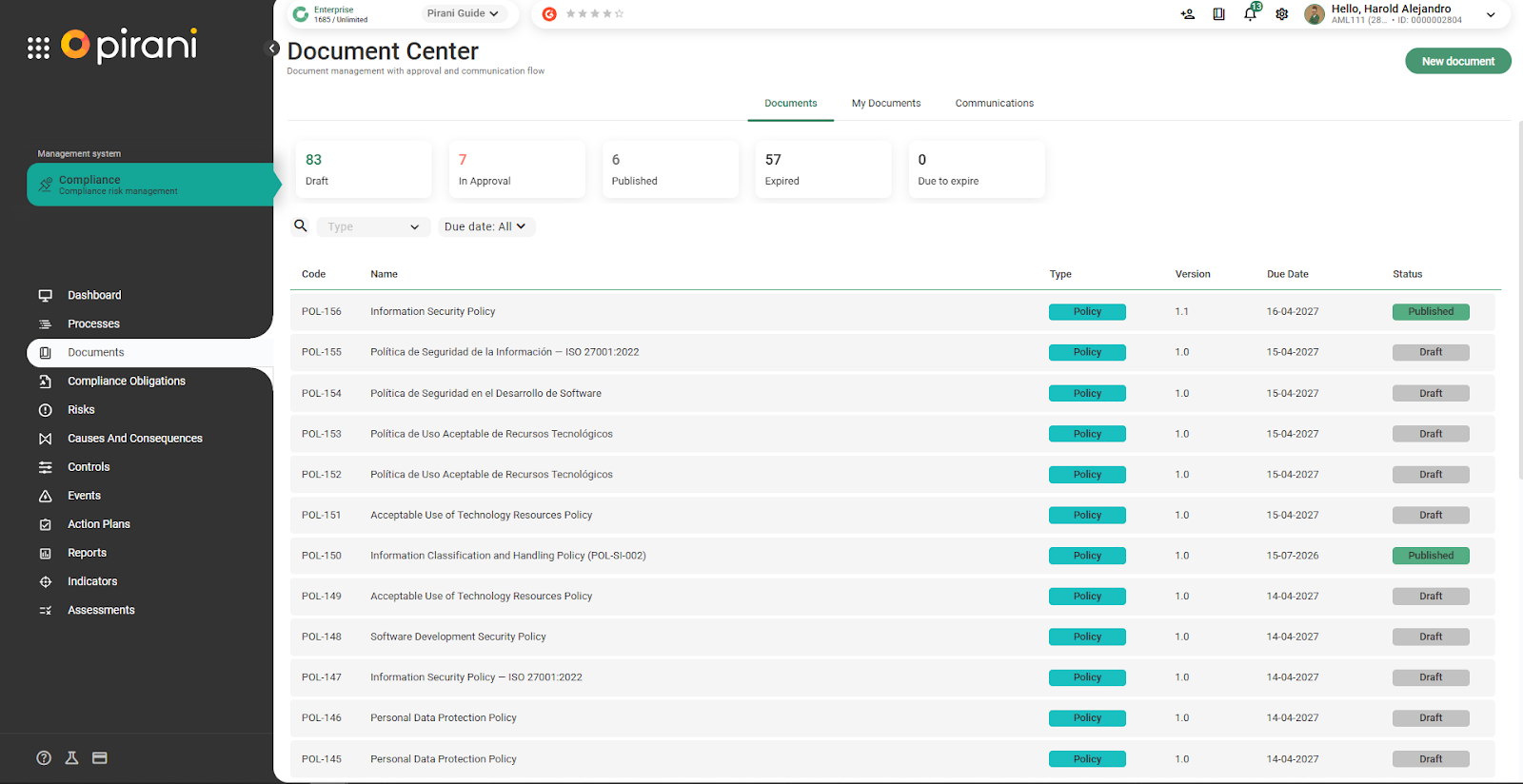
Once published, the document becomes available and updated in the system. In this case, the version is updated to 1.1, as it was a minor change.
This same criterion will continue to apply moving forward, depending on whether the changes are major or minor.
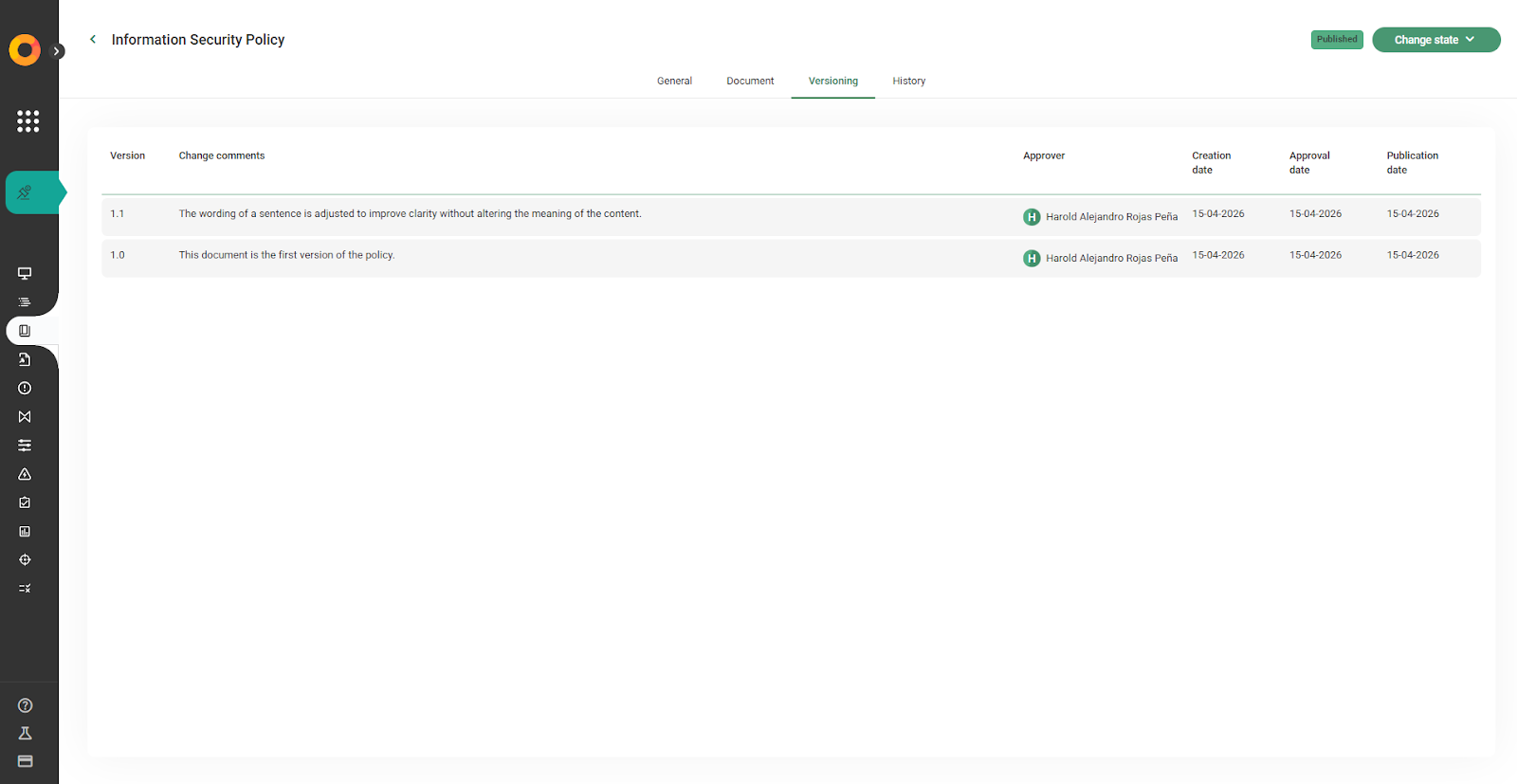
How does the versioning section work?
The document includes a “Versioning” section. This section records the details of the changes made, including what was modified, how it was modified, when it was done, who approved the document, and the corresponding dates.
This section is essential, as it ensures document traceability and is reviewed during audit processes to validate proper document management.
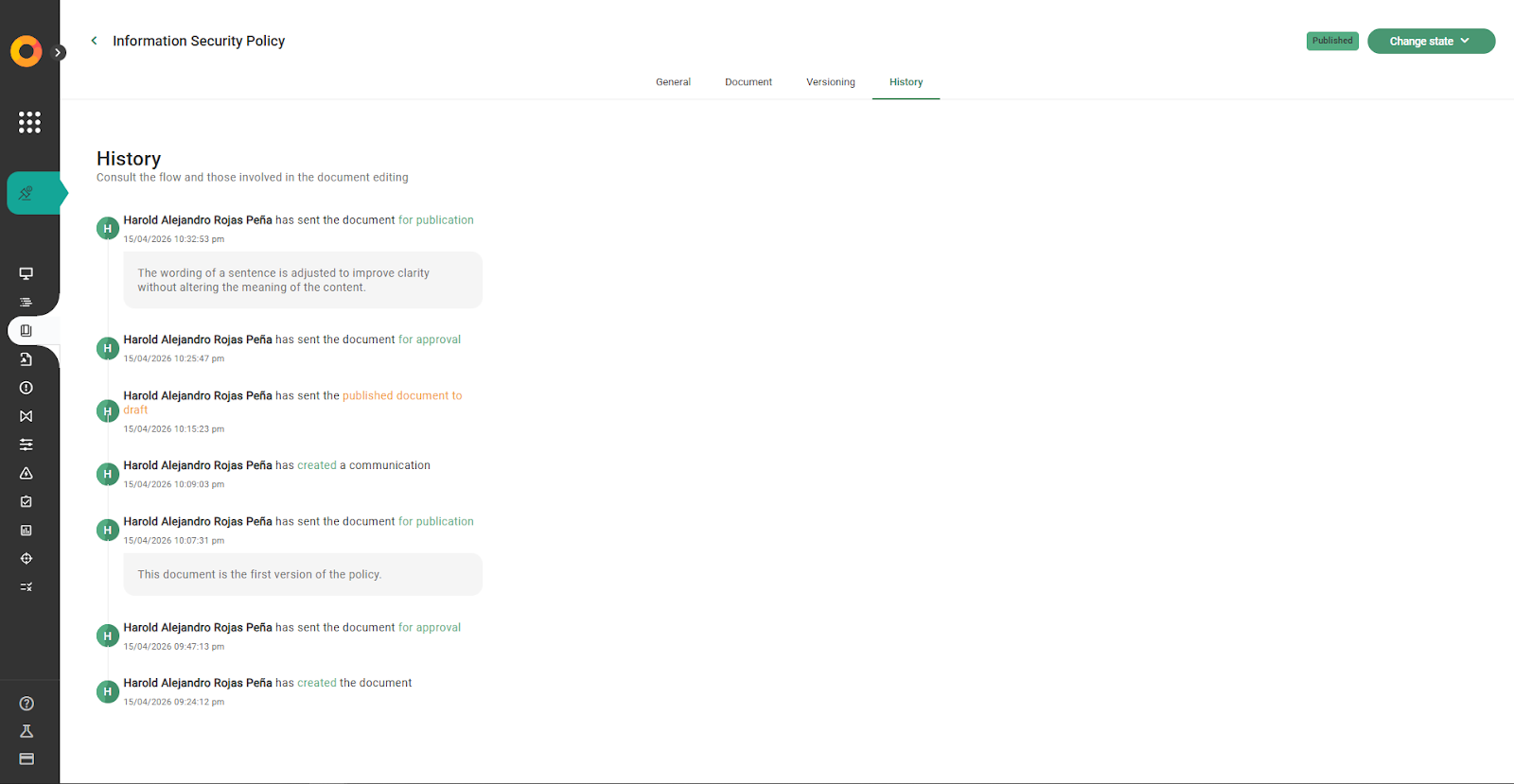
How does the history section work?
The History section records all actions performed on the document.
For example, it shows when the document was published, when it changed to approval status, or even if it was moved back from published to draft.
All actions are organized chronologically, allowing for complete tracking of the document’s management.
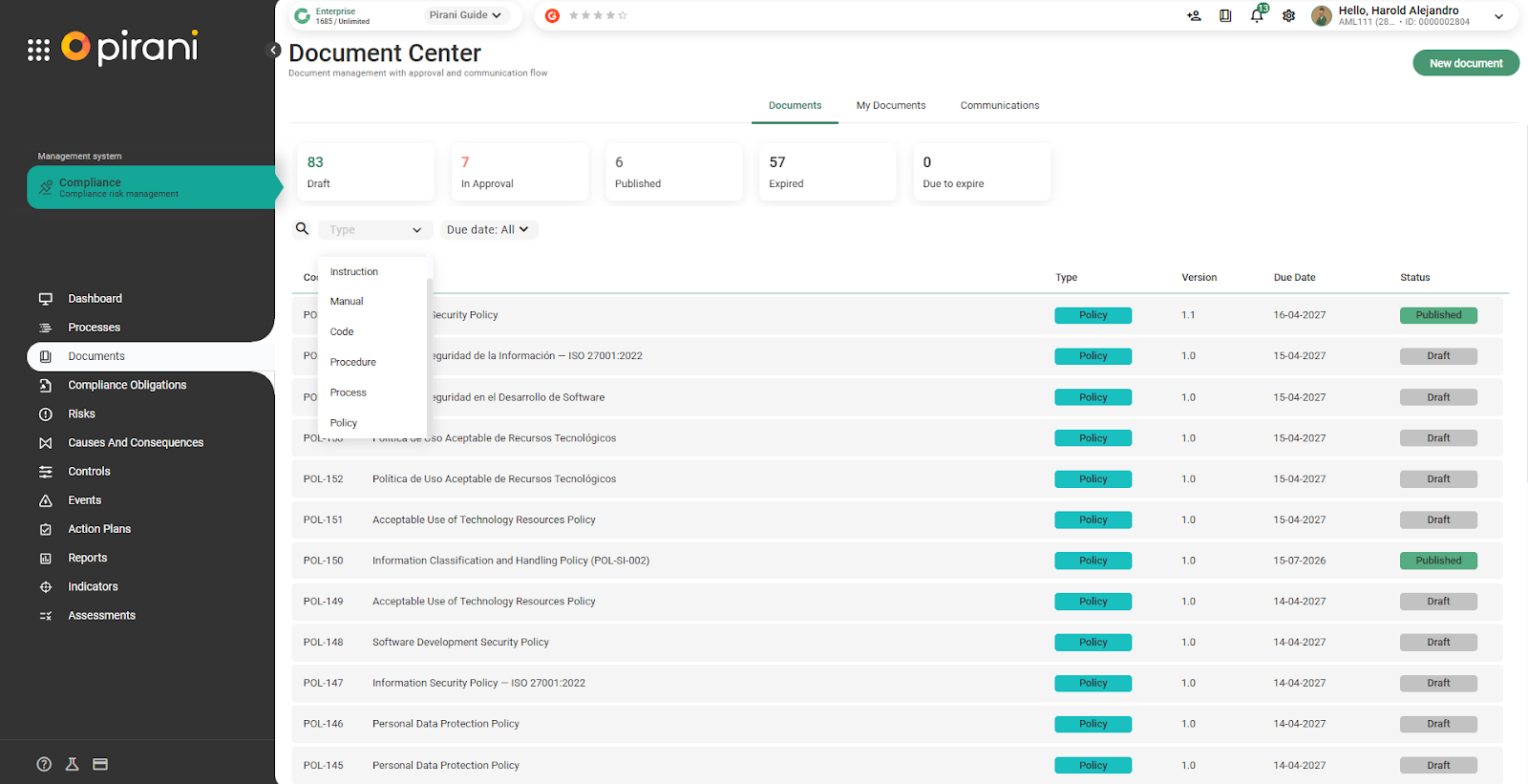
How do filters work?
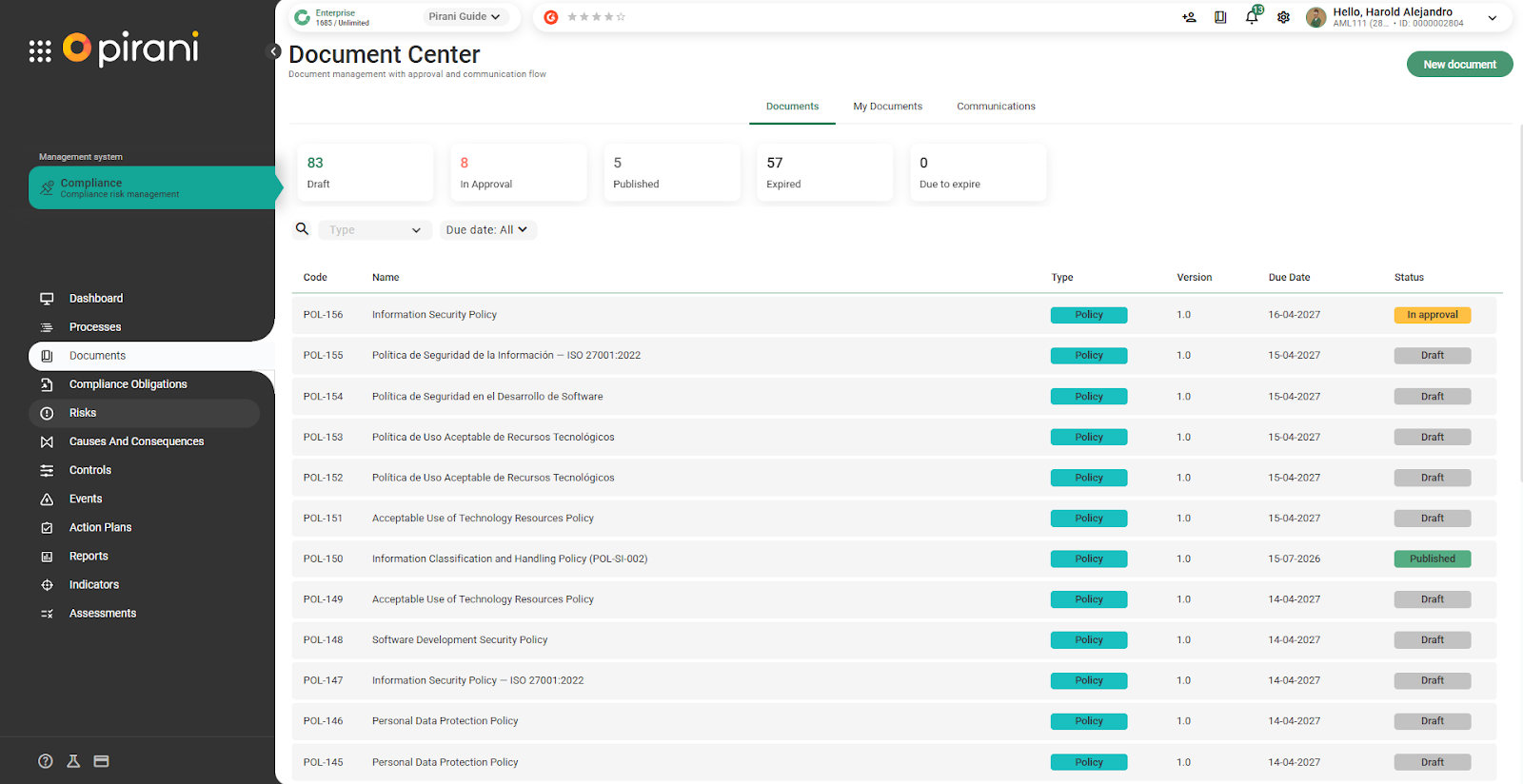
The filters section allows you to refine the display of documents according to different criteria.
For example, you can filter documents that are published, those that have expired, or any other relevant status.
This makes it easier to search for and manage information within the system.
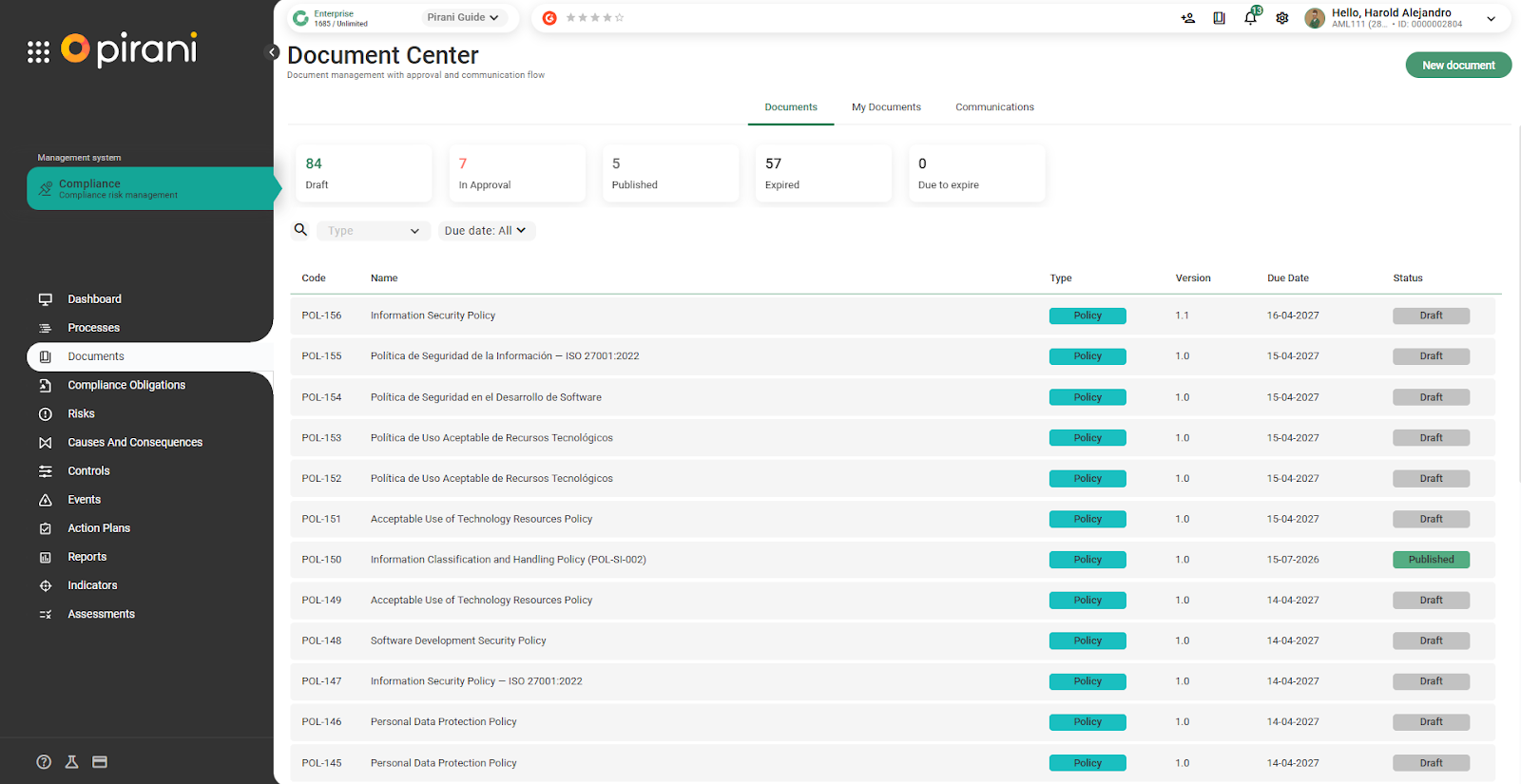
How does the document deprecation section work?
It is possible to deprecate a document that has already been published.
When a document is deprecated, it is no longer available to stakeholders and becomes a historical record.
This is used for documents that are no longer actively used, but still need to be retained as a reference.
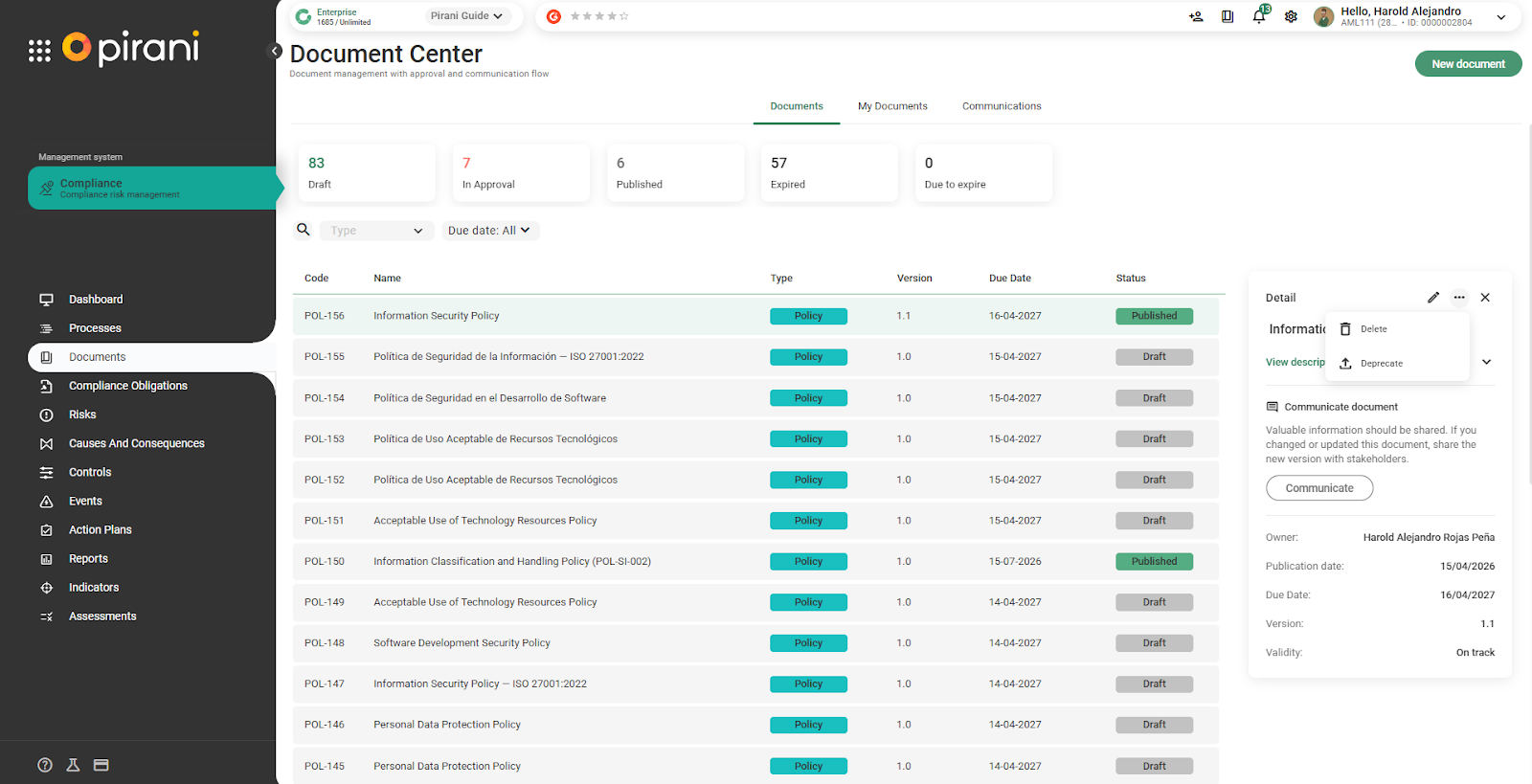
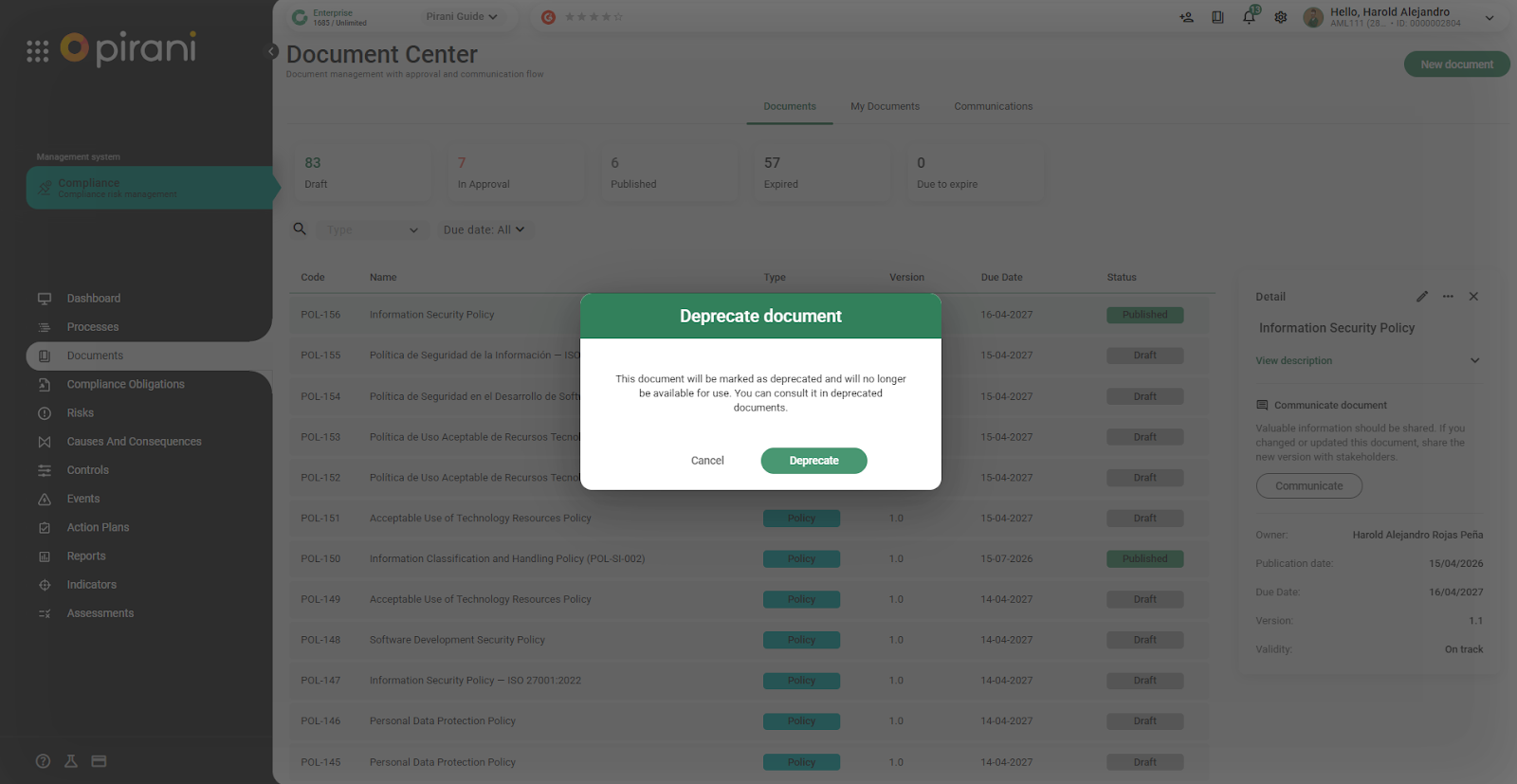
Once the “Deprecate” option is selected, the document is marked as deprecated and is no longer active for use.
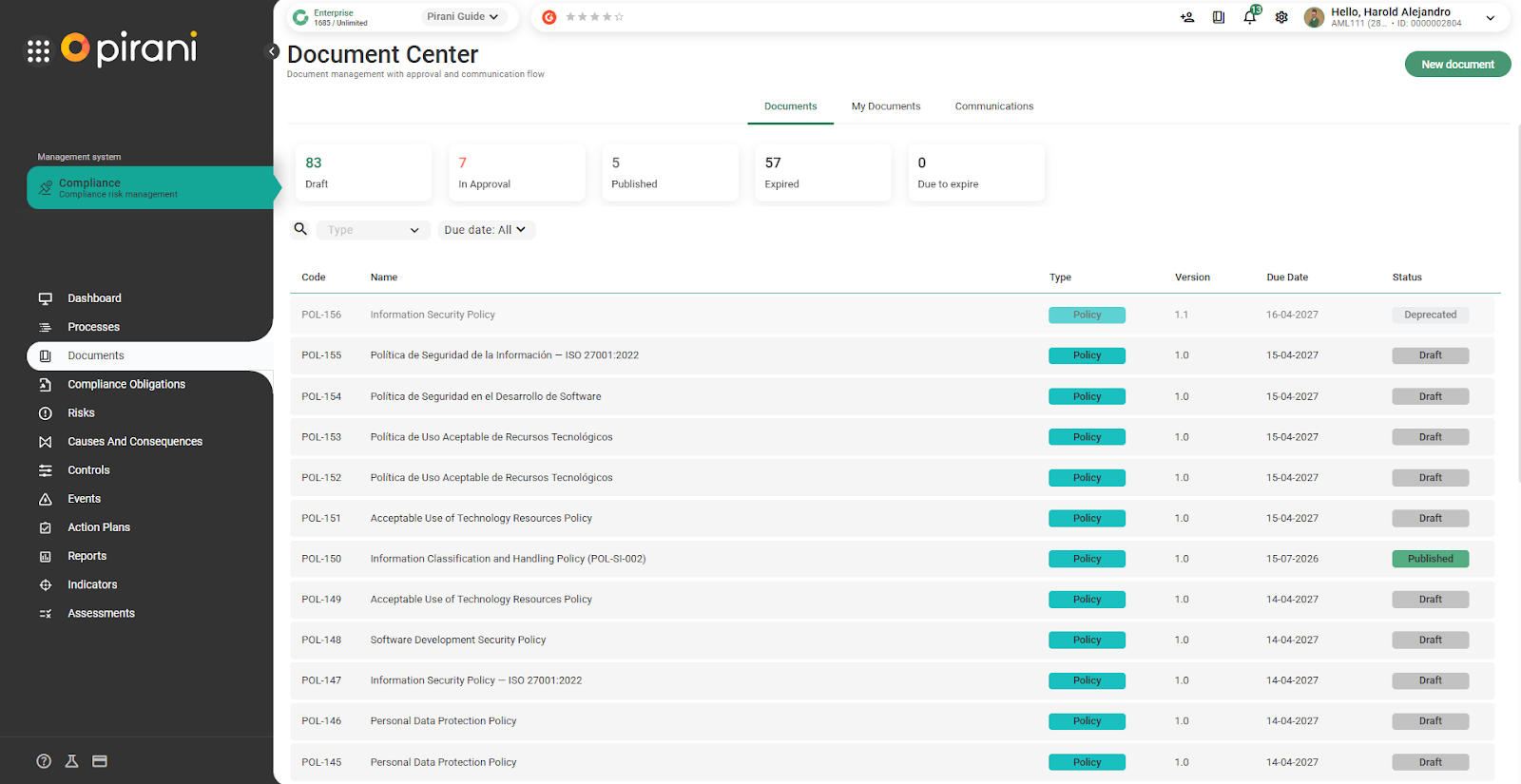
To view all documents, including deprecated ones, you can use the system’s view option or filters.
In this way, deprecated documents remain available as historical records and can be consulted at any time.
How can I restore documents?
A document that has been deprecated can be restored when necessary.
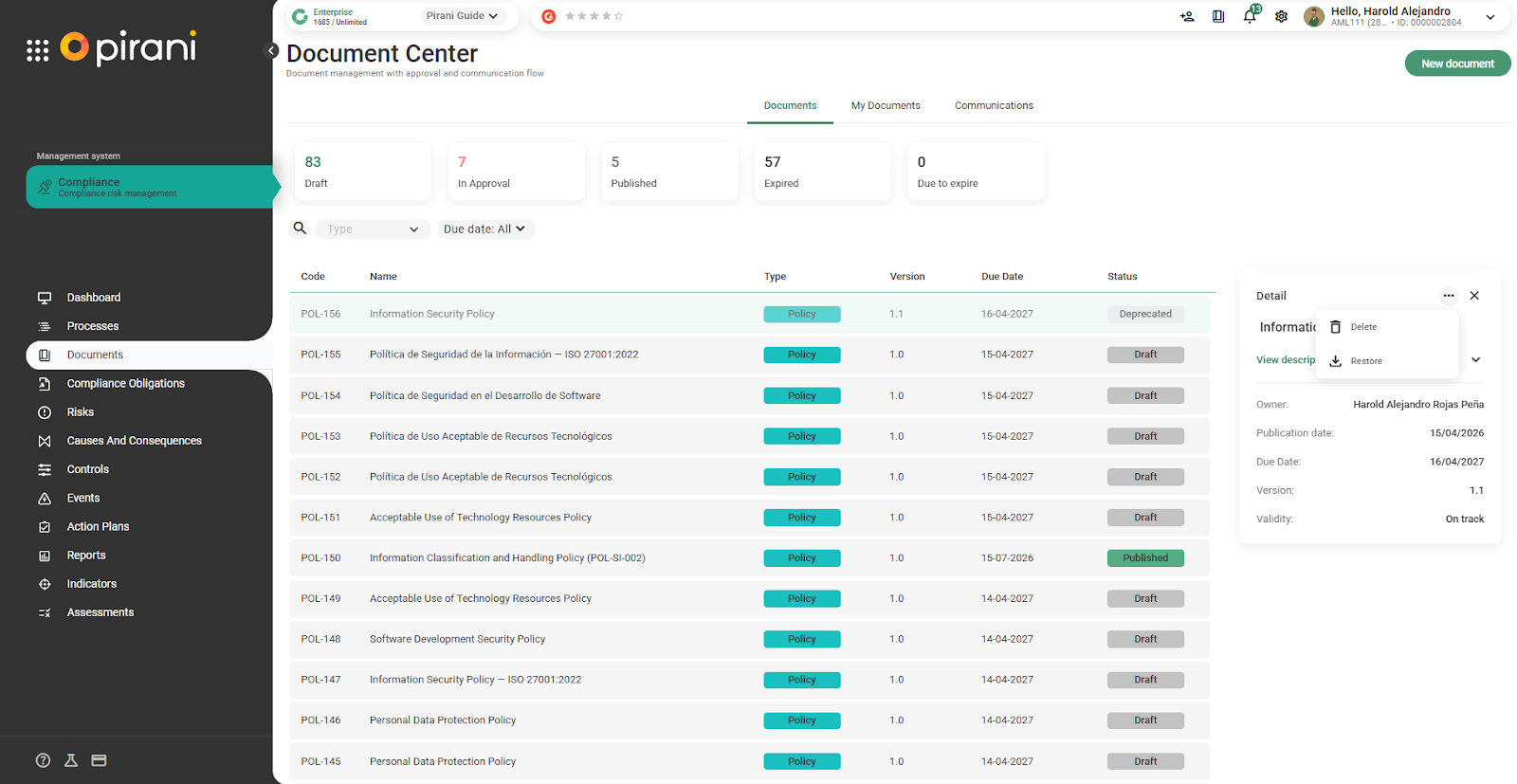
When restored, the document returns to Draft status and must go through the review flow again, including approval and all corresponding processes within the system.
This allows documents that were previously deactivated to be reactivated and fully managed again.
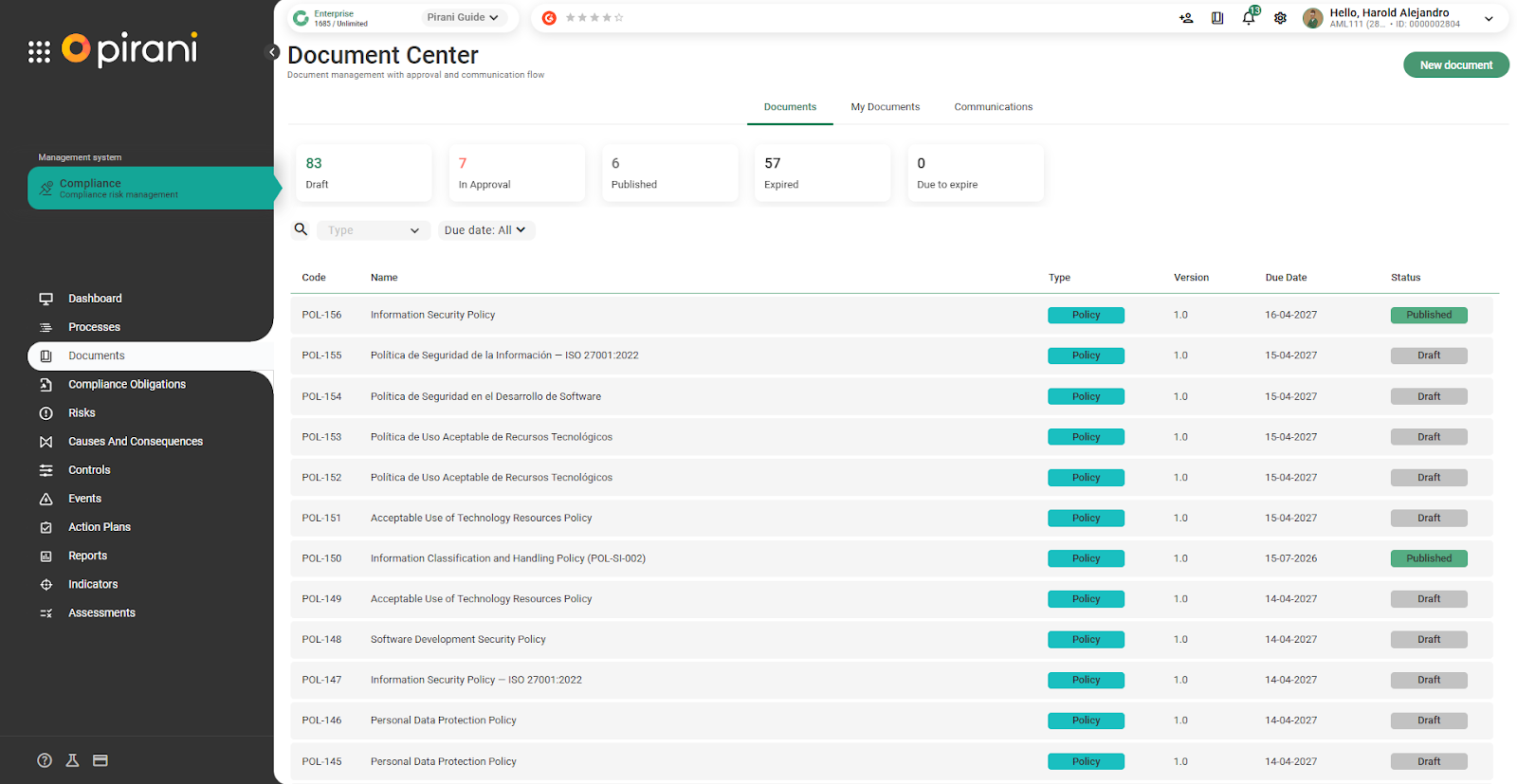
How does the “My Documents” tab work?
The “My Documents” tab is a personalized view for users who are stakeholders in one or more published documents. From here, each user can consult, review, and manage the documents assigned to them without needing to access the general Documents module.
Who can see “My Documents”?
There are two user profiles that have access to this section:
- Stakeholders
These are users who have been associated with a document as stakeholders. When a document is published, it will automatically appear in their “My Documents” tab with the corresponding status. - Document module administrator
The person who belongs to the document administration group can view all documents in the module, including the “My Documents” view, with full access to the information.
💡 Important:
The creator or owner of the document accesses its management through the general Documents module. The “My Documents” tab is intended for those who need to review or consult published documents.
What information does “My Documents” show?
When entering this section, the user will see a general overview with:
- Number of documents pending review
- Number of documents already reviewed
- Documents assigned for consultation only
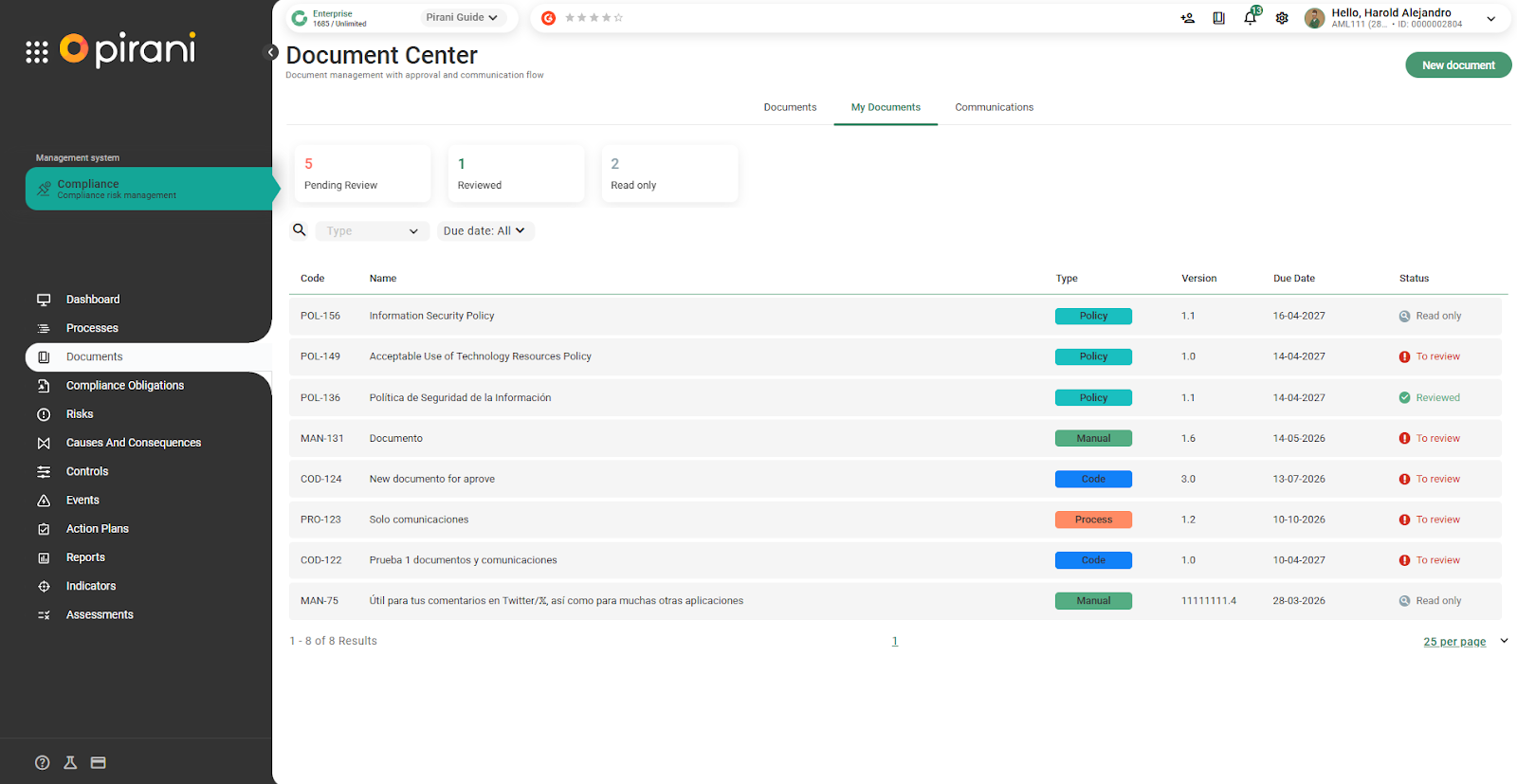
Additionally, for each document, the following information is displayed:
- Document name and description
- Published version
- Person responsible for the document
- Publication date
- Status
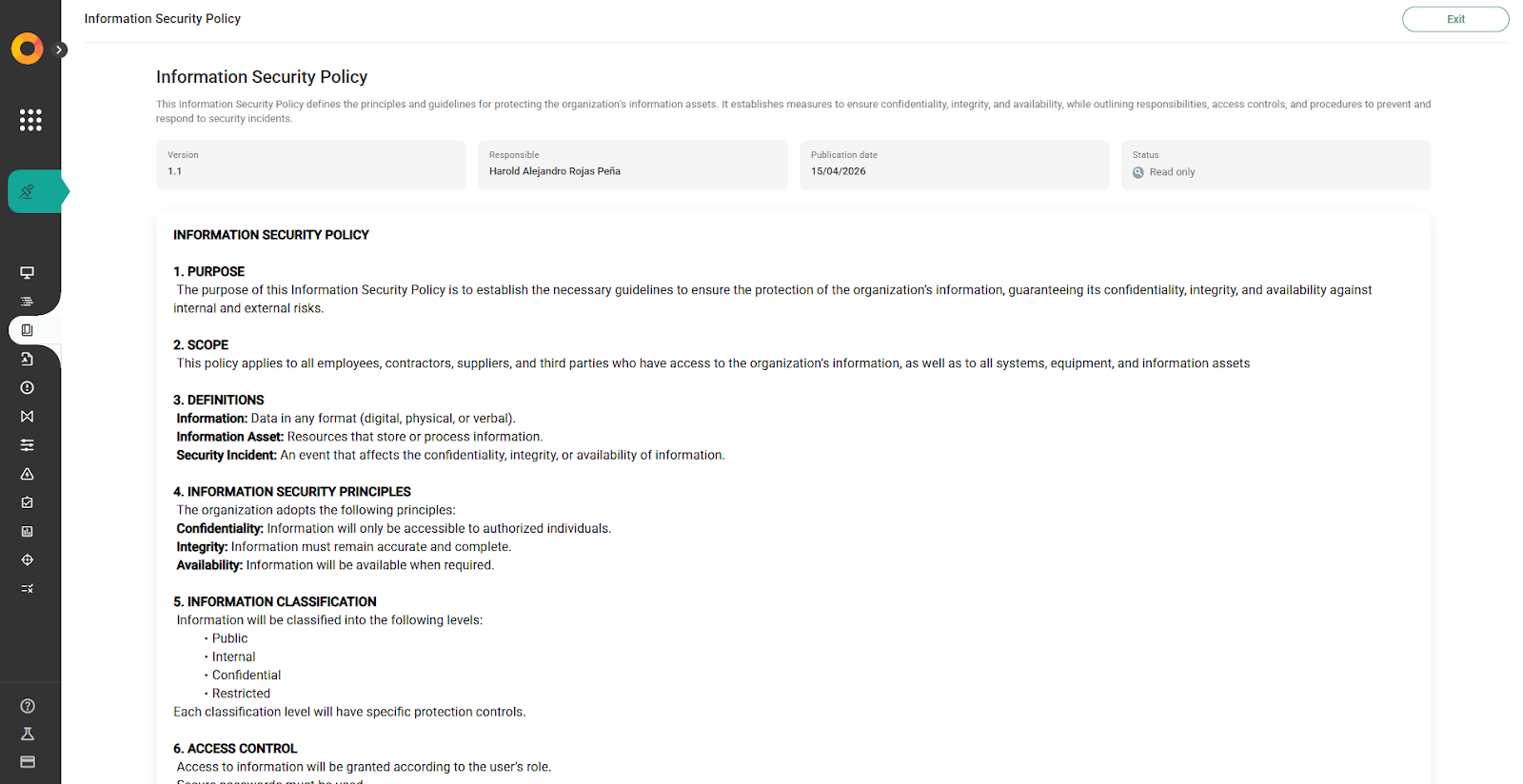
What are the statuses of a document in “My Documents”?
Each document can appear in one of the following three statuses:
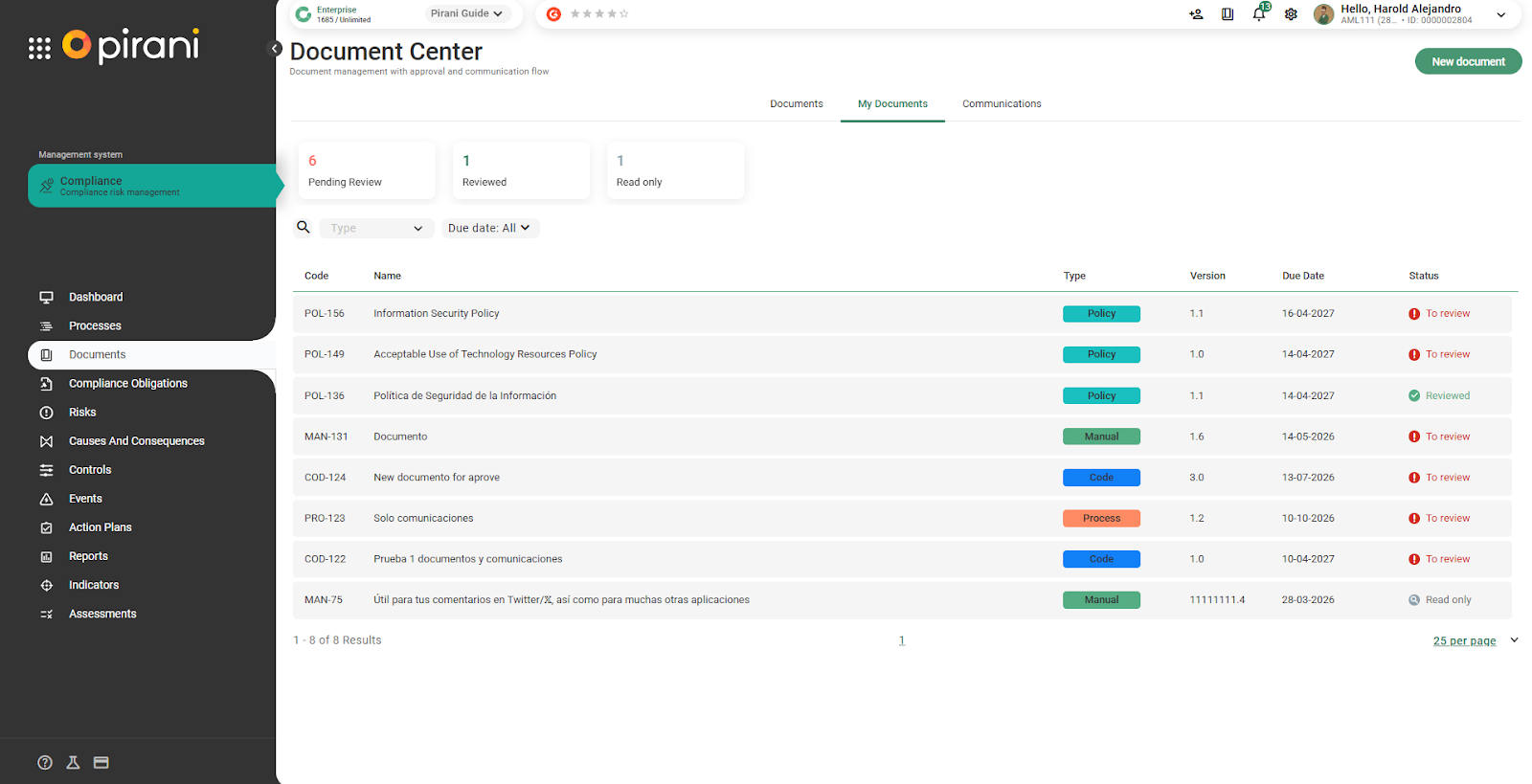
- To review: The document has been published and the user has not yet reviewed it.
- Reviewed: The user has already marked the document as read and acknowledged.
- For consultation: The document is available for viewing only, with no read confirmation required.
How to mark a document as reviewed
1. Go to the “My Documents” tab.
2. Select the document that appears as “To review”.
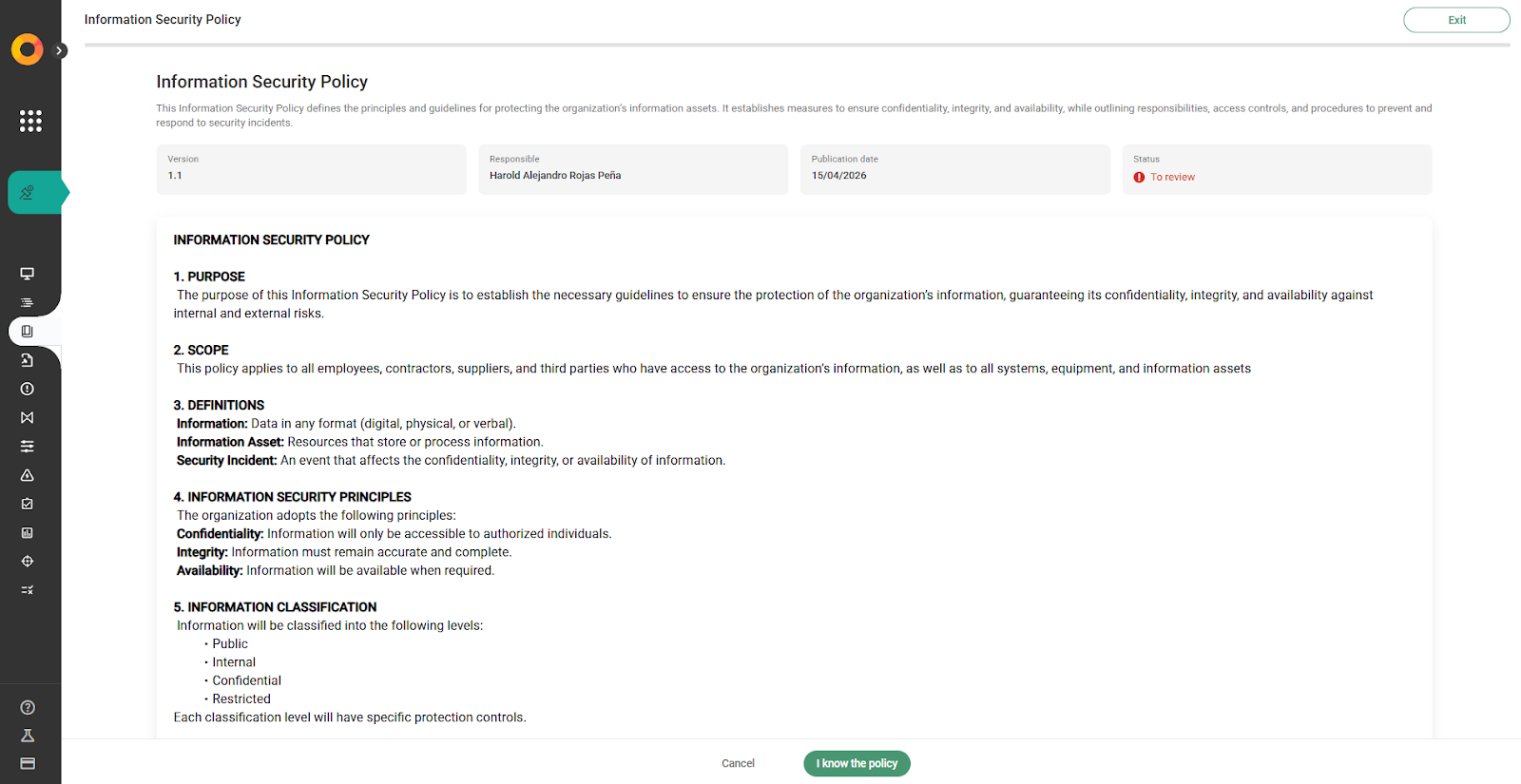
3. Review the content of the document.
4. Click on “Acknowledge policy” (or the equivalent button depending on the type of document).
5. The system will automatically mark the document as Reviewed.
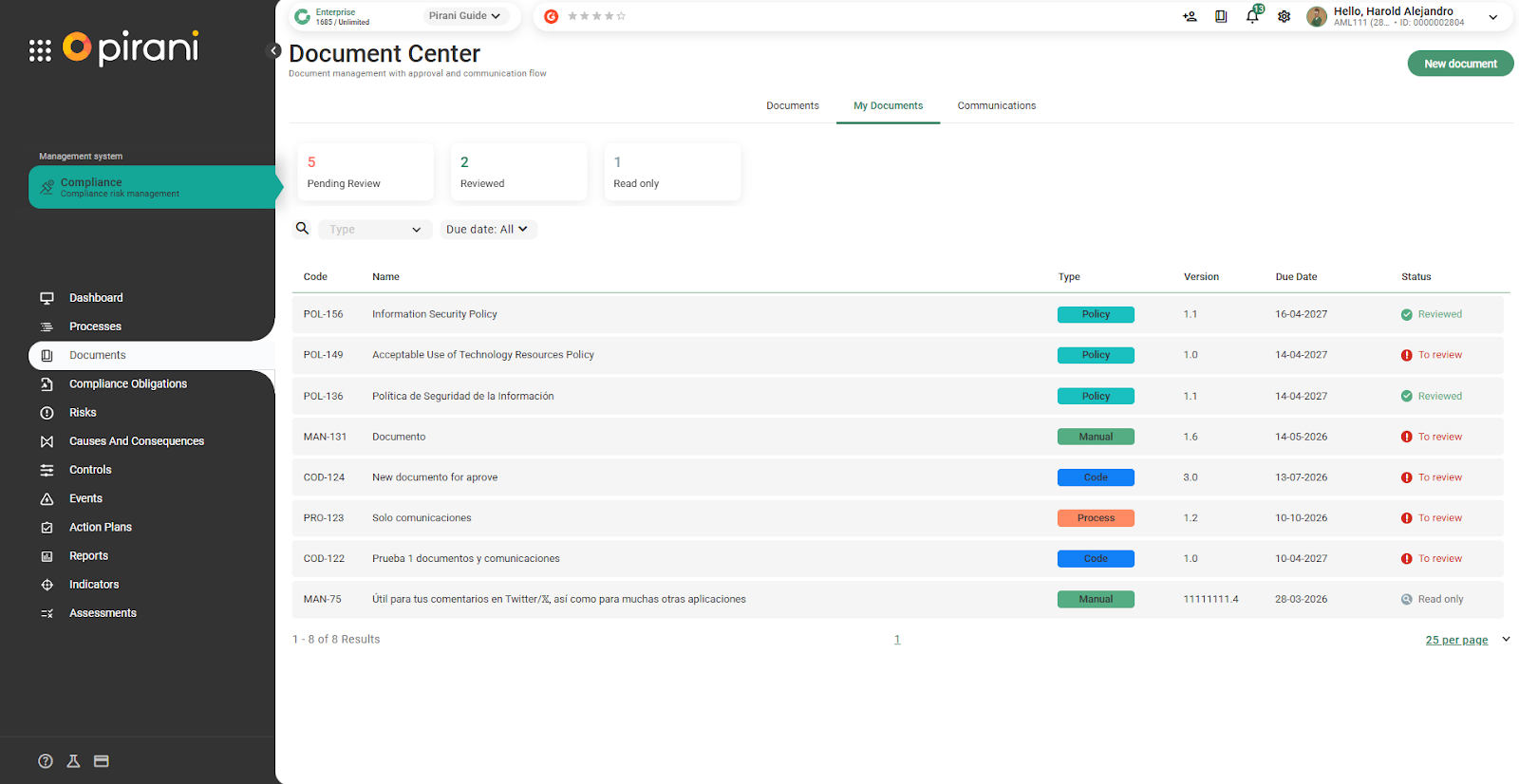
💡 This record is stored in the system and can be consulted in the Communications section by the document administrator.
How do I know if I have a pending document?
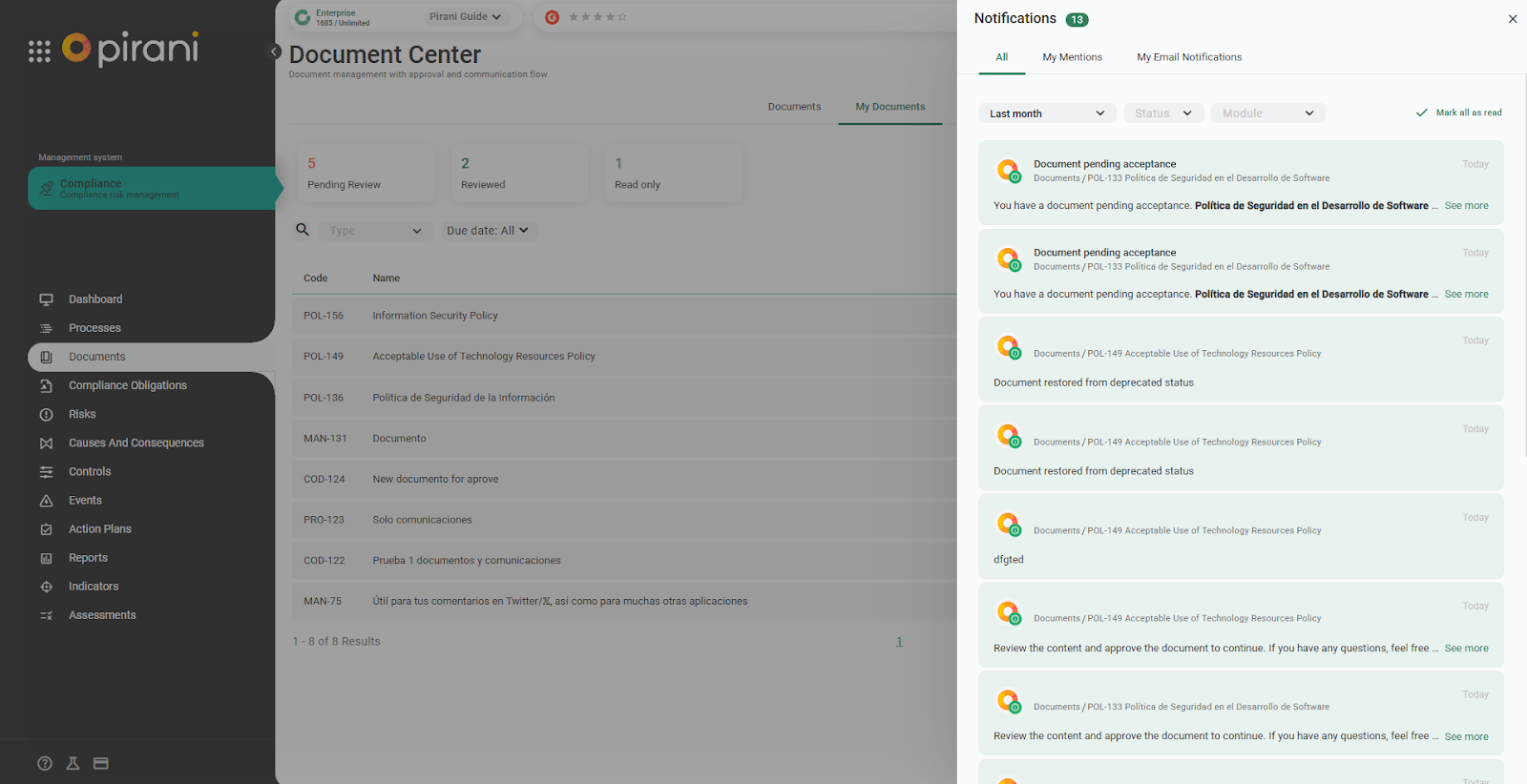
When a new document or a new version is published, the system notifies stakeholders through:
- Email: A message is sent with the document details and a direct link to access it.
- In-platform notification: An alert appears in the notification bell within the system.
Through the email or notification, the user can directly access the document to review it and mark it as acknowledged.
How does the Communications section work?
The Communications tab allows the document administrator to track and maintain traceability of all communications sent for each published document.
What can I see in Communications?
From this section, you can view the communication history sent for a document, including:
- How many times the document has been communicated
- The individuals or groups it was sent to
- Who has already reviewed the document (Accepted)
- Who is still pending review
- The total number of recipients (including group members)
💡 When a group is notified, the system automatically calculates the number of users within that group and includes them in the recipient count.
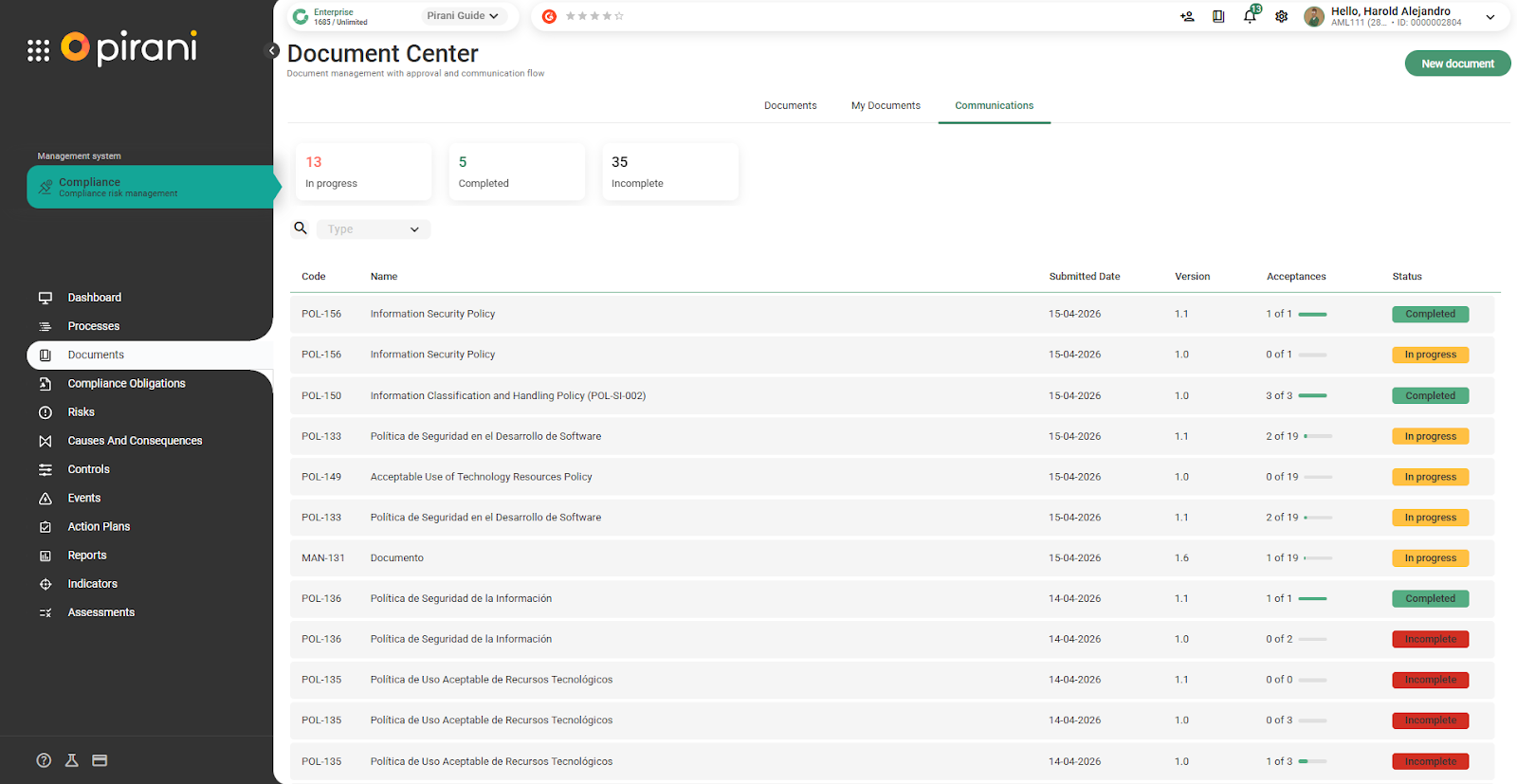
How to send a reminder
If a user has not reviewed the document and the due date is approaching, it is possible to send a reminder from the Communications section.
1. Identify users with a Pending review status within the document states under “In progress”.
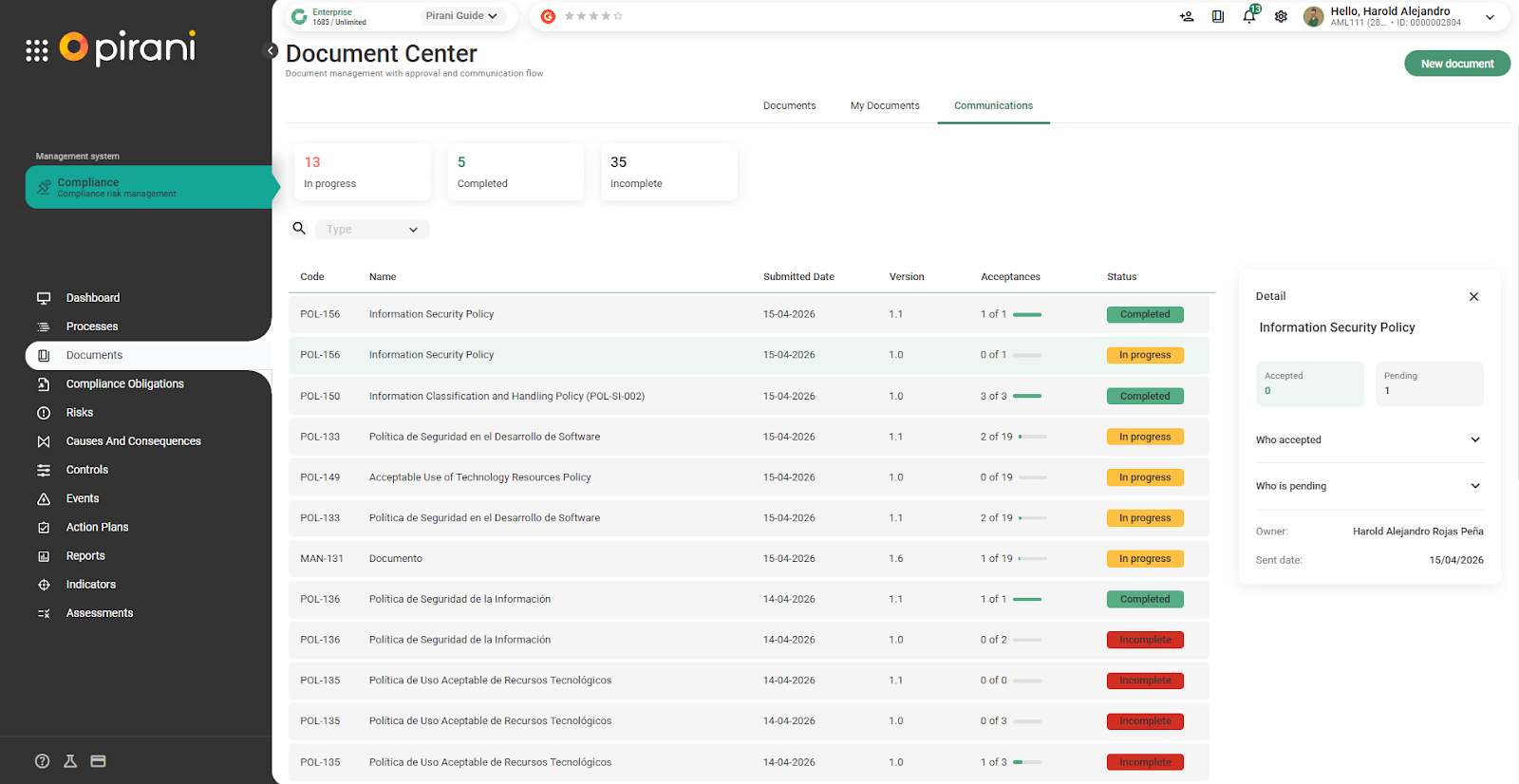
2. Click on the “Send reminder” option.
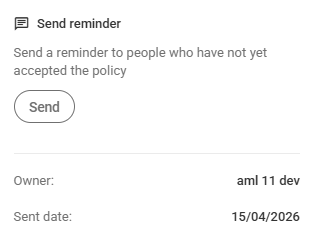
3. The system will automatically send a notification via email and/or the system notification bell.
The recipient will receive the reminder and, upon entering the system, will be redirected directly to the document to complete their review.
Who can use the Communications section?
This section is intended for the document administrator or module manager, as its main purpose is to:
- Verify that the correct people have reviewed the published documents
- Send reminders when necessary
- Meet document traceability and audit requirements
How does creating a document from a template work? (Coming soon)
The system will allow you to create documents from predefined templates, so you don’t have to start from scratch.
For example, there will be templates for information security policies, risk manuals, among others.
This makes it easier to work from an already structured base, speeding up the creation of new documents and ensuring consistency in the content.
There will be several base templates available that you can use according to your needs.