
→ Remember that this functionality will be available in the Enterprise plan.
How is this process used?
This process is used at two main moments:
How is it used during onboarding?
To migrate historical information from Excel or other platforms into Pirani.
How is it used on a recurring basis?
To continuously update information (daily, weekly, or monthly), especially in modules such as events or AML (customers, counterparties, products, and transactions).
What does the integration between Pirani and Amazon S3 allow?
It allows connecting Pirani with a client’s cloud repository to:
Automate data uploads
Integrate with other systems
Eliminate manual processes
Run scheduled processes
It is a plug-and-play connector, with no need for complex developments.
What do you need before configuring Amazon S3 in Pirani?
Before configuring the integration in Pirani with Amazon S3, the organization’s technology team must have an S3 bucket.
This bucket works as a cloud folder where the files to be imported will be stored.
It is important to keep in mind that:
- The bucket belongs to the organization
- Pirani does not create or manage it
Once the bucket is created, the technology team must provide the following data to establish the connection:
Access Key ID: identifier for access to the AWS account
Secret Access Key: secret key associated with the access
Region: geographical area where the bucket is hosted
Bucket name: name of the main folder in S3
These details are provided by the technology team and are necessary to complete the configuration in Pirani.
How is the security of credentials ensured?
Credentials are treated as critical information.
They are stored in a secure secrets management system (similar to a password vault), which guarantees:
- Restricted access
- Information protection
- Compliance with security best practices
Steps to connect Amazon S3 with Pirani
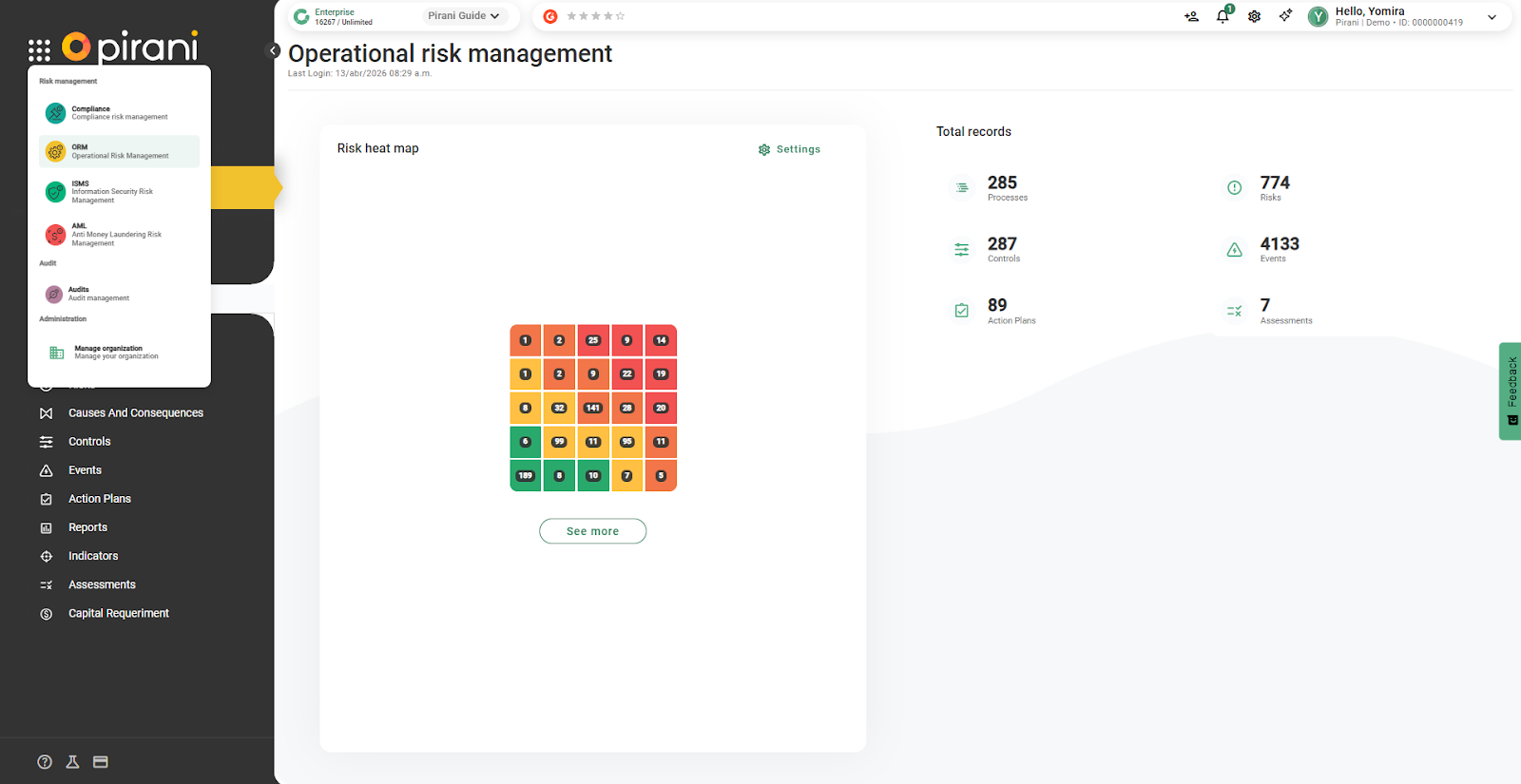
Click on the 9 dots and select “Manage organization”.
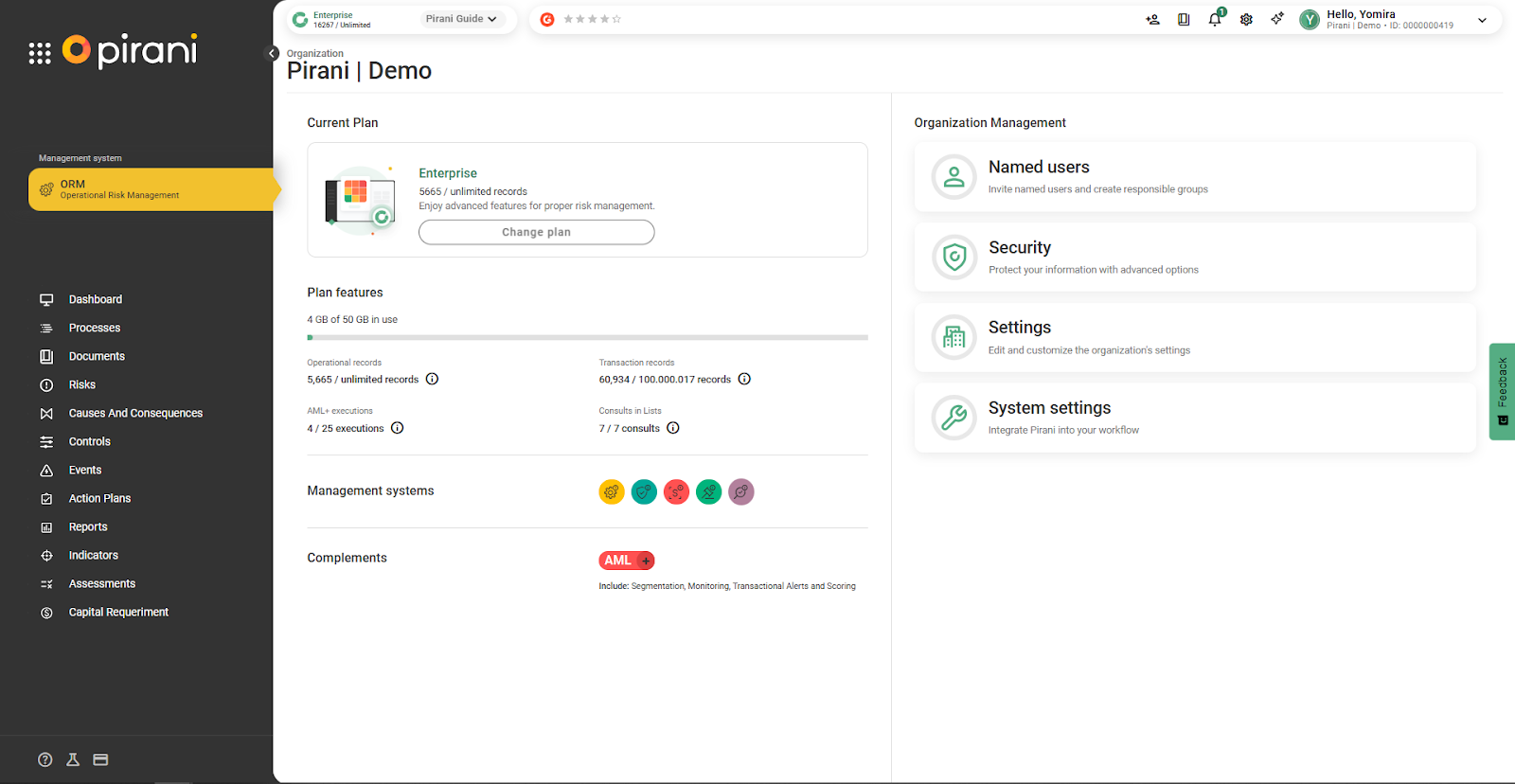
Go to the “Security” section
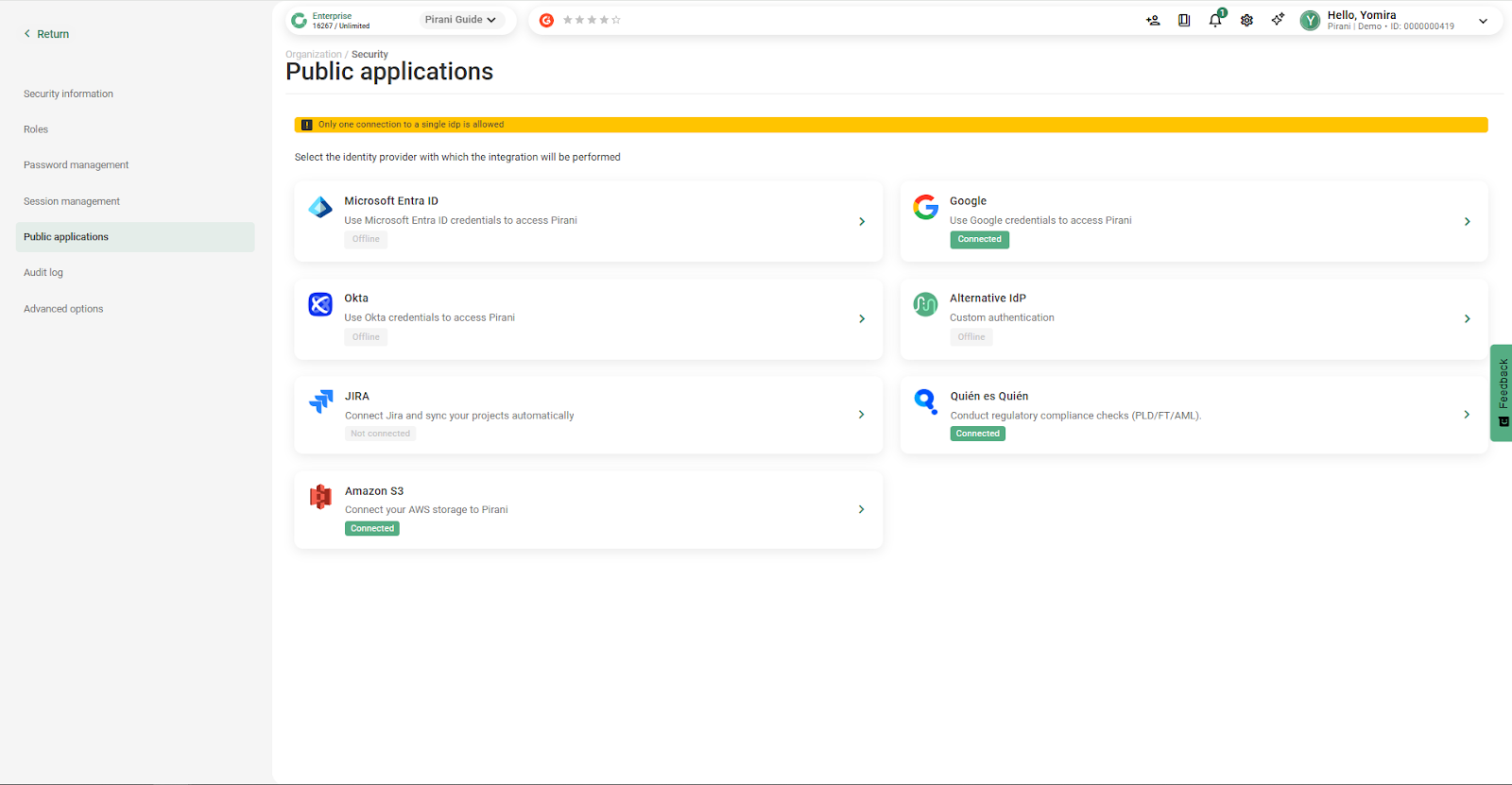
Select “Public applications”, where you will find all available connectors.
Choose “Amazon S3”
Complete the form with the data provided by the technology team: Access Key ID, Secret Access Key, Region, and Bucket name.
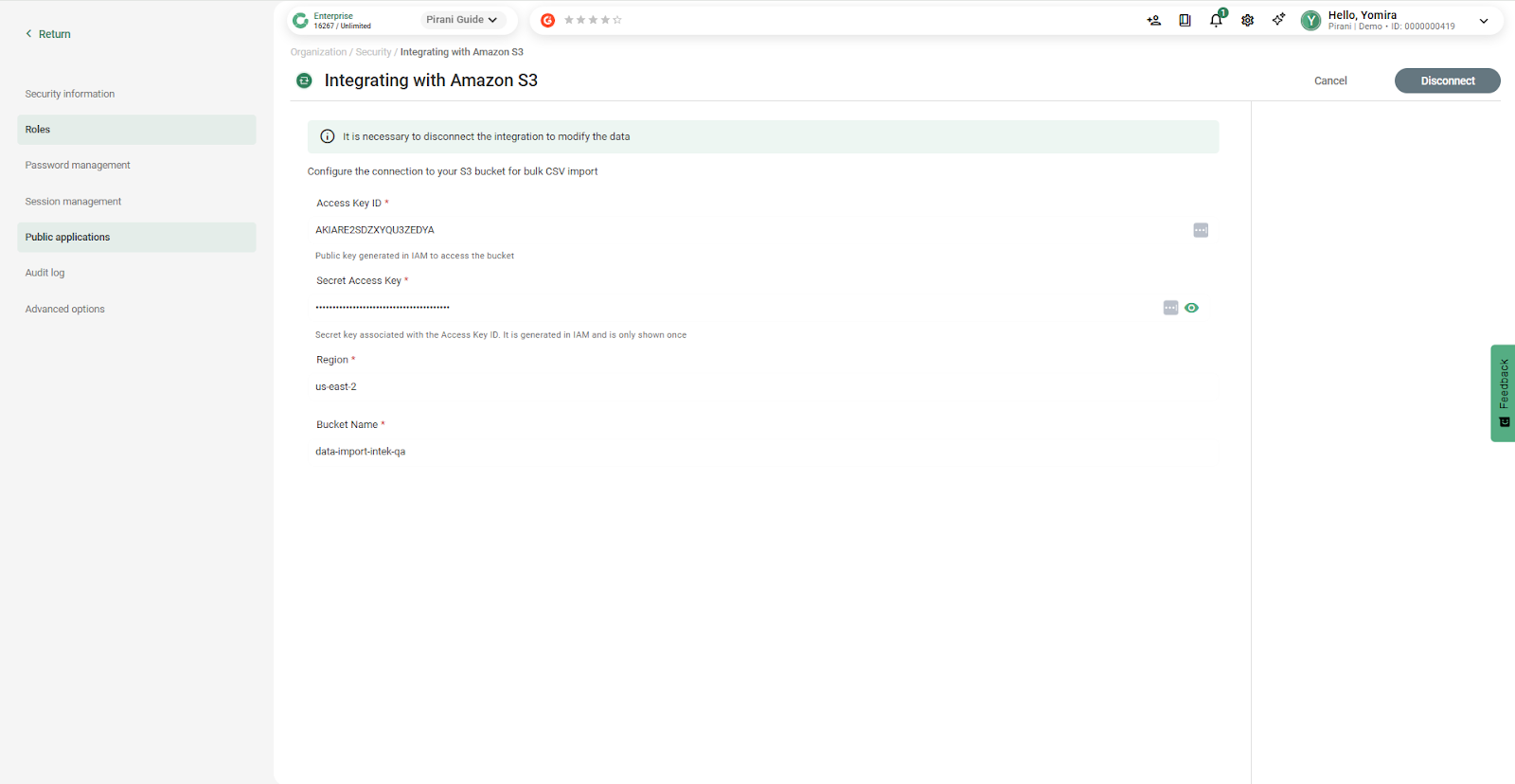
Click “Connect”. The system automatically validates the connection.
How to organize folders in S3 for imports into Pirani?
For the system to correctly identify the files, each entity must have its own path (folder) within the bucket. For example:
/eventos
/riesgos
This allows each scheduled process to handle only the files that correspond to it. Without this organization, the system would not be able to distinguish which files belong to each type of import.
Recommendation: also automate file uploads to S3 through ETL processes or extractors from the core business system. This avoids manual intervention and ensures full traceability of the process.
How do scheduled imports work?
Scheduling defines when and how often the system automatically executes data imports. When a schedule is active, the system performs executions at the configured times and frequencies without the need for manual intervention. If at any point it is not necessary to continue with the uploads (for example, during a period when no files will be generated), the schedule can be deactivated. When deactivated, it stops running, but its configuration is not deleted or lost. This allows it to be simply reactivated when needed, and the system will automatically resume executions according to the defined configuration.
How to create and configure a scheduled import in Pirani?
With the integration active, go to the Import module.
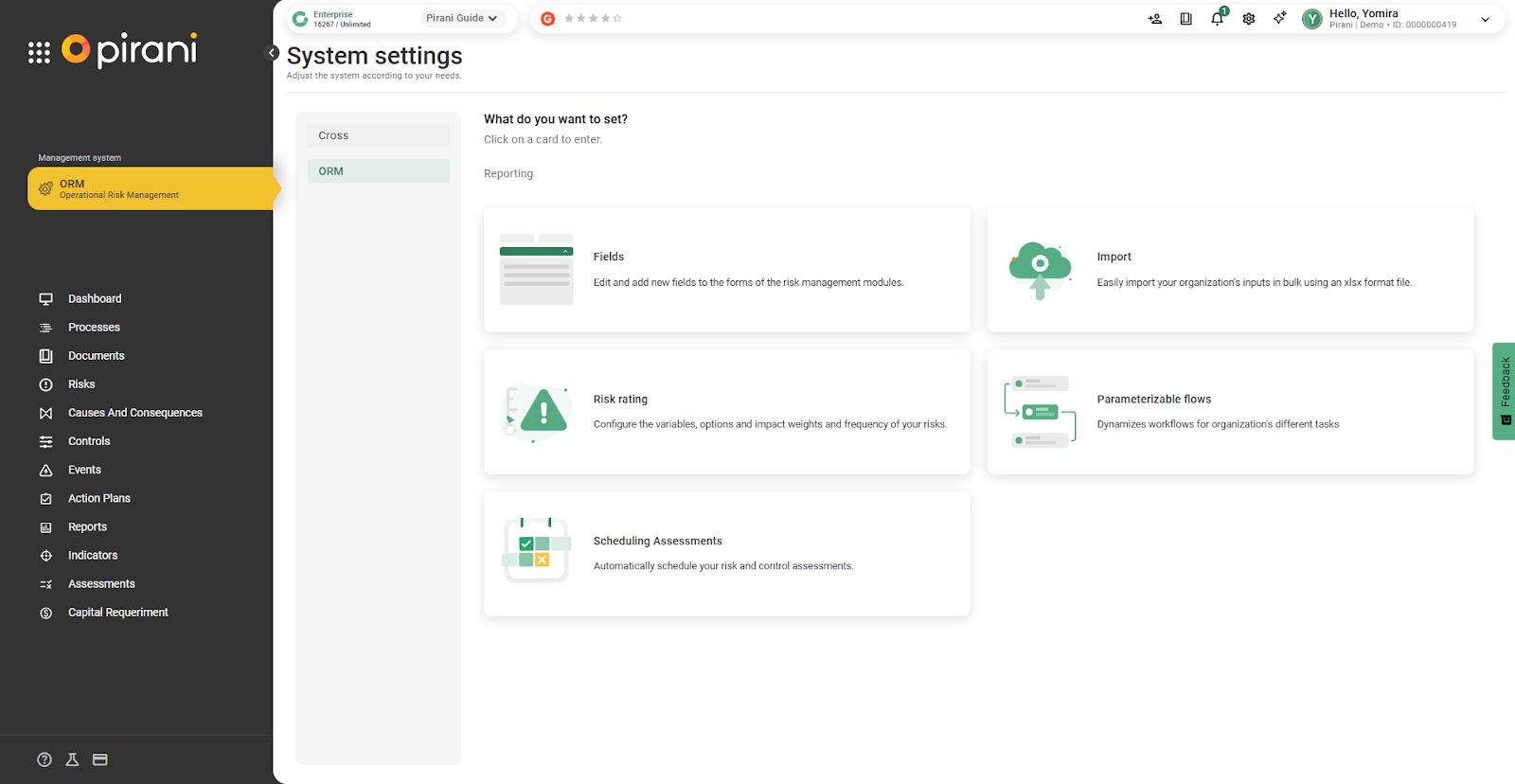
Select the tab called “Schedules” to view the list of configured schedules. Click on “New import”.
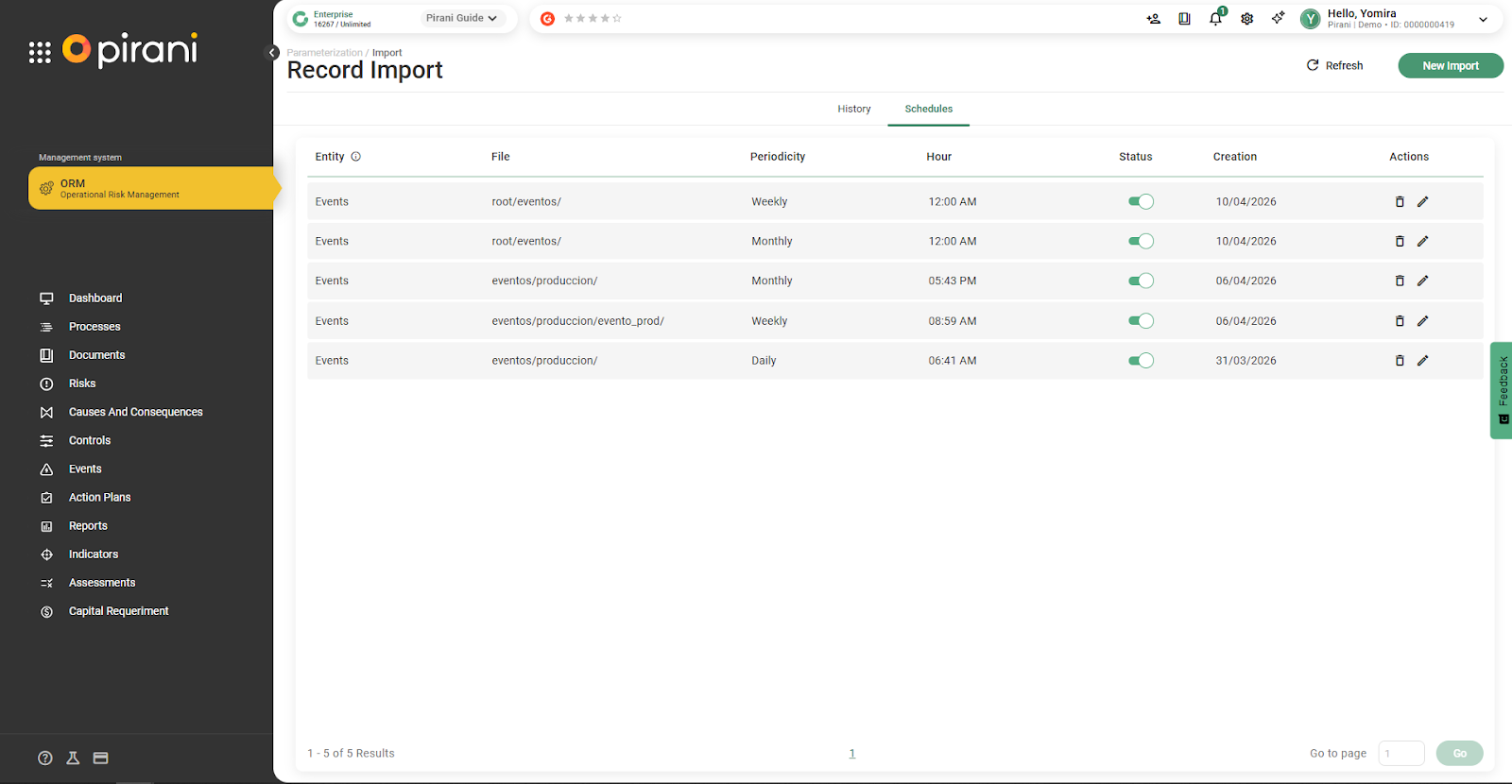
Select whether you will import “Single entity”, “Multiple related entities”, or “Scheduled bulk import”.
Choose “Scheduled bulk import”. From there, the process is divided depending on the type of import.
How do we get started with the import?
Select whether you will import a single entity or an entity with multiple associations.
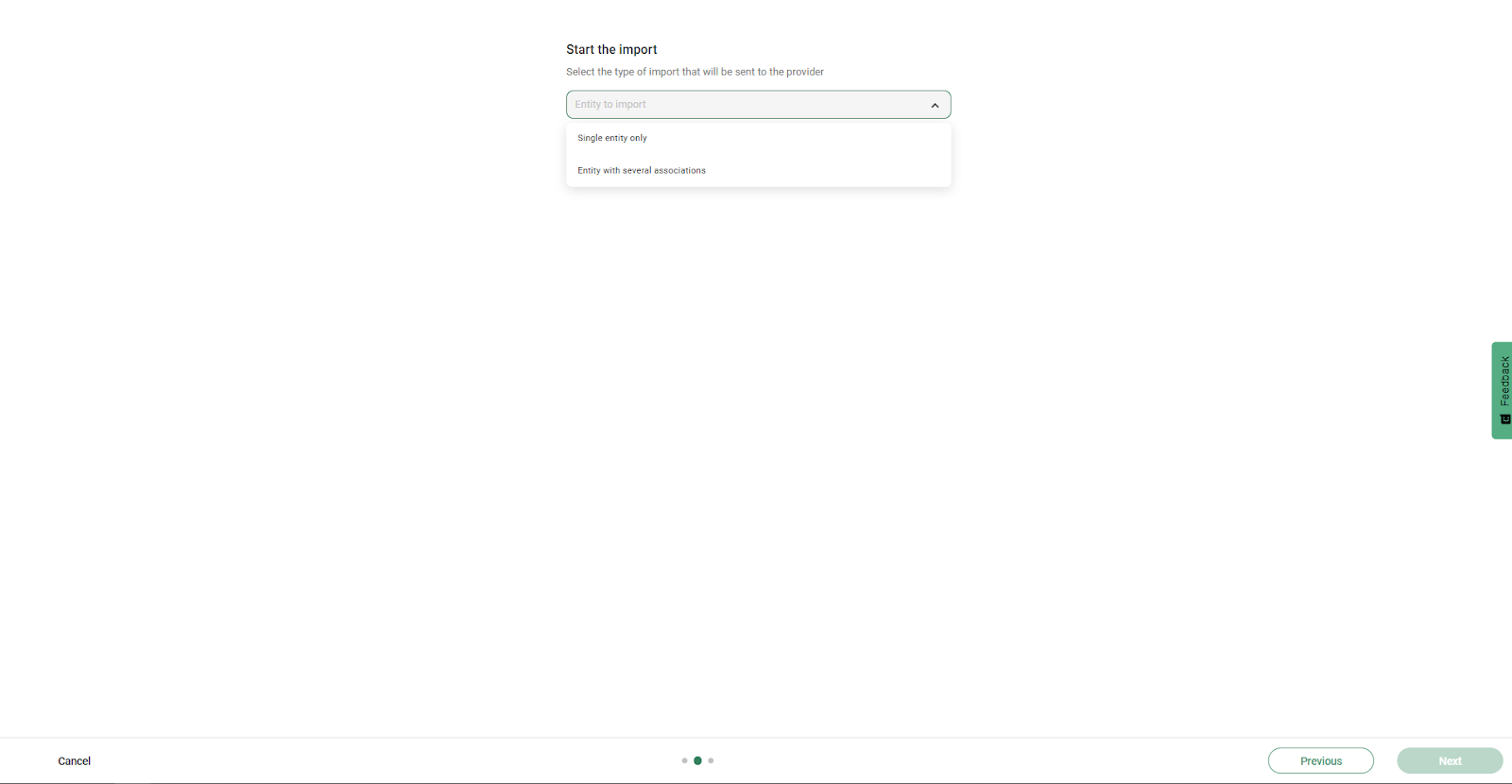
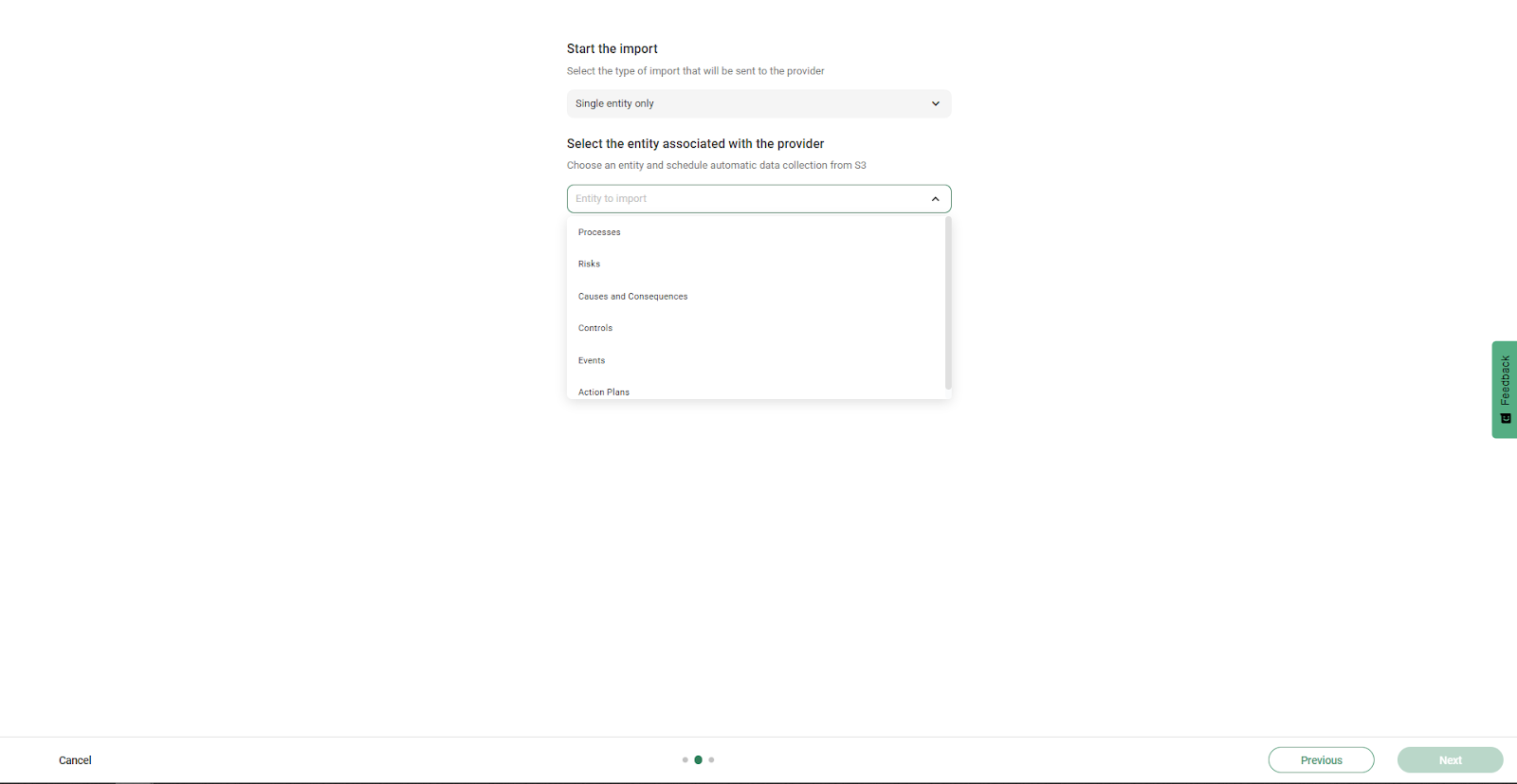
Single entity import
Here, select the entity for which you want the records to be automatically uploaded (for example: events).
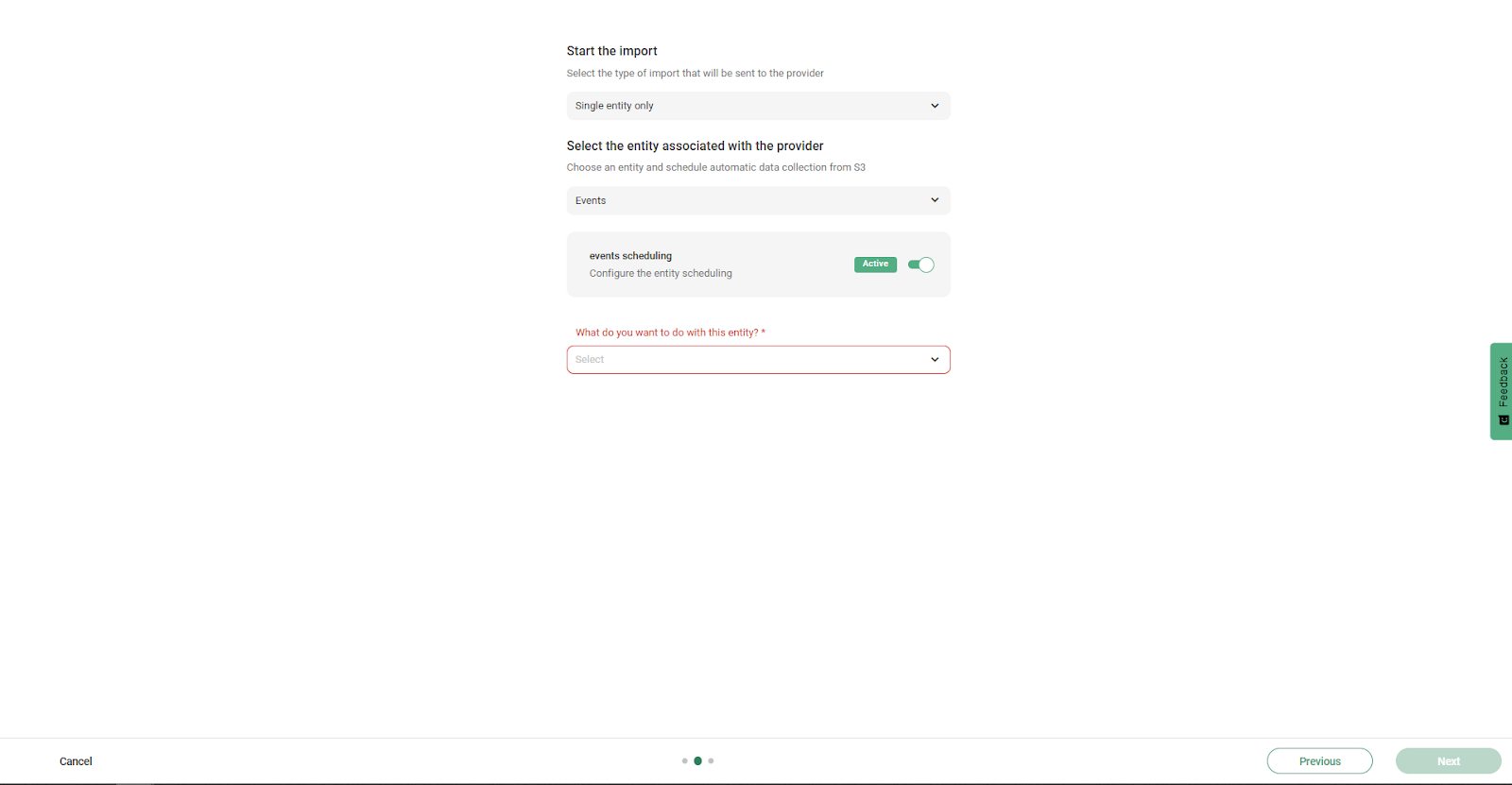
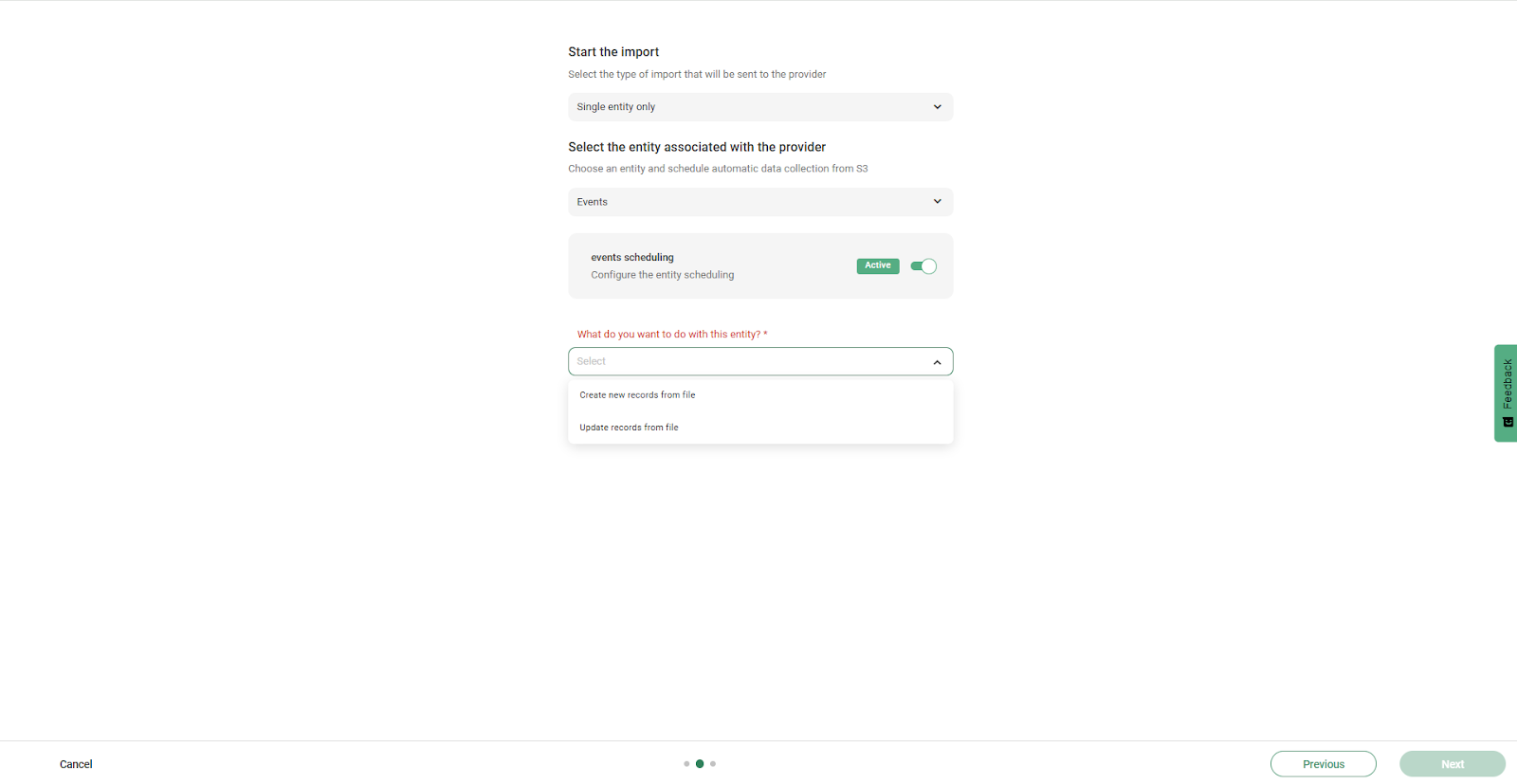
How does creating new records from a file work?
Select “Create records from file”.
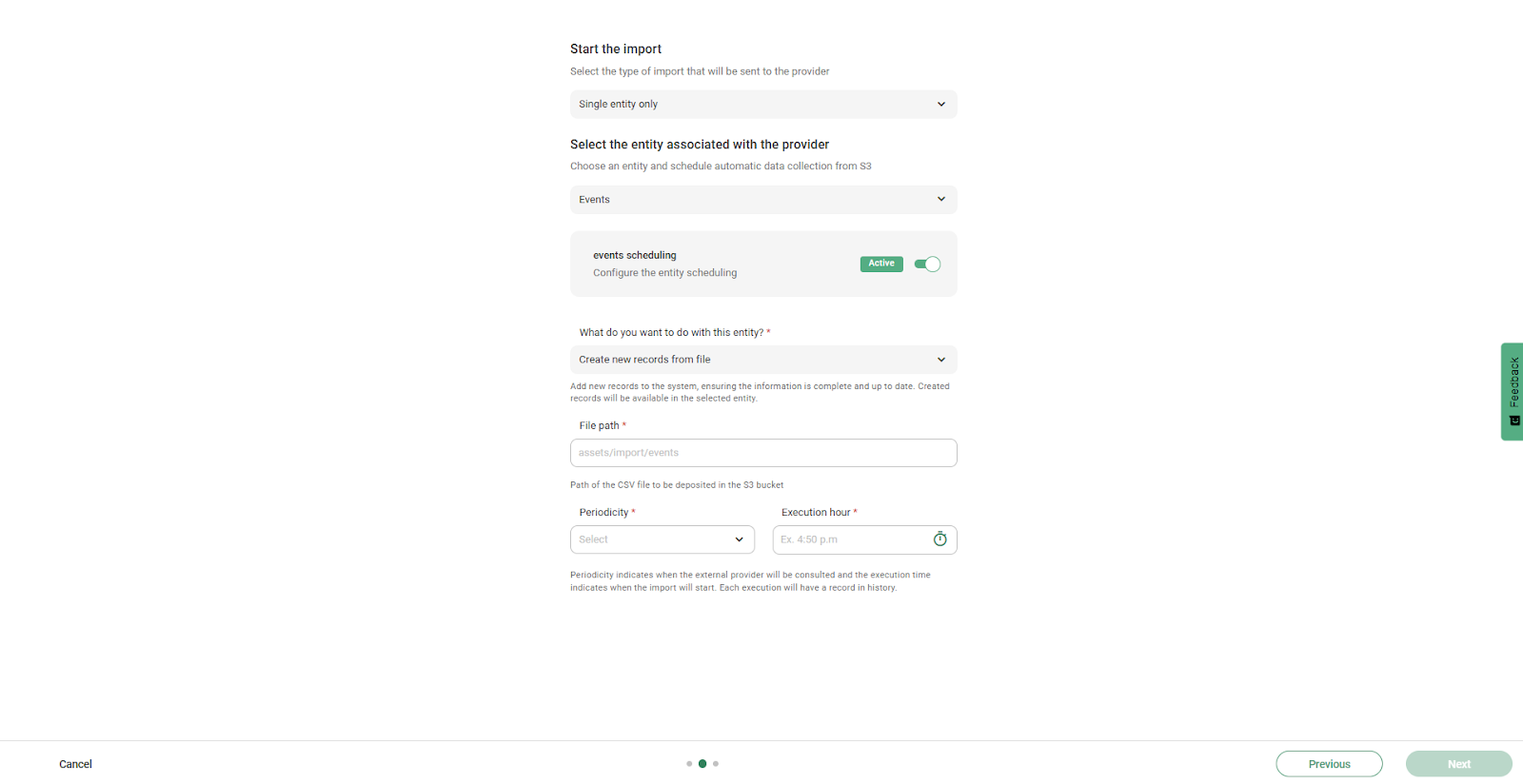
How to define the file path in S3?
Unlike traditional bulk uploads, where a file is uploaded directly into the system, scheduled imports require specifying the path within S3 where the system will look for files in each execution. This is the folder that the technology team created for that entity (for example, /eventos).
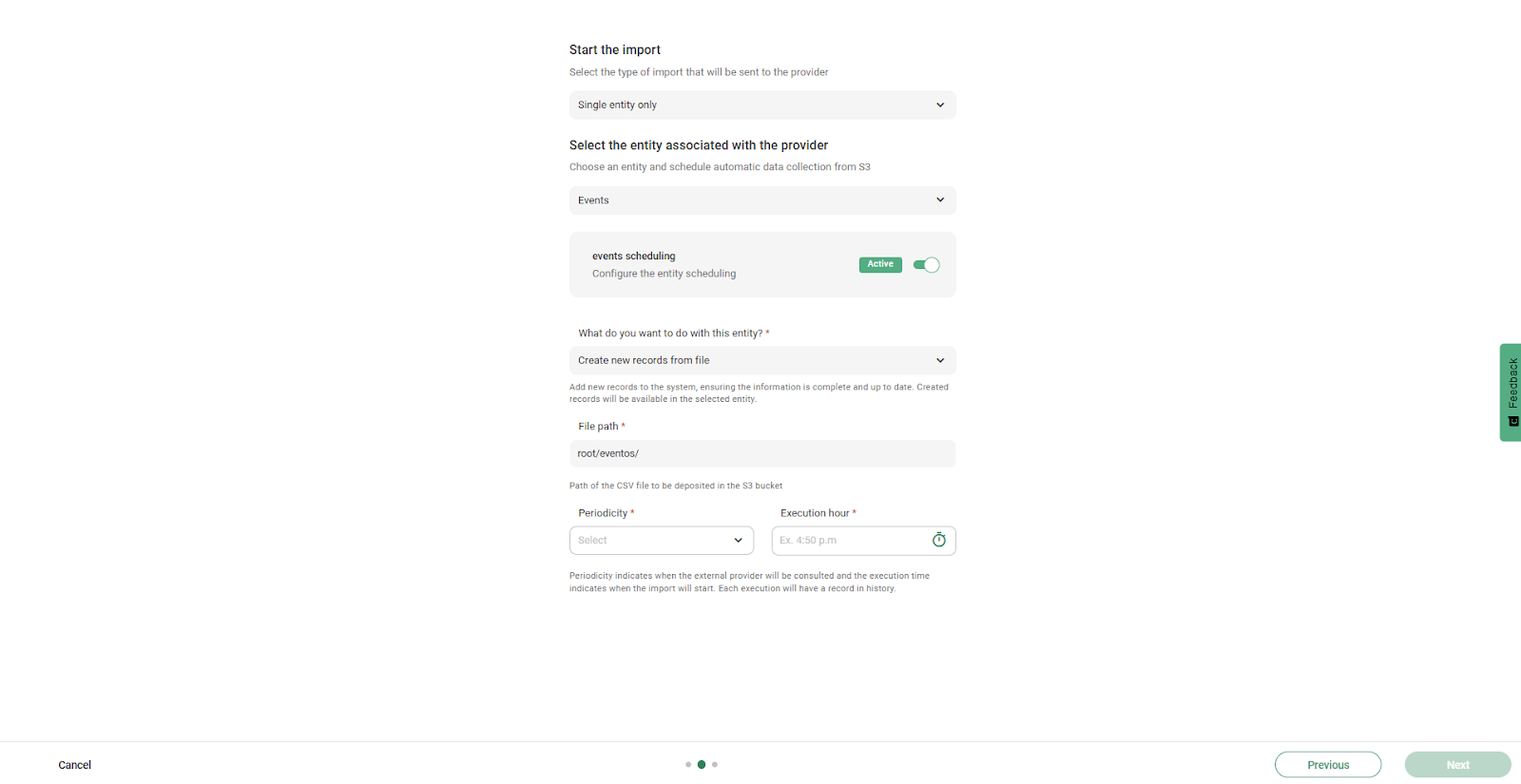
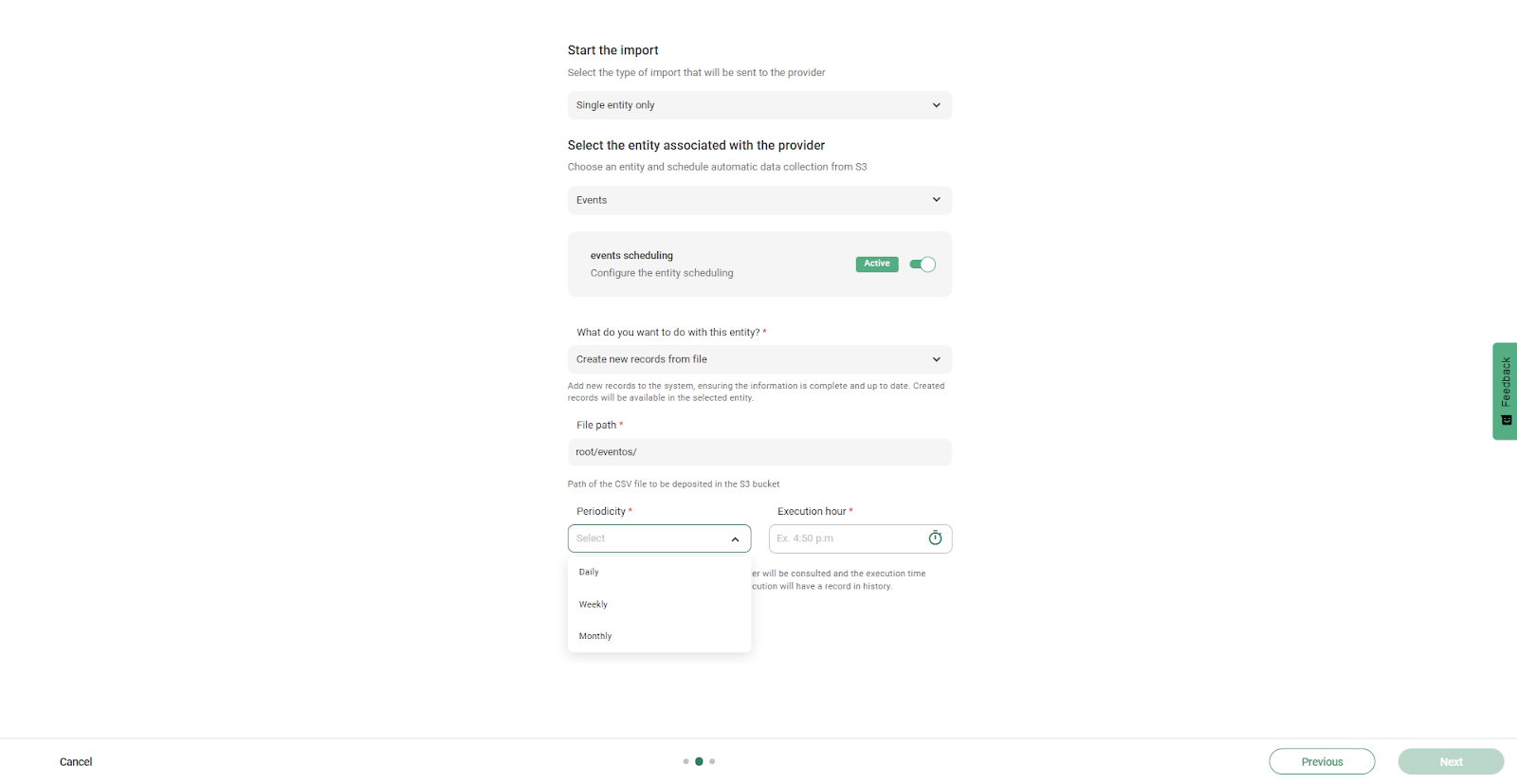
How to configure the frequency and execution time?
Scheduling defines when and how often the system automatically executes the import. The available options are:
- Daily: runs every day
- Weekly: runs once a week
- Monthly: runs once a month
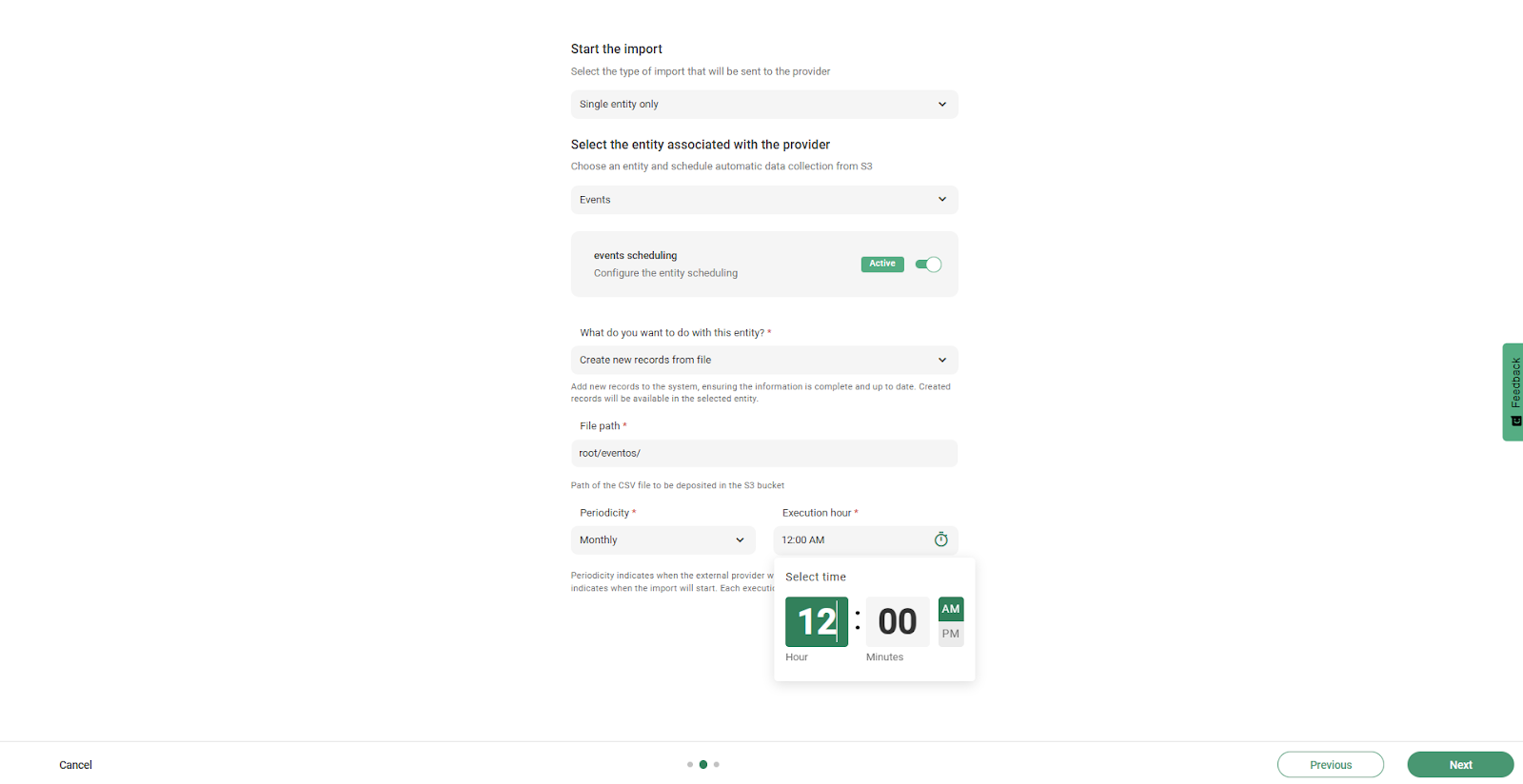
In addition to the frequency, it is necessary to define an exact execution time. Since the process may generate new records while users are working, it is recommended to schedule executions during low-activity hours, such as early morning. This avoids interruptions in daily operations and ensures a more orderly data load. A common configuration is to schedule the execution at 12:00 a.m.
Click “Next” to continue.
How does field mapping work in scheduled imports?
Field mapping is the step where you tell the system how to interpret the structure of the file. In scheduled imports, the user must manually enter the name of each column, since no file is uploaded beforehand for the system to automatically analyze.
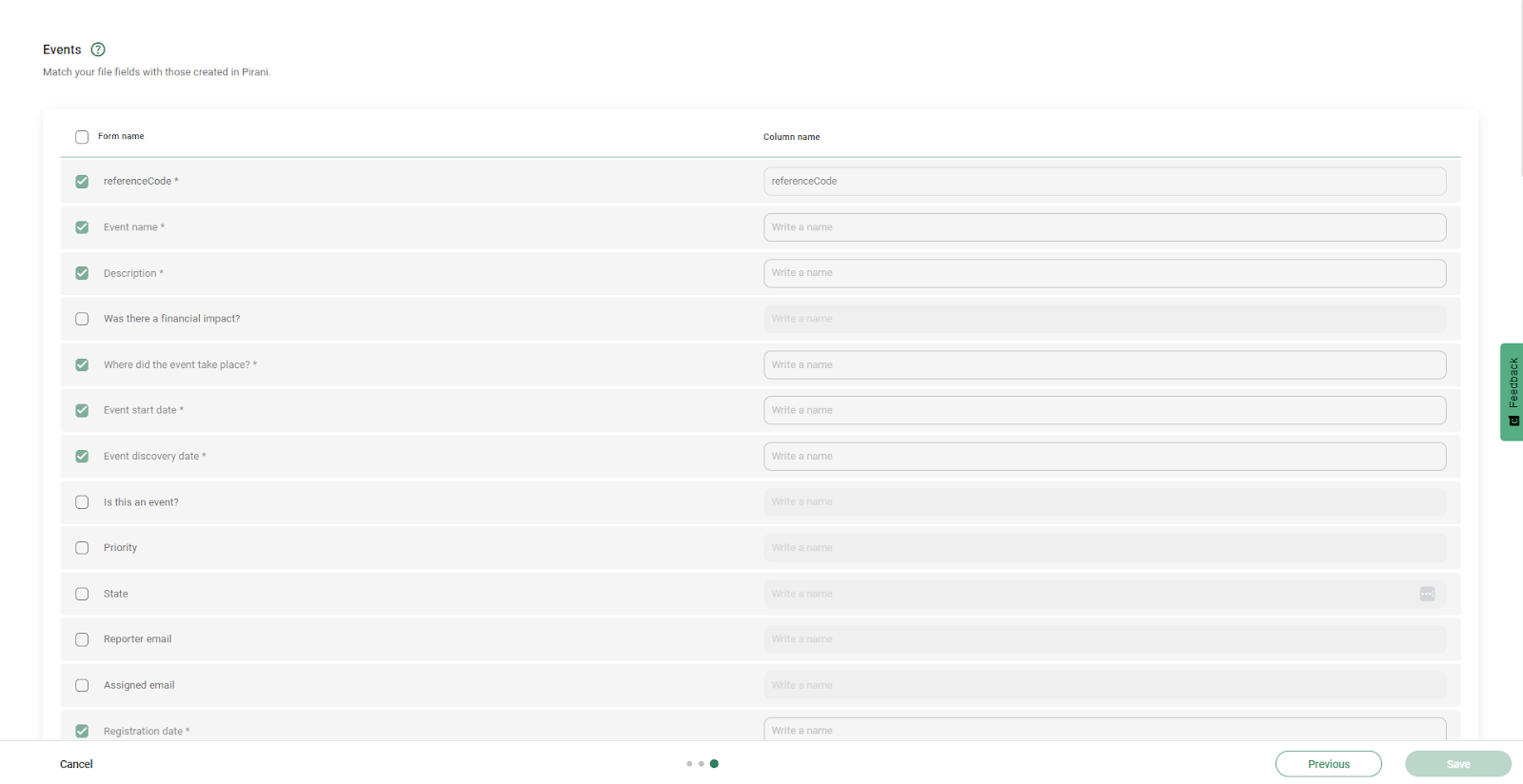
It is essential that the names exactly match those in the file stored in S3. For example:
Event name → must exactly match the header of that column in the file
Description, dates, or other fields → must follow the same name defined at the source
Regarding non-mandatory fields: they appear disabled by default. If you want to include them, they can be manually enabled by assigning them the exact name of the corresponding column.
This mapping is configured only once. In automated processes, files usually maintain the same structure, so it does not require recurring adjustments. It will only be necessary to edit it if the technical team modifies the column names at the source.
Once all fields are defined, click “Save”. From that moment on, the system will use this mapping in each automatic execution.

Import with multiple related entities
Select “Entity with multiple associations”.
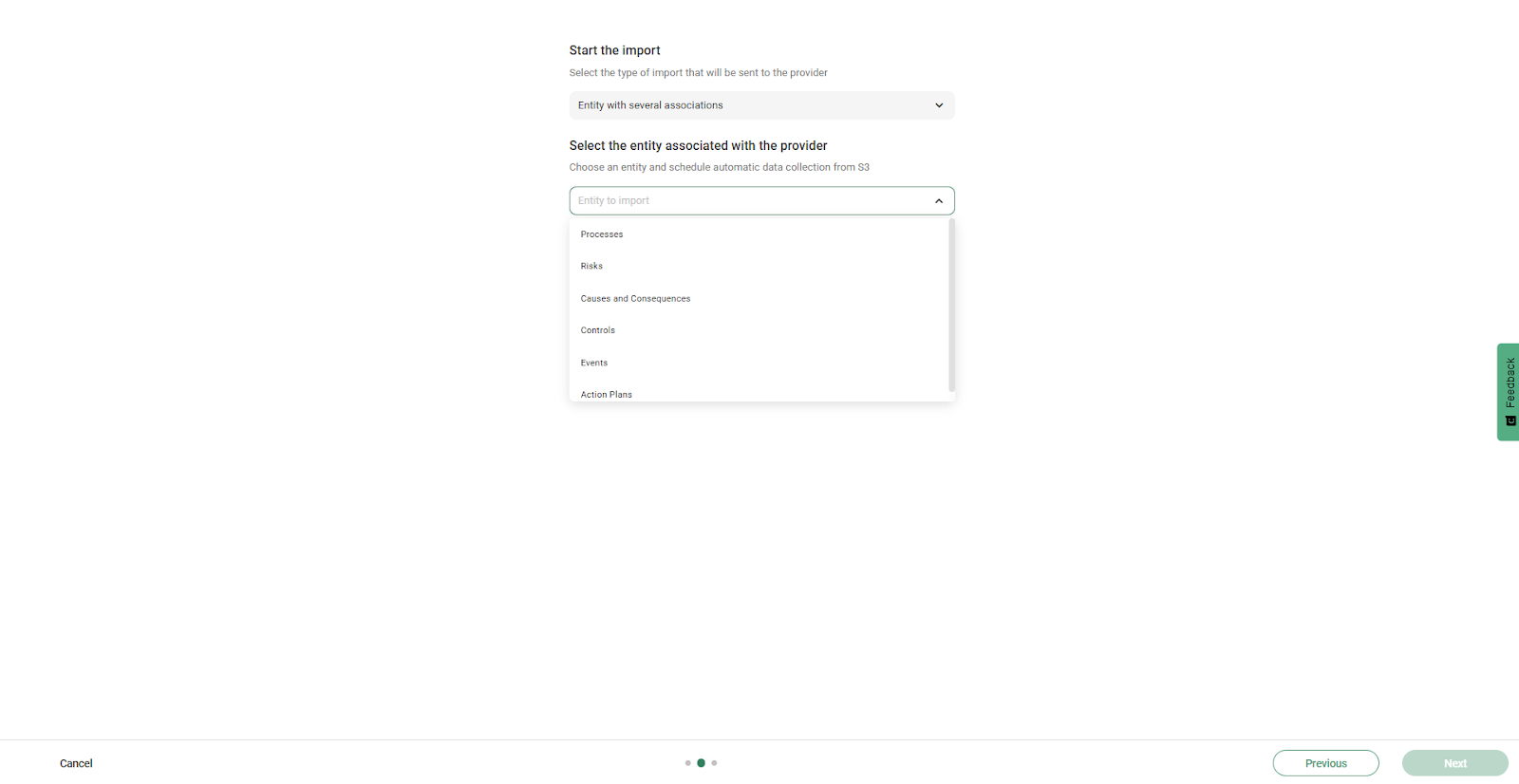
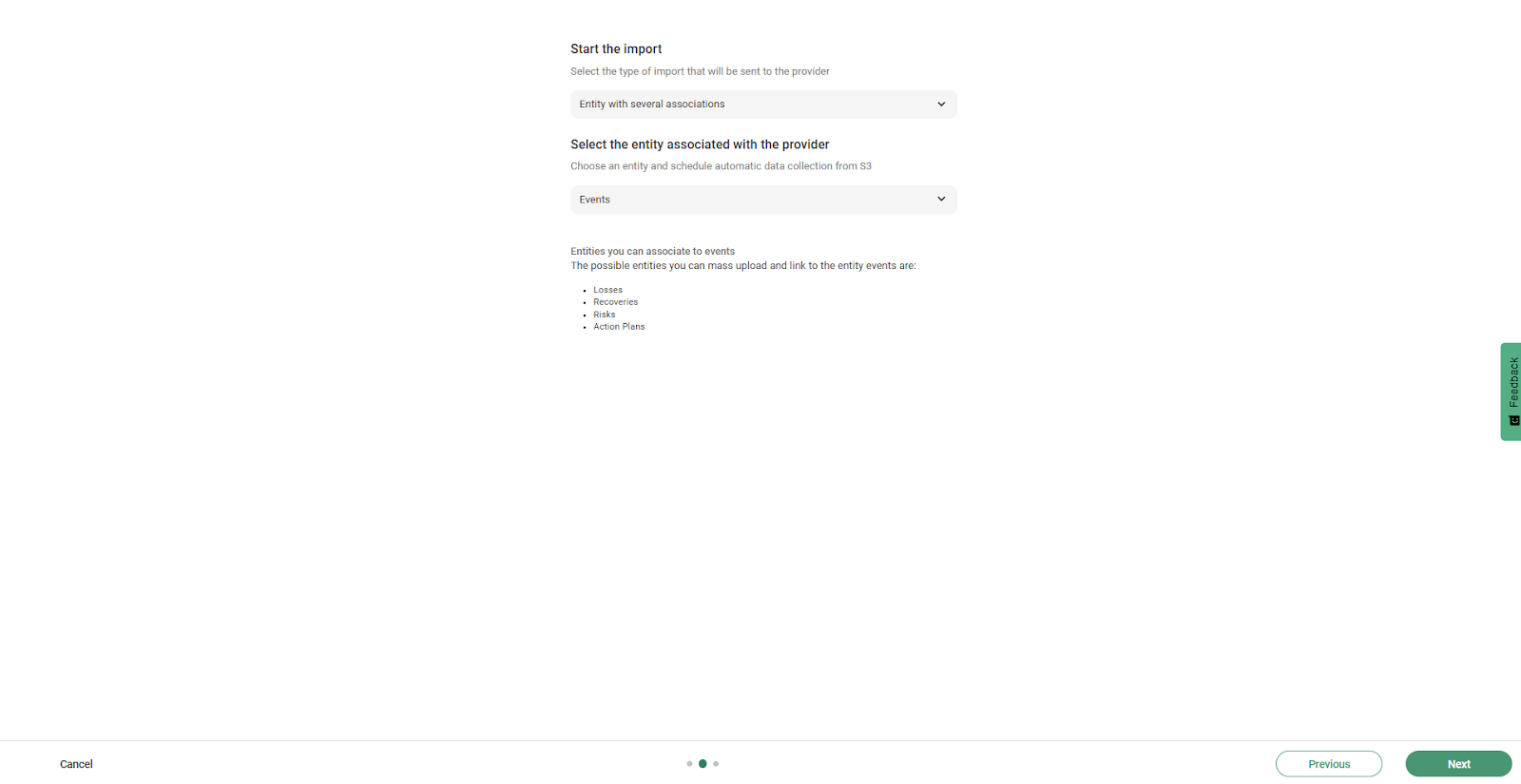
Choose the main entity (for example: events).
Define whether the schedule will be active or inactive from the start.
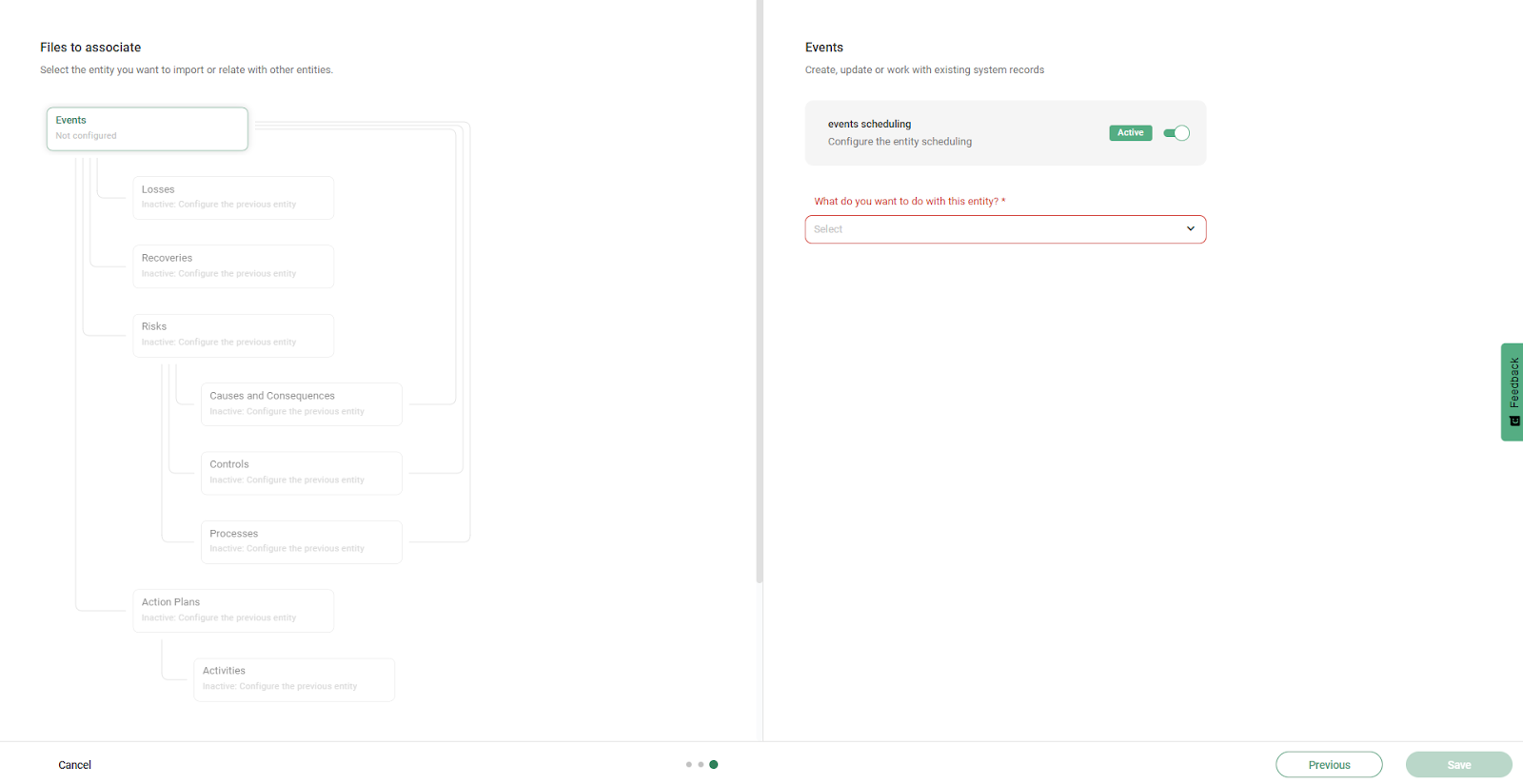
Select the option “Create new records from file” or “Update records from file”.
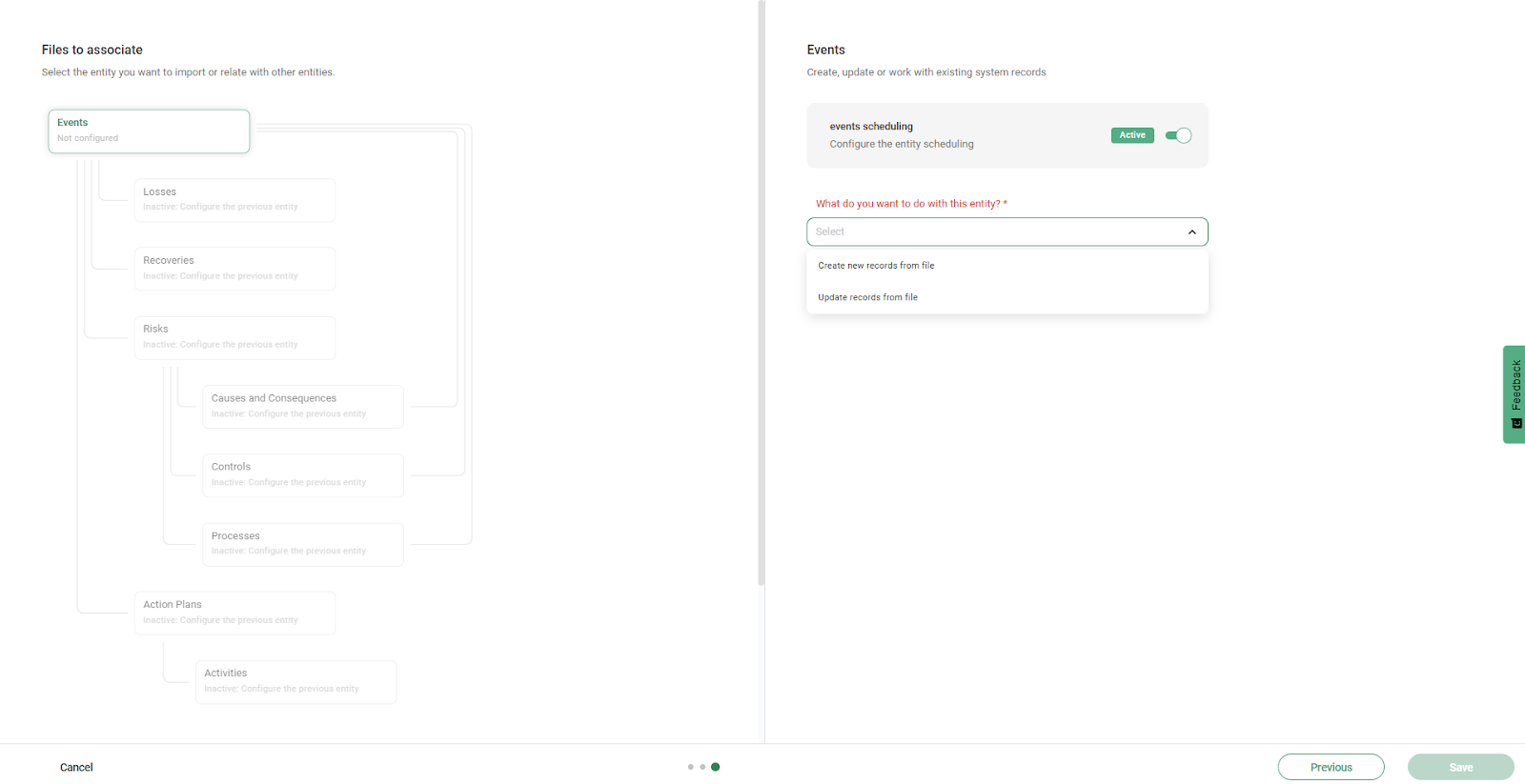
If you select “Create new records from file”, you will complete the same process mentioned above.
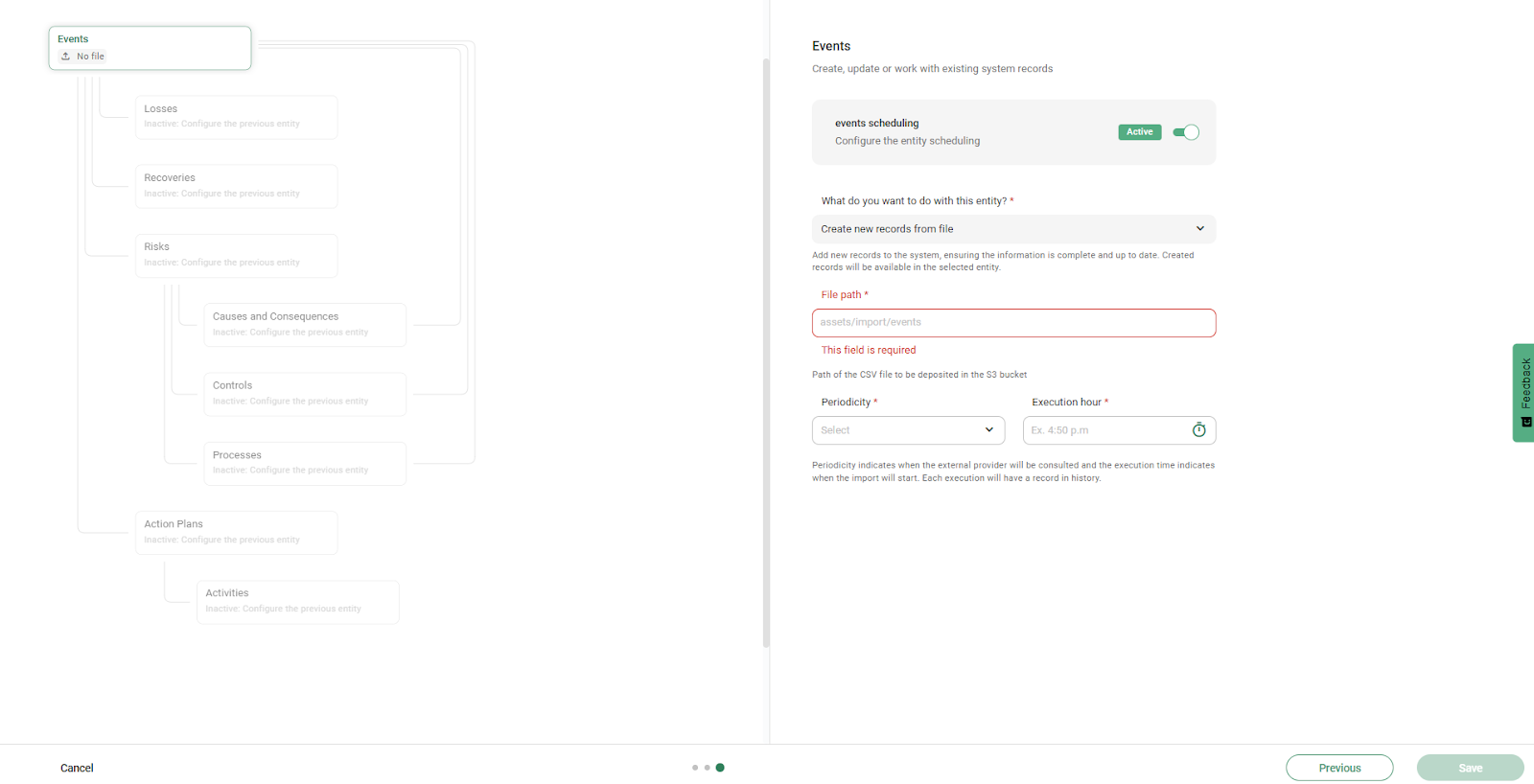
Complete the file path, frequency, and execution time details following the same process described above.
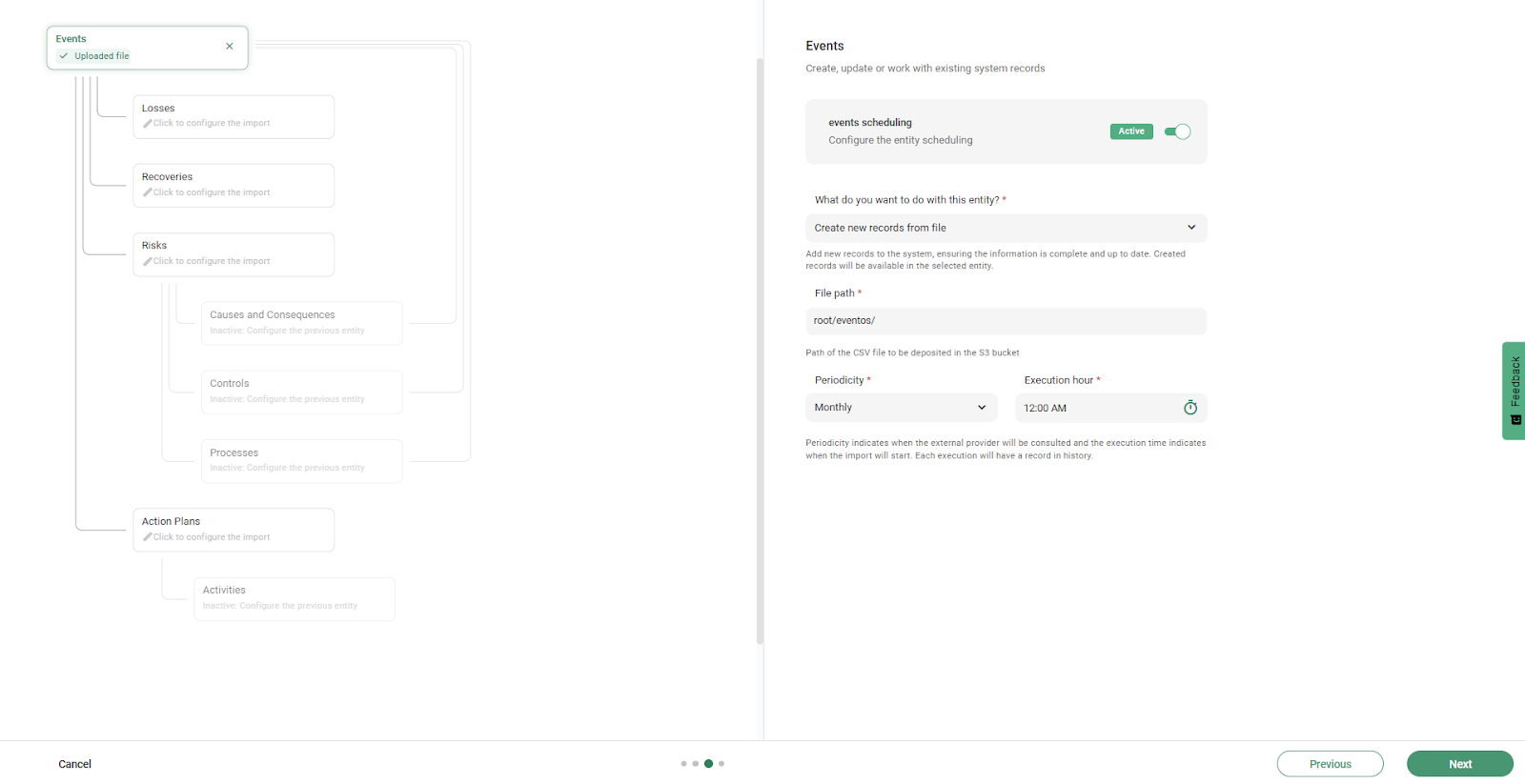
Select the related entity and also define its action (create or update).
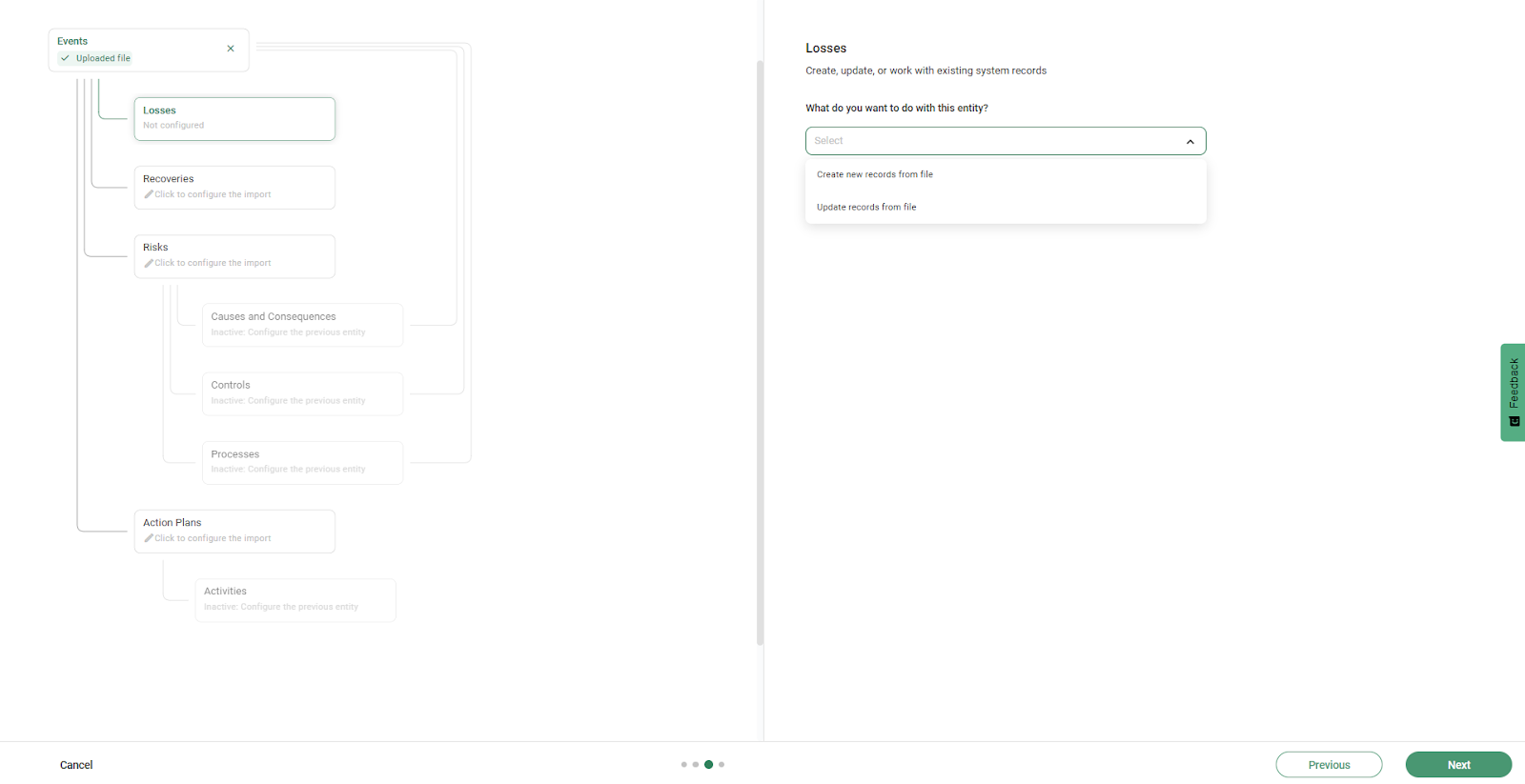
Add its file path in S3 and click “Next”.
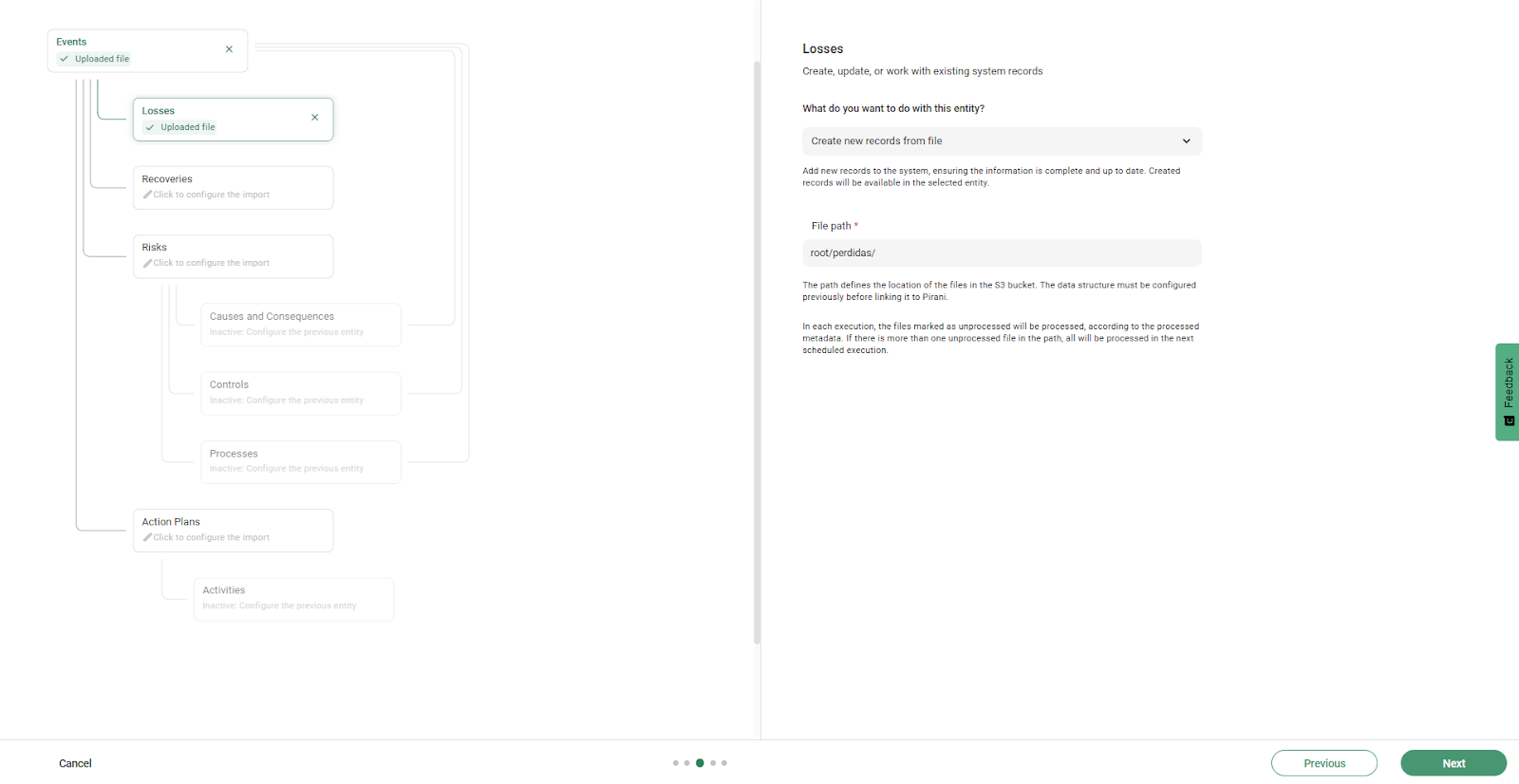
The system will require you to map the fields for each entity separately. Repeat the mapping process for each one, ensuring that the column names exactly match the structure of the file in S3.
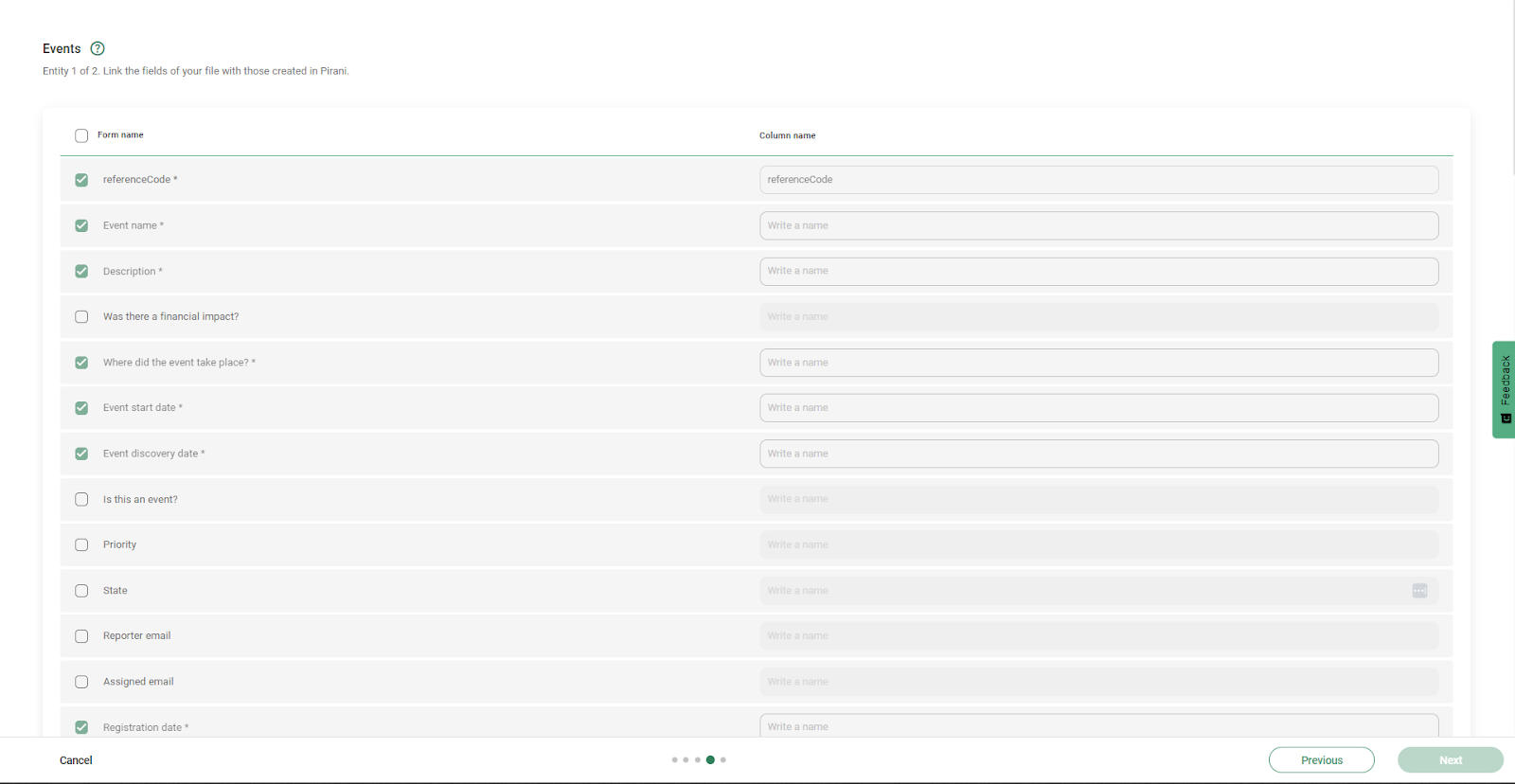
⚠️ As with traditional bulk uploads, the file in AWS must maintain the same structure. The required fields are:
- referenceCode: unique identifier of the event
- parentReferenceCode: code that links to the main event (only required when changing to a different module; optional for updates)
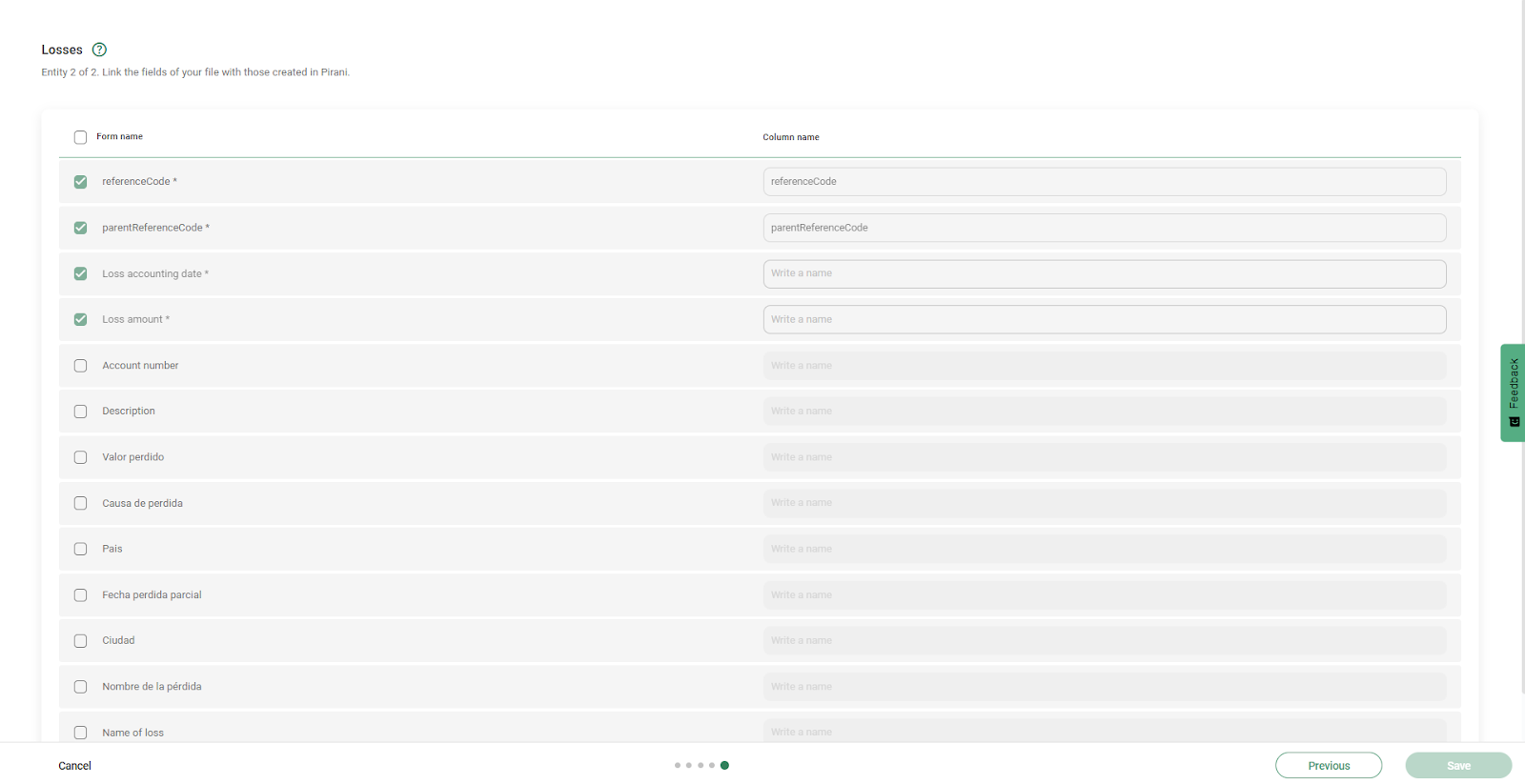
How does the system process related entities?
The system respects the relationship between entities and processes them in order. For example, when uploading risks with associated events: first the risks are created, then the events, and finally the association between them is performed. Everything happens automatically within the schedule.
Click “Save” to complete the configuration, and you will then be able to view the history in your schedules.
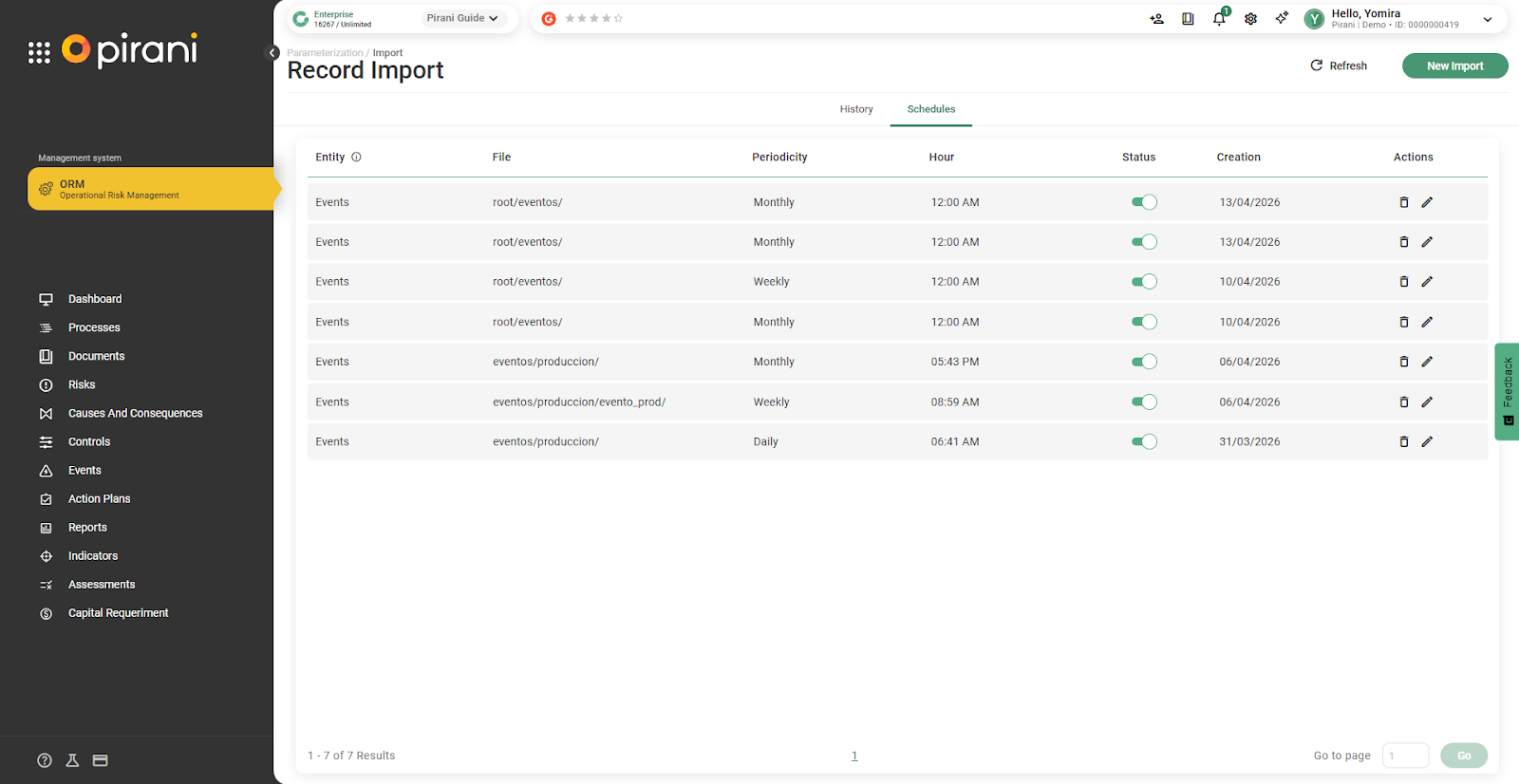
Where can you view the created schedules?
Once the configuration is saved, the schedule is available in the Schedules module. From there, you can check the status of each one and verify its main parameters: execution time, frequency, and S3 path.

What actions can be performed on a schedule?
From the list, it is possible to:
- Edit the configuration (field mapping, frequency, path)
- Activate or deactivate execution as needed: when a schedule is deactivated, it stops running but is not deleted or its configuration lost, allowing it to be reactivated when needed
- Delete the schedule if it is no longer required
How does the system execute automatic imports?
At the configured date and time, the system connects to S3, looks for files in the defined path, and processes them one by one without user intervention. The system will process all available files in the folder, regardless of the quantity.
To avoid duplicates, each processed file is marked as executed. Even if it remains in the folder, the system will ignore it in future executions.
How to track executions?
All executions are recorded in the history. From there, you can check the status of each process, the number of processed records, and identify possible errors. In case of failures, the system generates error files with detailed messages that allow corrections to be made and, if necessary, coordinate adjustments with the technical team.