
→ Available in the ORM, Compliance, ISMS, and Audit management system starting with the Starter plan.
⚠️ Important note: Linking multiple Jira issues to an event does not automatically change the event’s status in Pirani.
What do you need before getting started?
-
The required permissions in Pirani.
-
A Jira administrator user with permission to create and edit issues.
How do you integrate Jira with Pirani?
Step 1: Access the organization settings
Go to Organization Management and select the Security option.
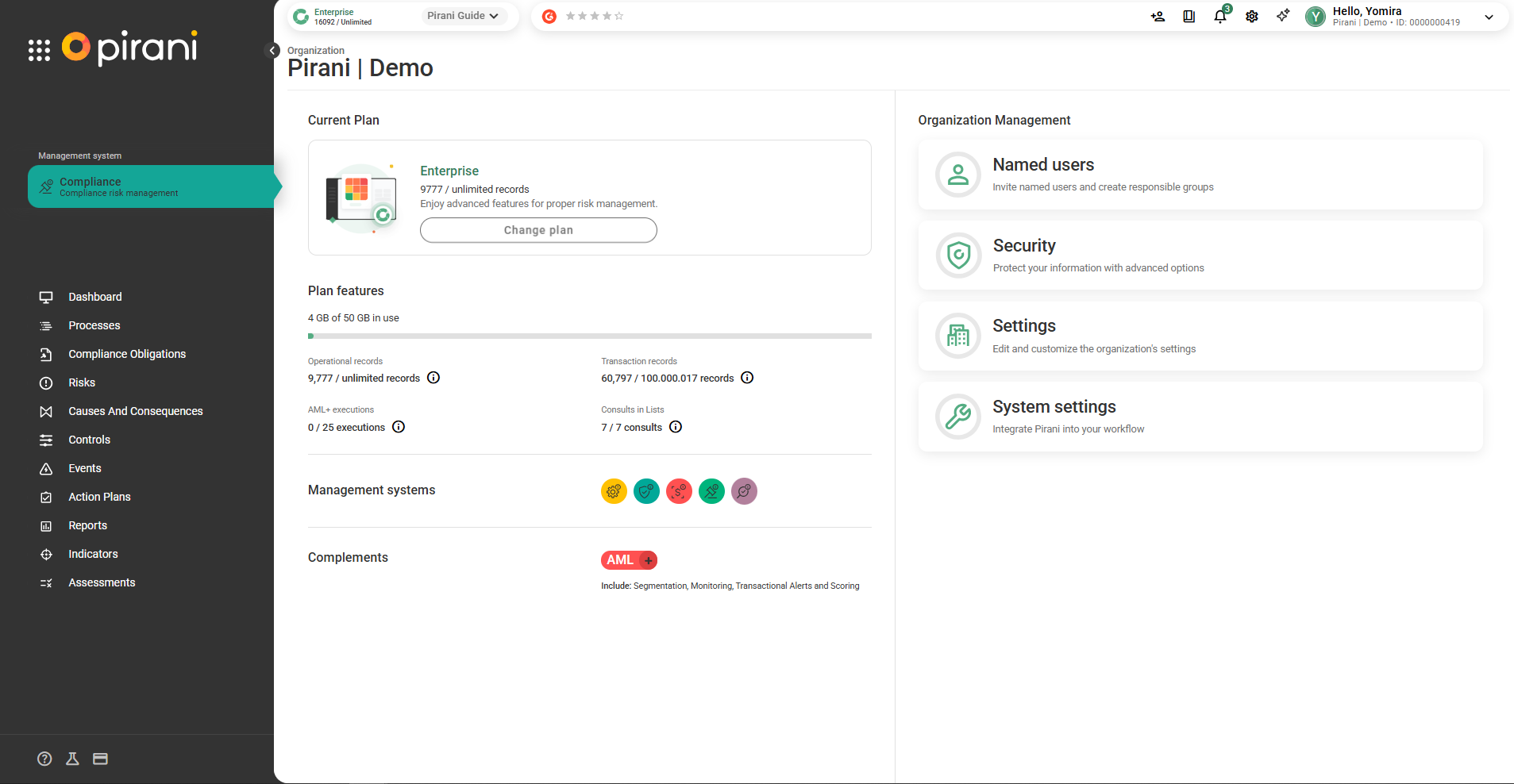
Step 2: Go to the available integrations
Select the Public Apps tab, where you’ll find all available plug-and-play integrations.

Step 3: Configure the Jira integration
Select Jira. The following fields will be enabled and must be completed:
Jira domain
This is the URL of your Jira instance.
Example: company.atlassian.net
Email address
Enter the email address of a Jira administrator user with permission to create and edit issues.
Example: user@company.com
API token
You must generate this token in Jira, under Jira Apps, where you will create a connection.
Once generated, copy it and paste it into Pirani.
Example: ATATT3xFfGF0...
When you have completed all the information, select Connect.
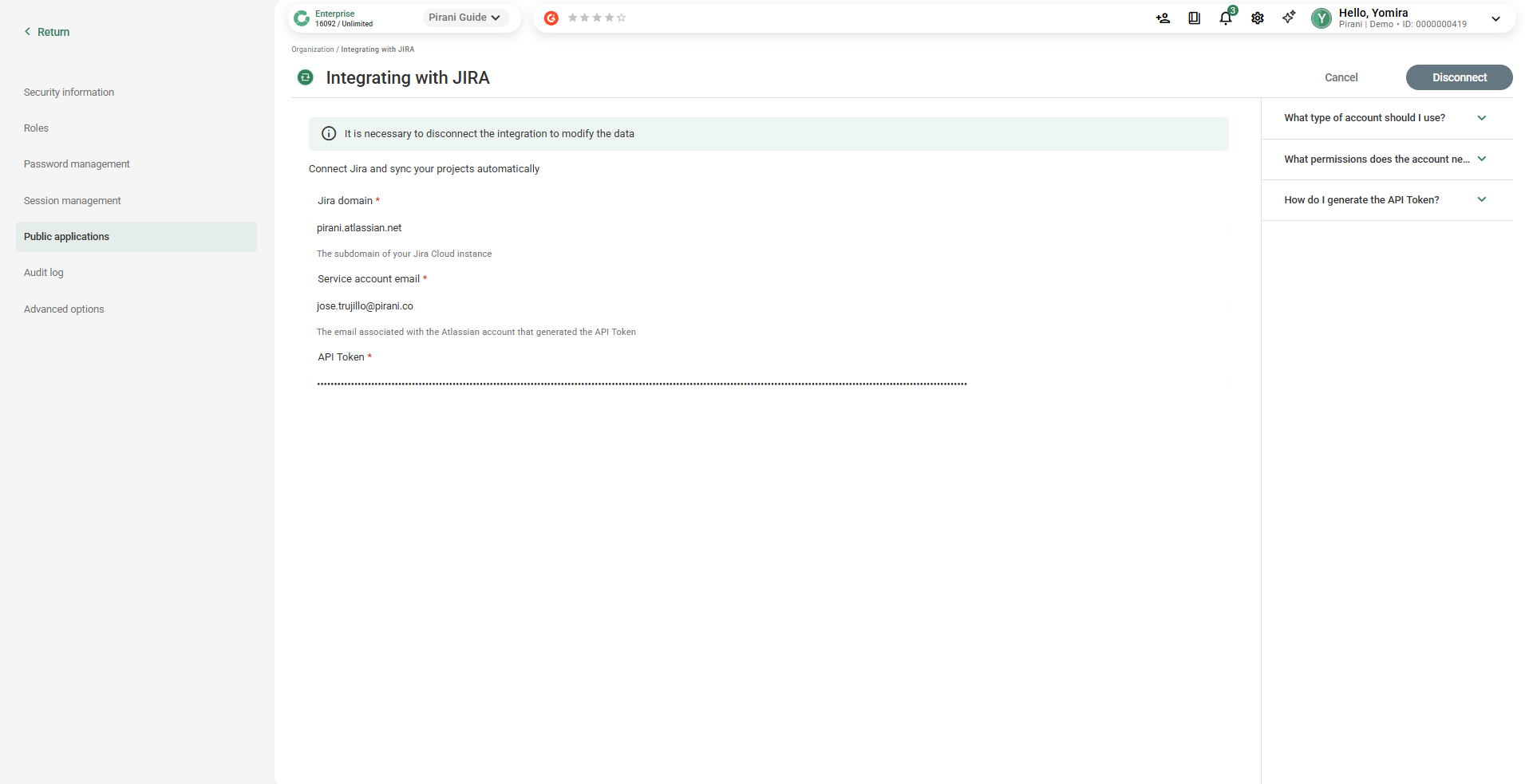
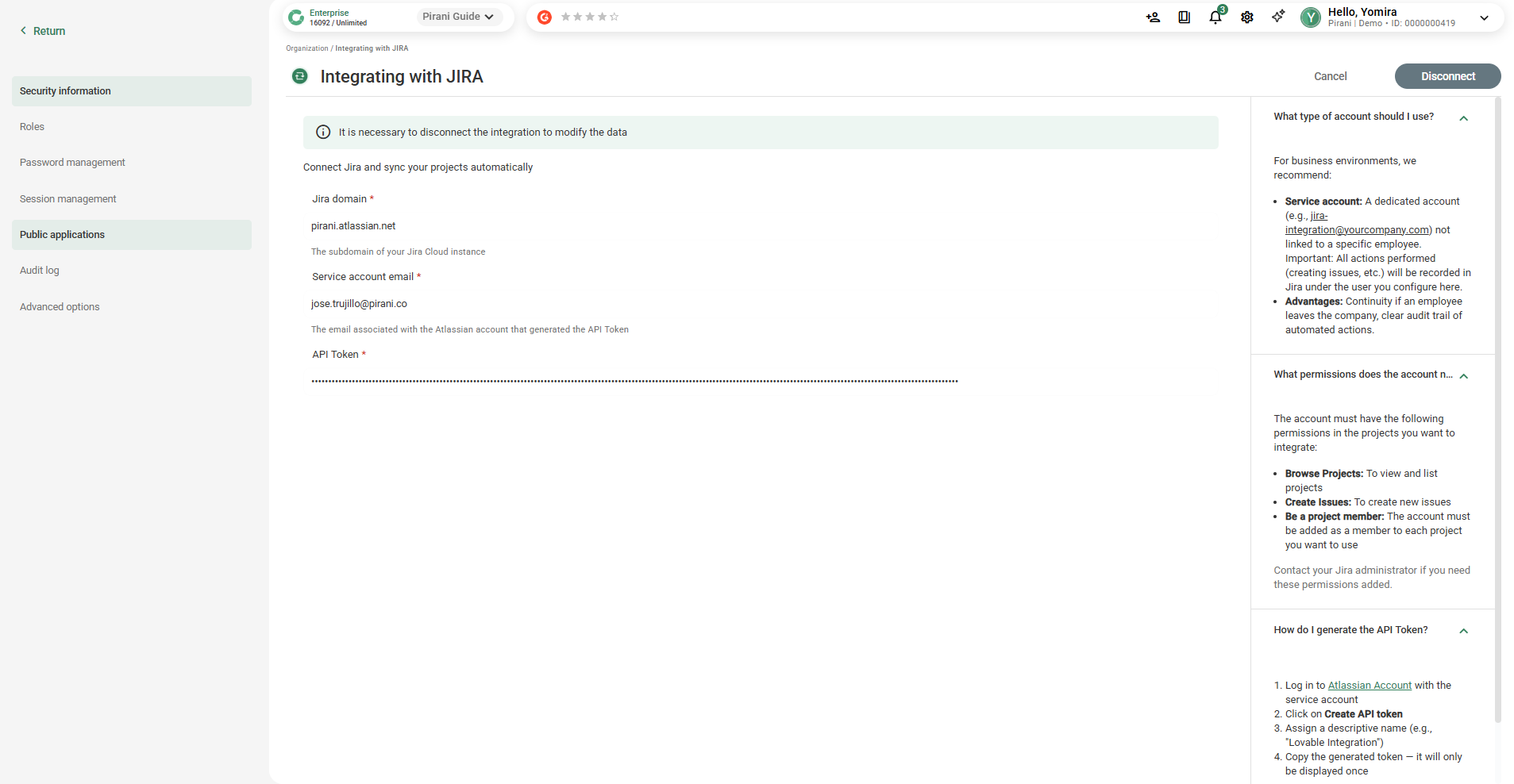
Pirani provides built-in data and helper fields to make configuring and using the Jira integration easier.
Step 4: View and link information between Pirani and Jira
Once the integration is complete, you’ll be able to view and link information between Pirani and Jira directly from the Events module.
To get started:
Go to the Events module in Pirani.
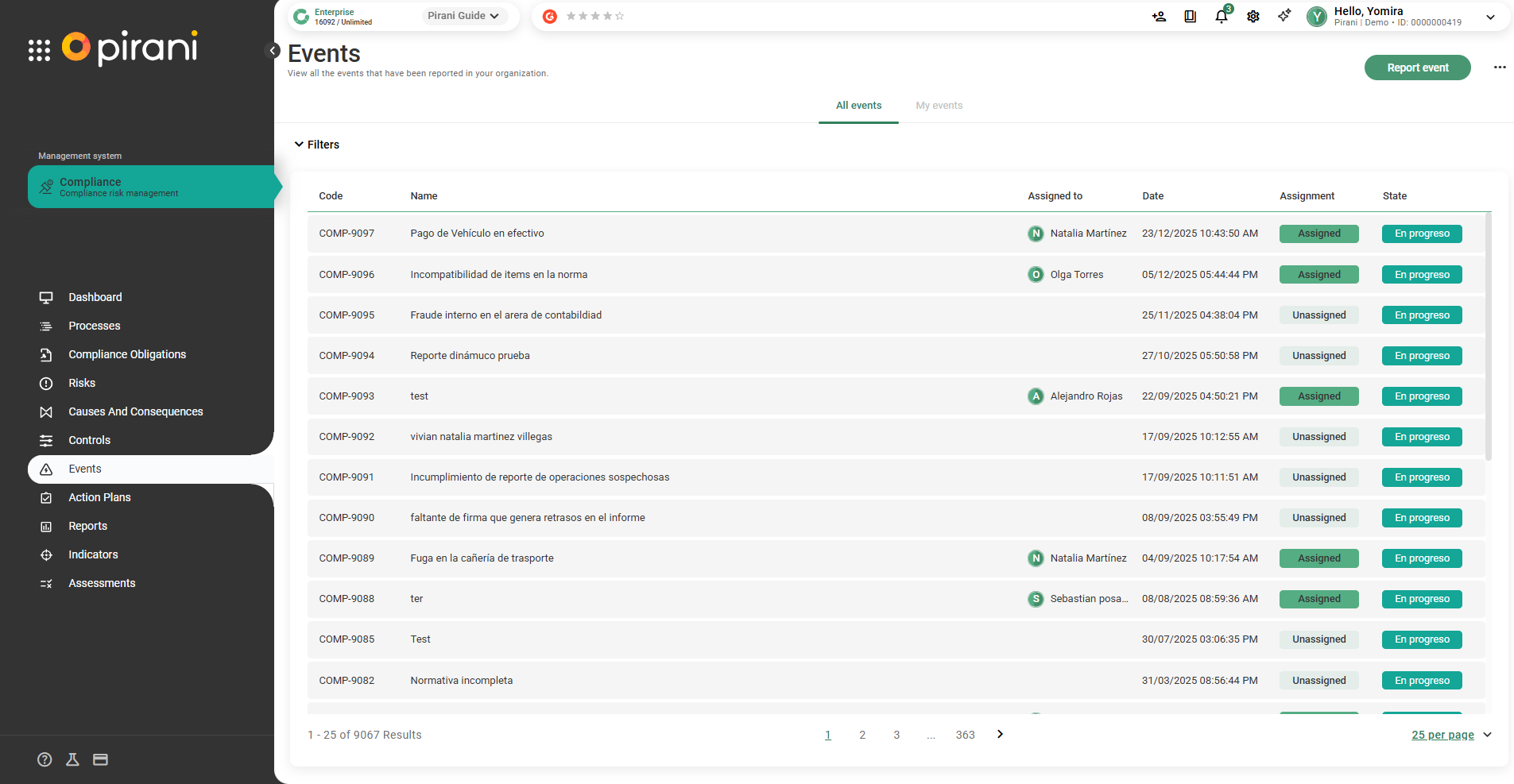
Step 5: Access the Jira section within an event
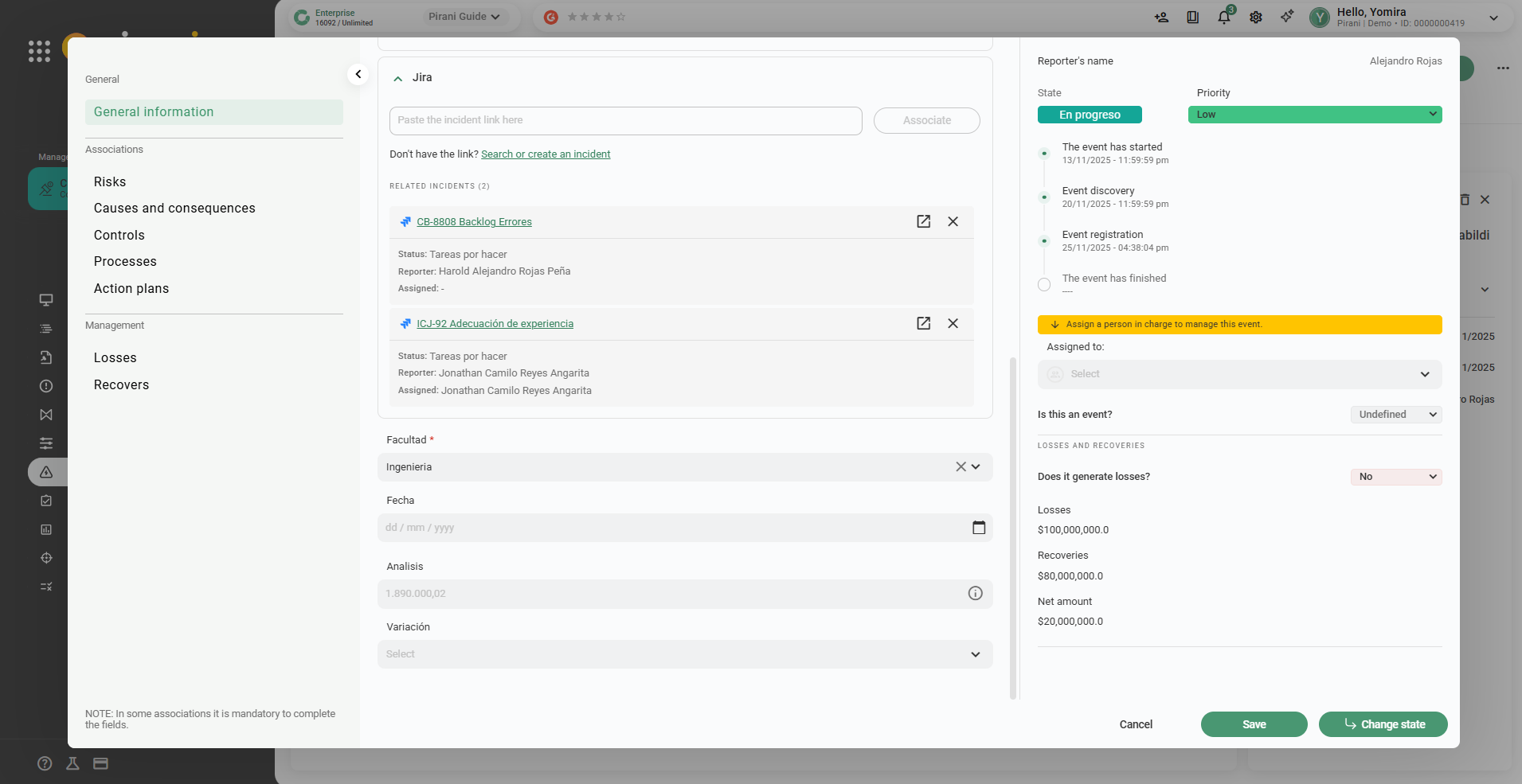
Select an event, and you’ll see a new section called Jira.
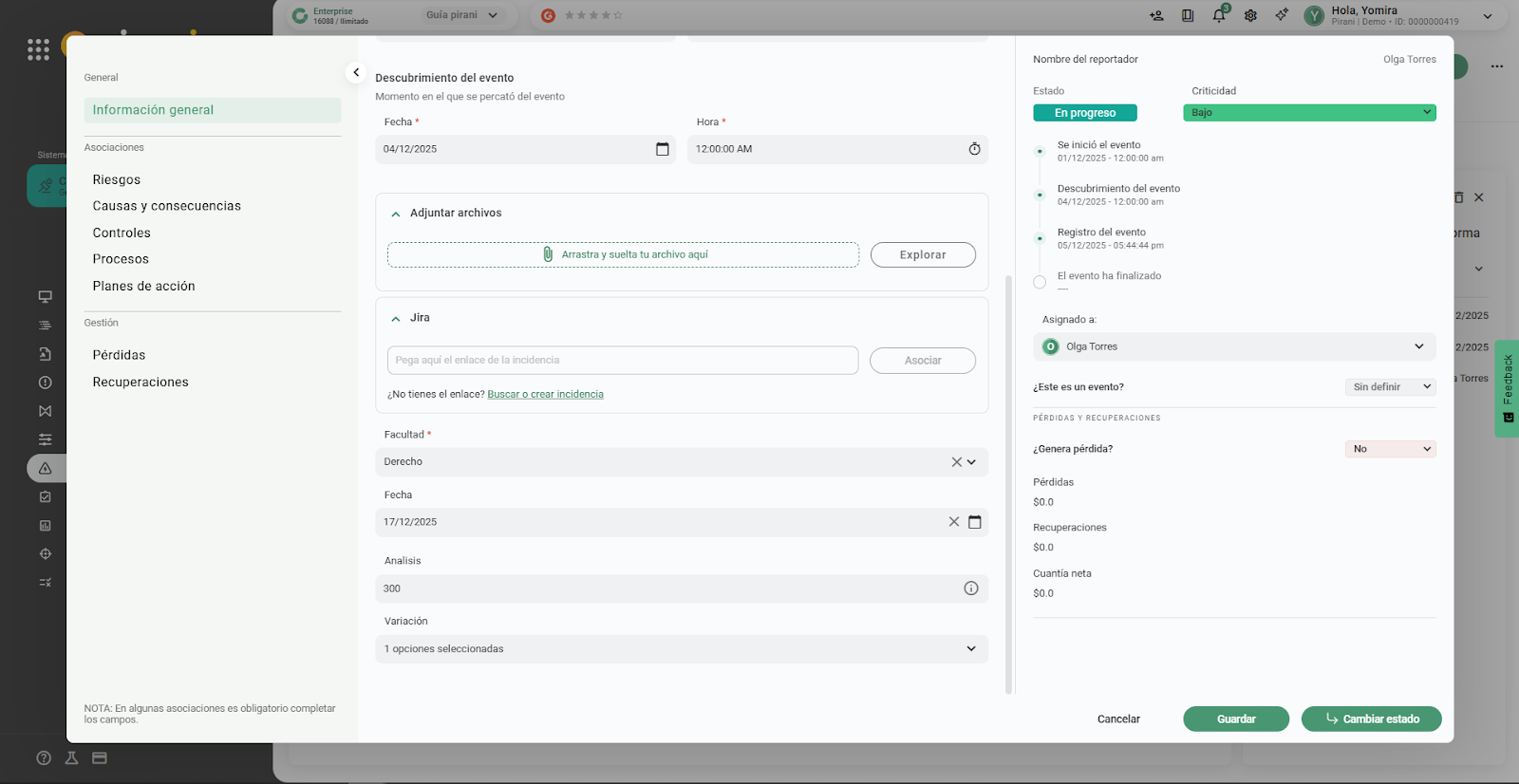
In this section, you can view all Jira tickets linked to the selected event or incident.
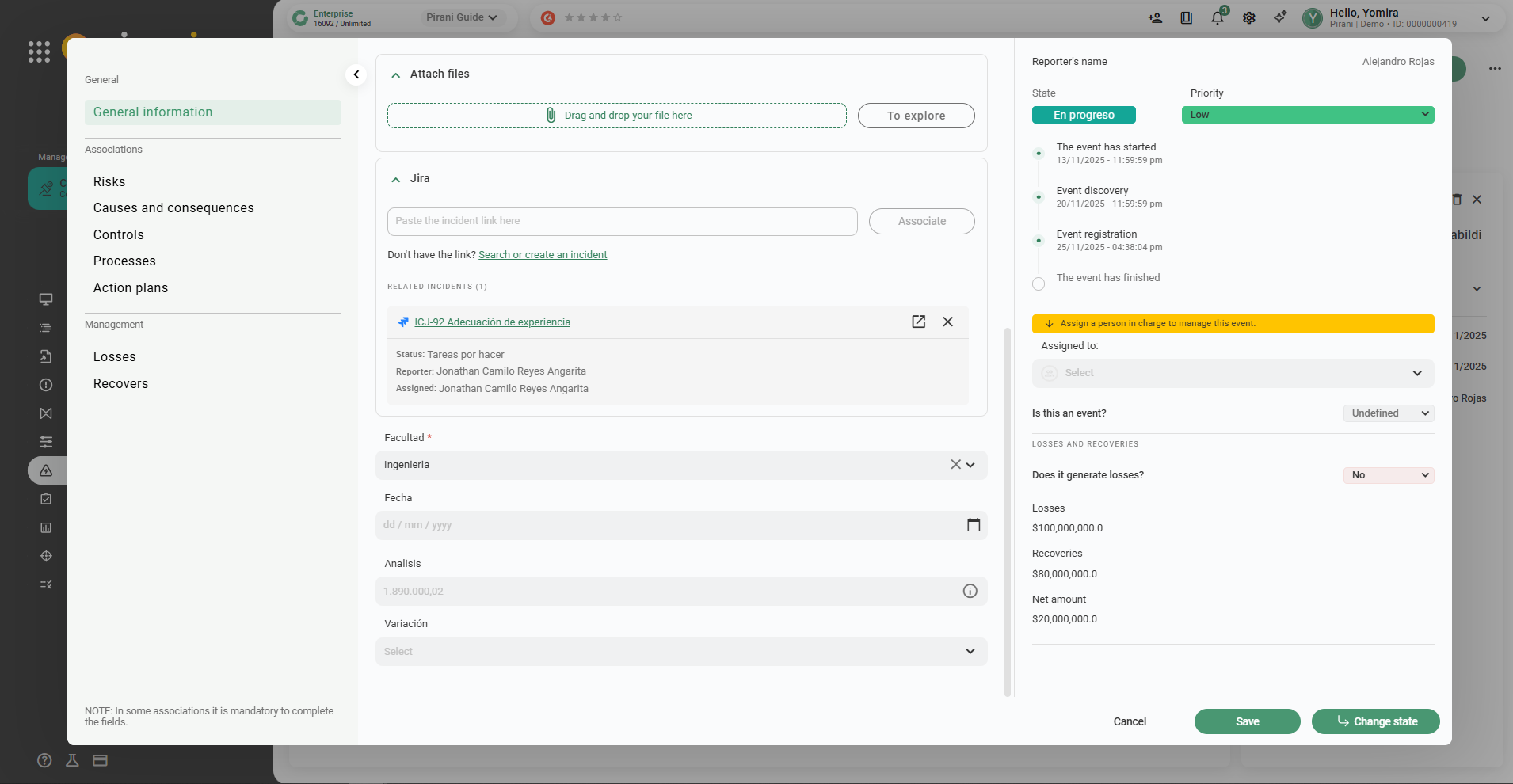
Jira information visible in Pirani
The Jira section displays the most relevant information for each ticket linked to the event. To view full details, you can go directly to Jira using the corresponding link.
The fields shown in Pirani are:
- Name: the ticket’s title
- Status: the ticket’s current status
- Reporter: the person who created the ticket in Jira
- Assignee: the person managing the activity in Jira
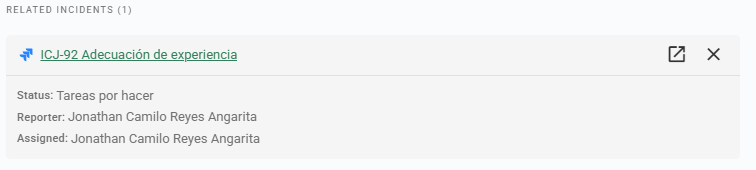
Direct access to Jira
In the Jira section, you’ll find a ↗️ link icon that takes you directly to the corresponding Jira ticket, where you can view all detailed information and manage it from there.
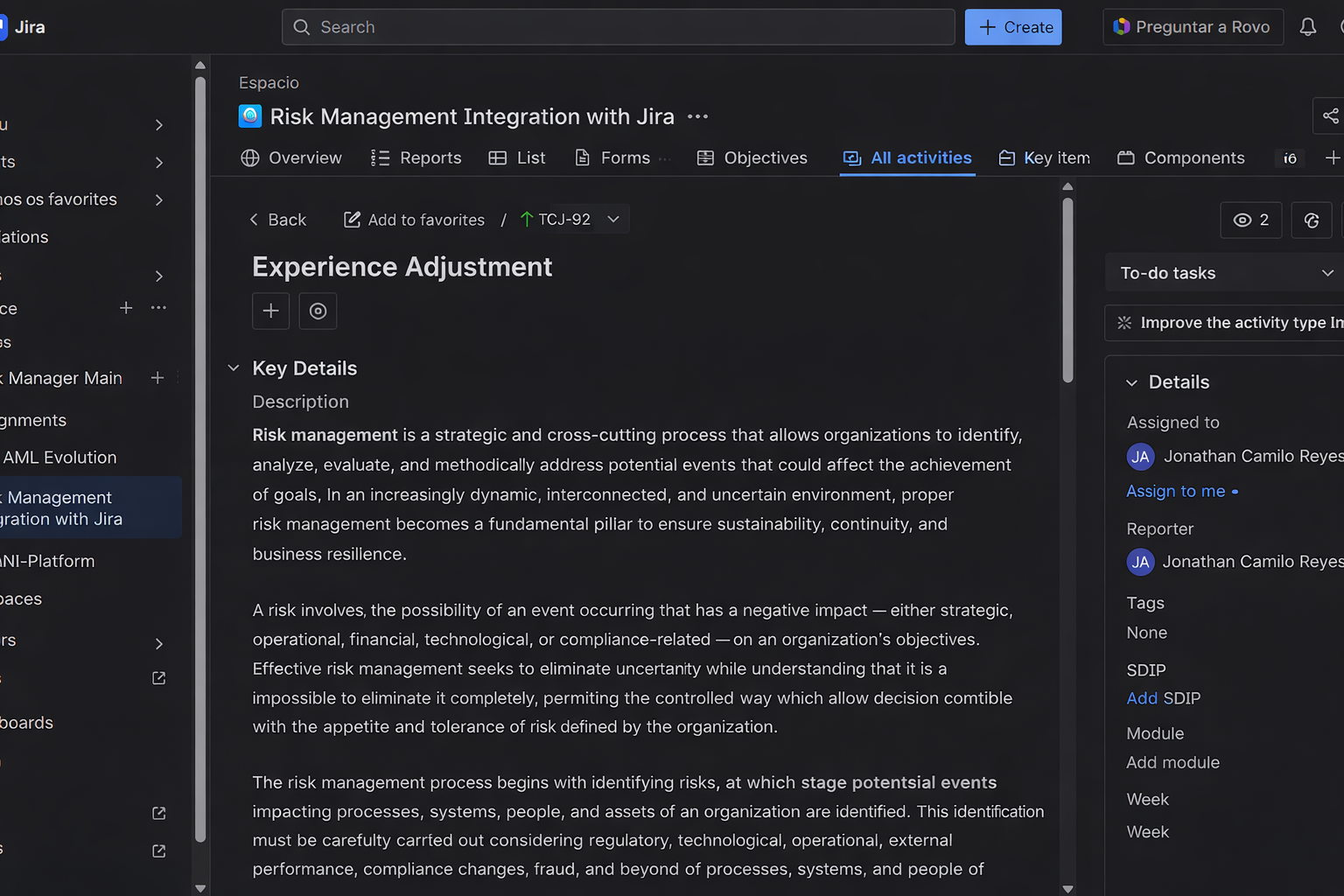
How to link a Jira issue to Pirani using the link
If you already have the Jira issue link, follow these steps:
- Copy the Jira ticket link, for example: https://yourcompany.atlassian.net/browse/ICJ-92
- Go to the Events module in Pirani and select the corresponding event.
- Paste the link into the event’s search bar.
- Select Link.
The ticket will then be automatically associated with the event in Pirani.
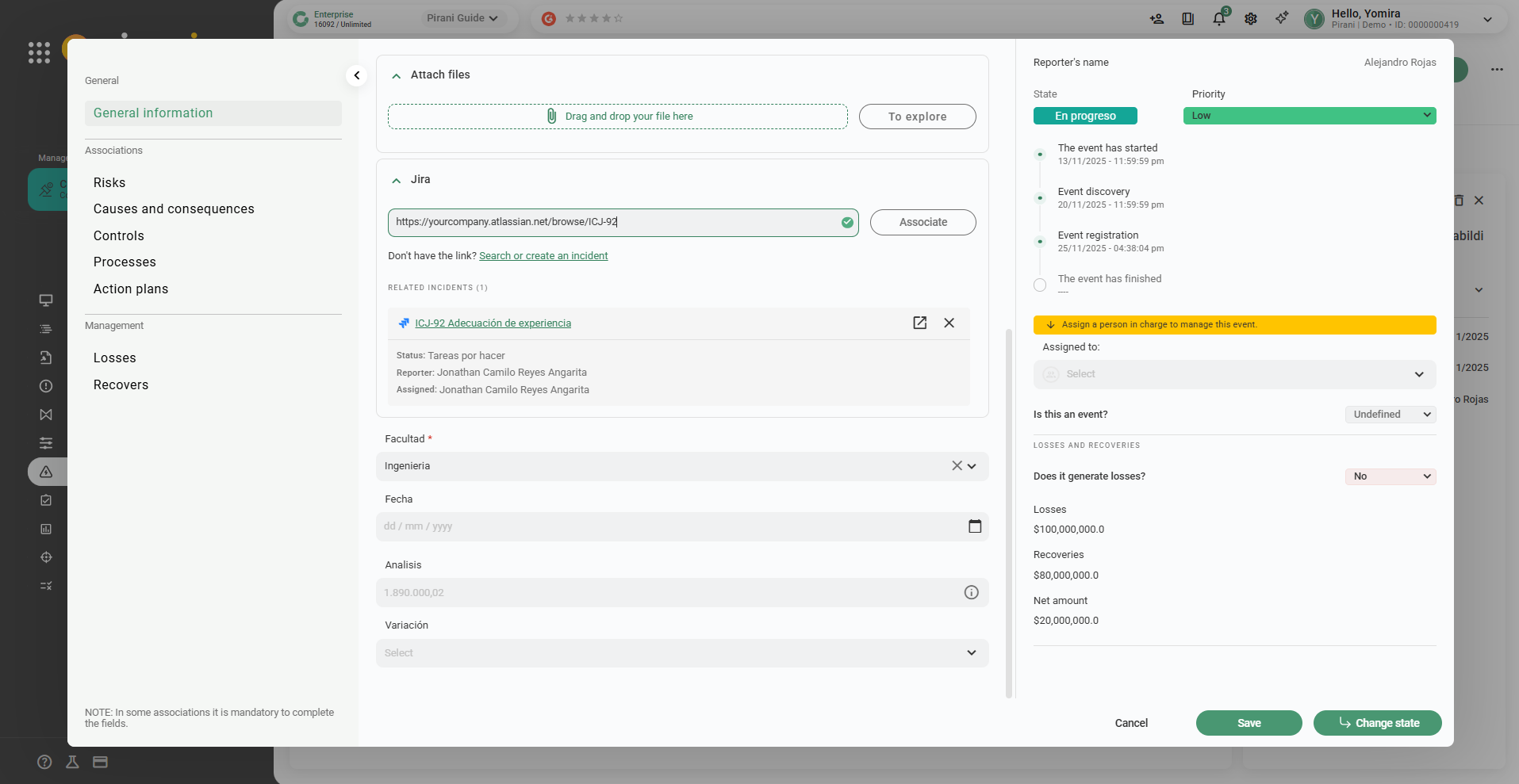
How to link a Jira issue to an event in Pirani using the search bar
1. Click Link Issue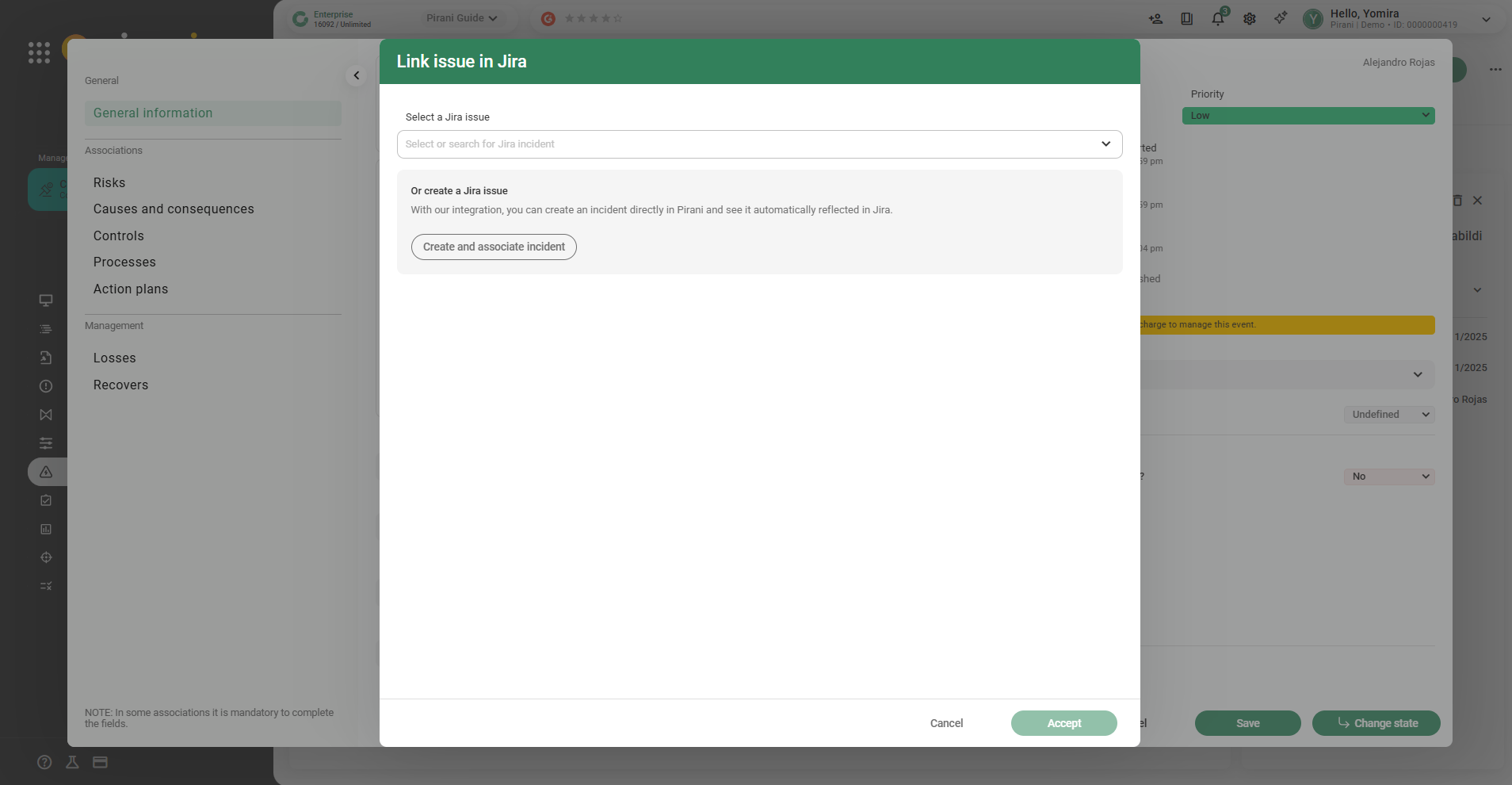
- You can search by ticket ID or name.
- As you type, the results are filtered automatically.
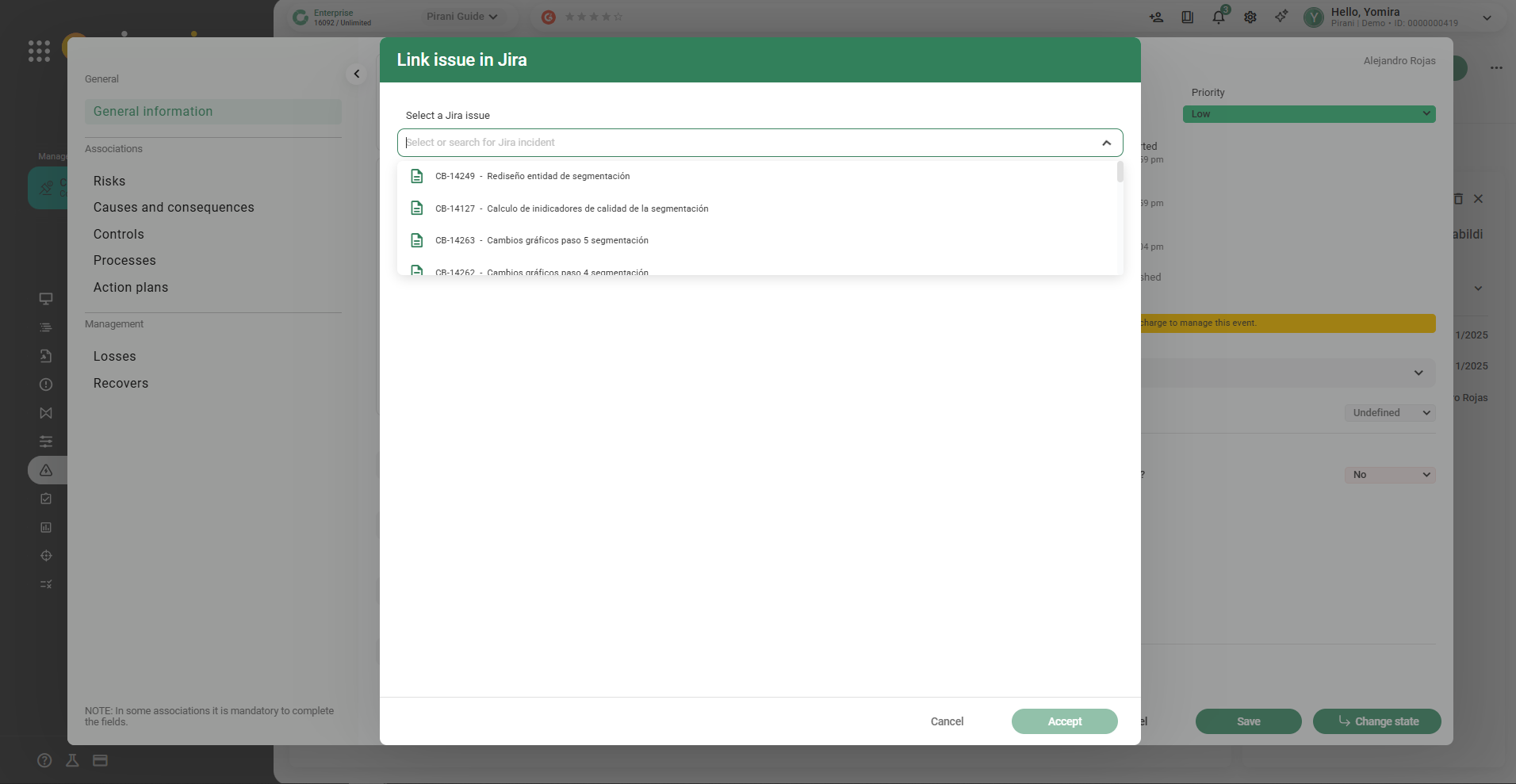
3. Select the correct issue and click Accept to link it to the event.
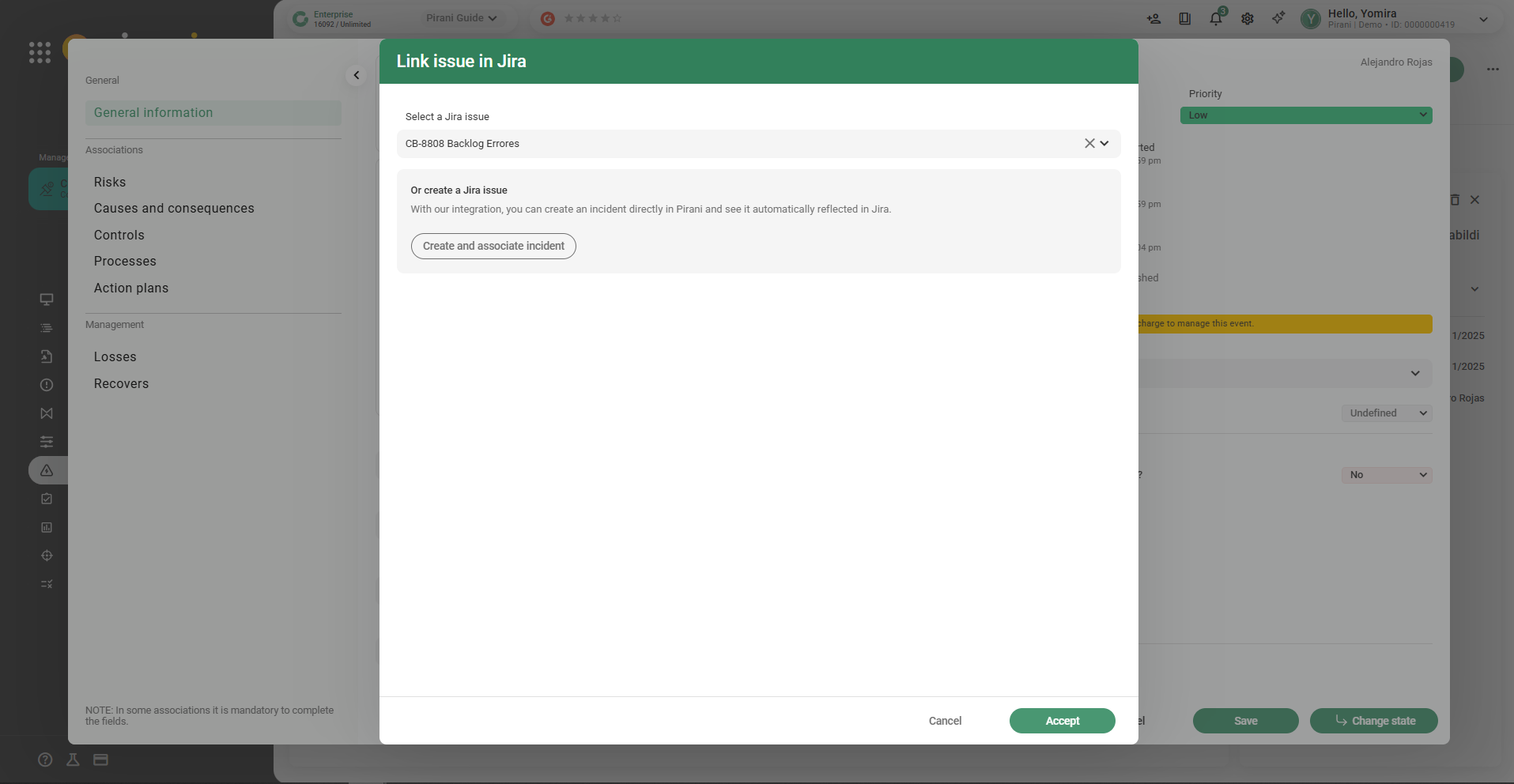
The issue will be linked to the event, and you’ll be able to view it directly from Pirani.
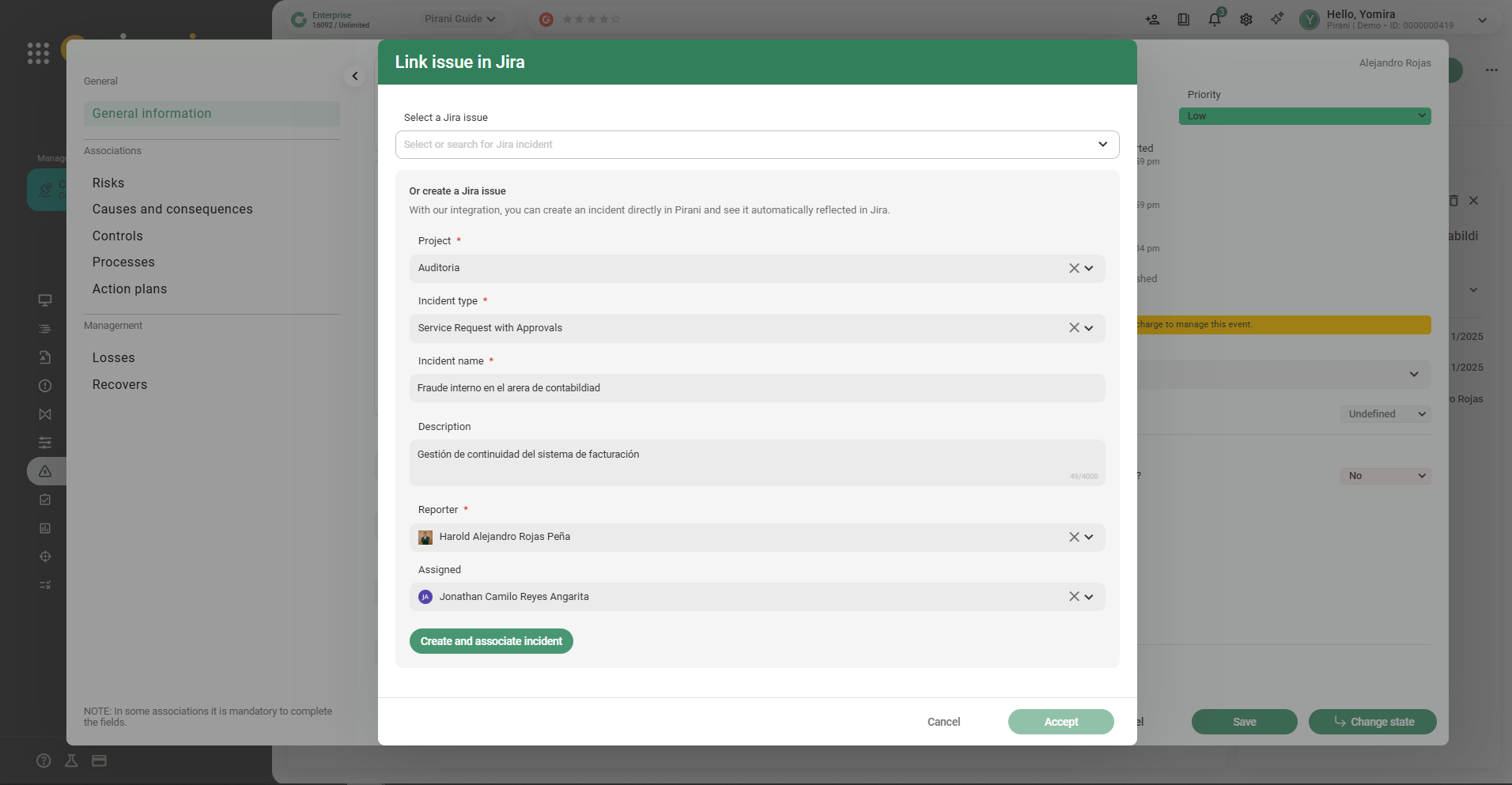
How to create a Jira issue from Pirani
If the issue doesn’t exist in Jira yet, you can create it directly from Pirani and link it to the event by following these steps:
- In the Jira section of the event, click Create and Link Issue.
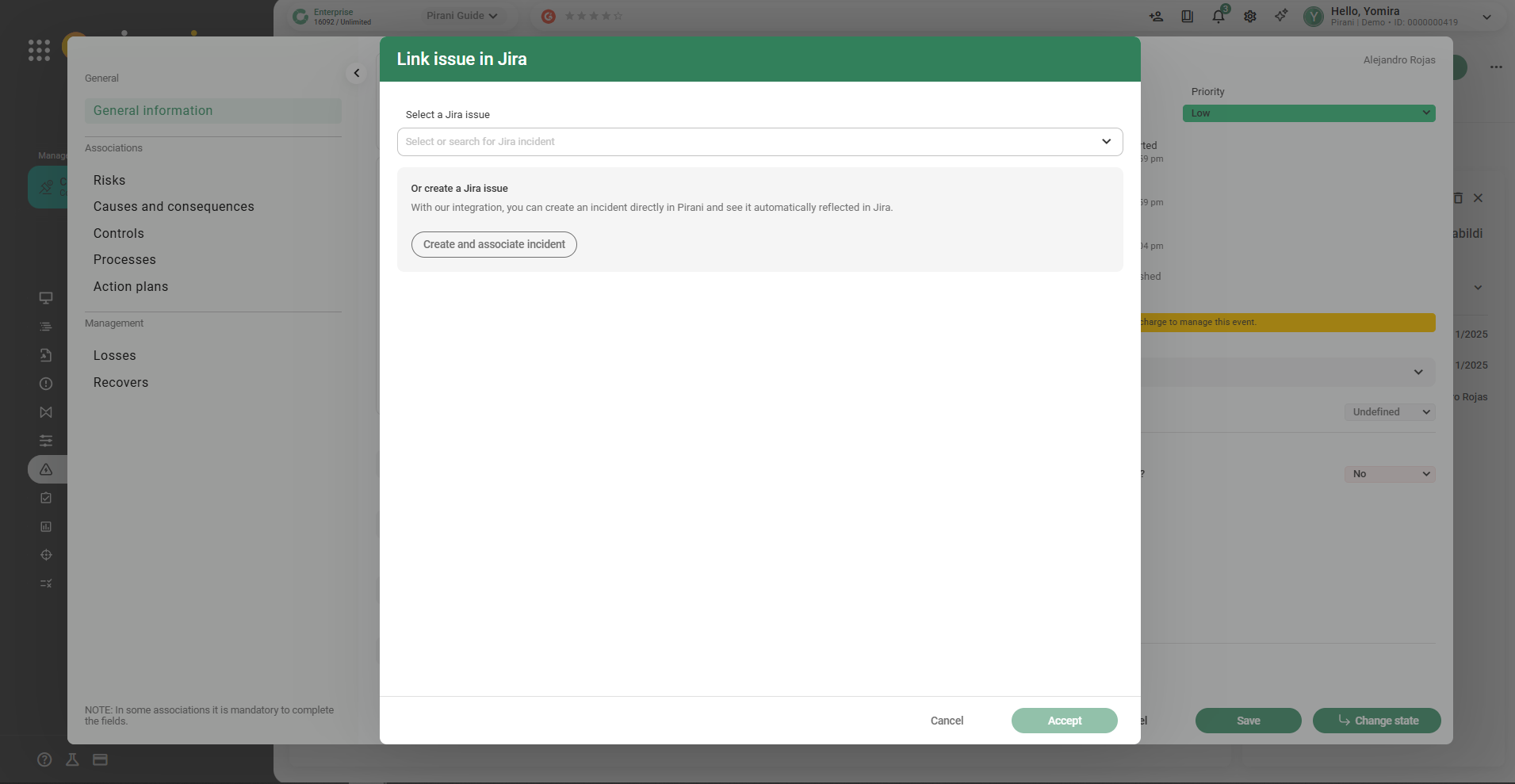
2. Select Create Jira Issue.
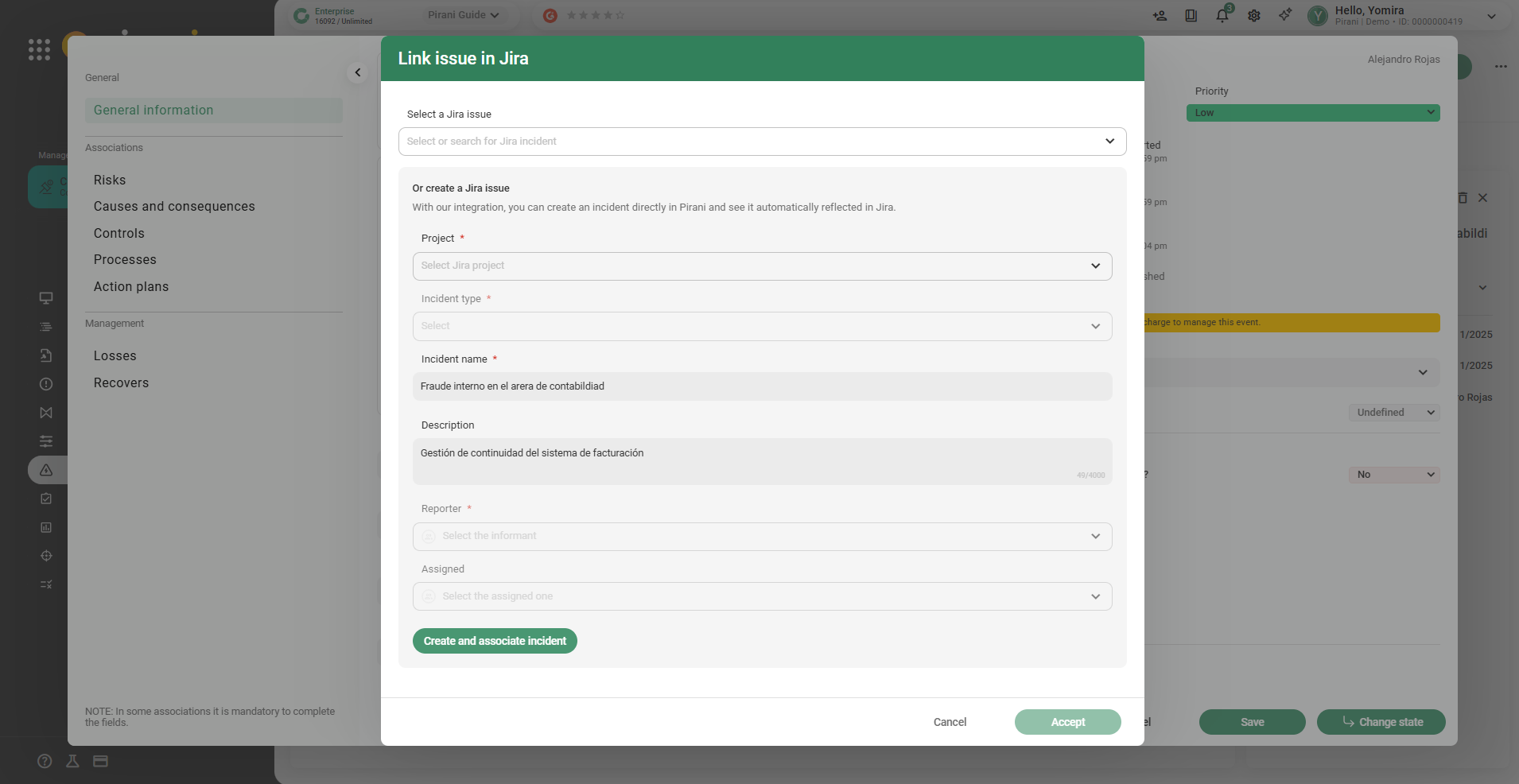
Important: These fields are required for the Jira integration.
Since Jira organizes issues by project, before creating a new issue you need to know all the necessary information about the project, issue type, and assignees.
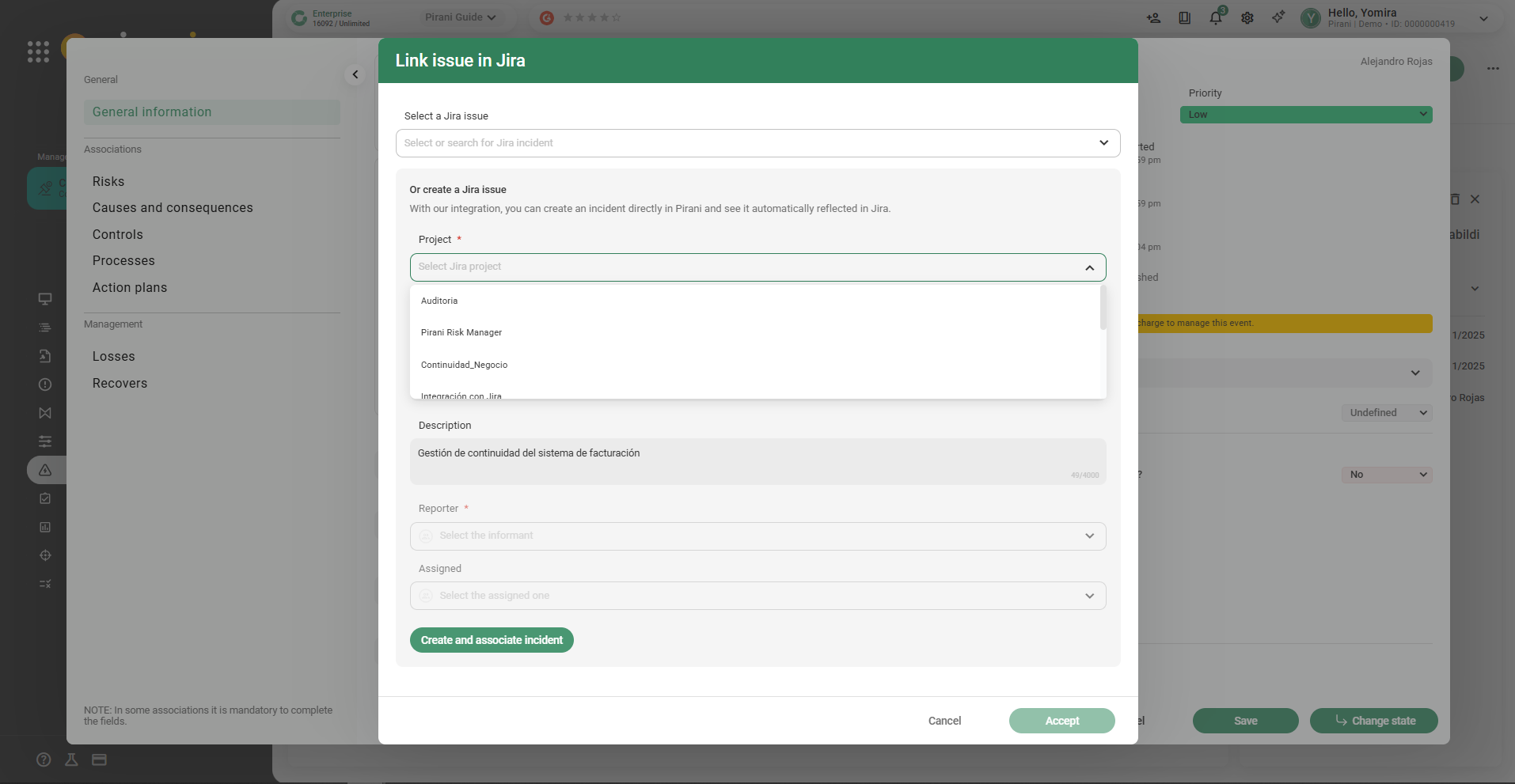
Fill in the required fields for the issue
When creating an issue from Pirani, complete the following information required by Jira:
- Project: the Jira project where the issue will be recorded.
- Issue type: e.g., bug, task, incident, etc.
- Issue name: the ticket title.
- Description: details about the event or incident.
- Assignee: the person responsible for managing the issue in Jira (not in Pirani).
- Reporter: the Jira user creating the issue.
Make sure to use Jira users and data, as assignment and creation occur within that platform.
Once all required fields are completed, click Create and Link Jira Issue.
The issue will be automatically created in Jira and linked to the event in Pirani.
A confirmation message will appear: “Issue successfully created in Jira.”
- In Jira, the assignee will receive a notification indicating that they have a new issue to manage.
- The issue is managed entirely within Jira, while Pirani keeps a record linked to the event.