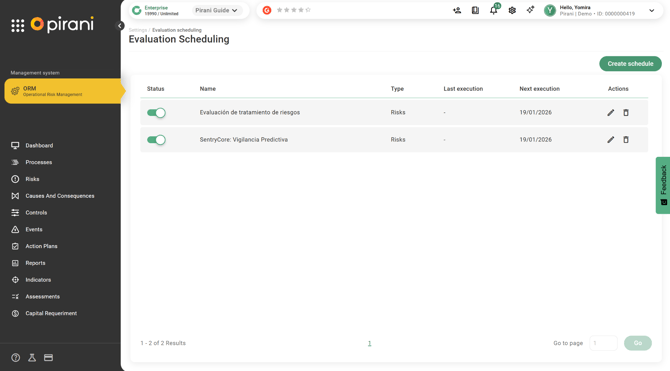
The system will periodically generate assessment plans based on predefined conditions and a specified frequency (monthly, quarterly, semiannual, or annual).
→ This functionality is available in the ORM, ISMS, AML, and Compliance systems and can be used with the Enterprise plan.
How to Access the Module
-
Go to the Configuration module.
-
Click on the gear icon.
-
Select the Management System.
-
Choose Assessment Scheduling.
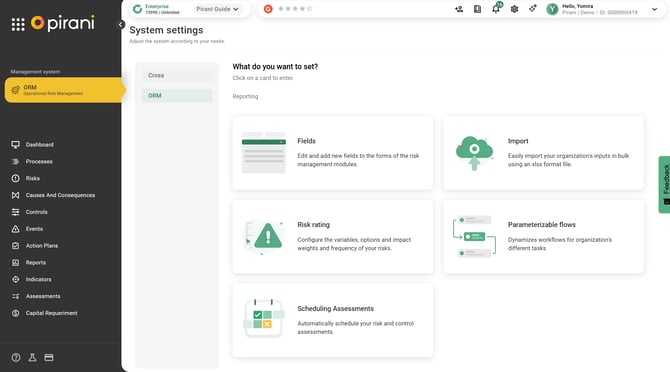
Click on “Create Schedule”
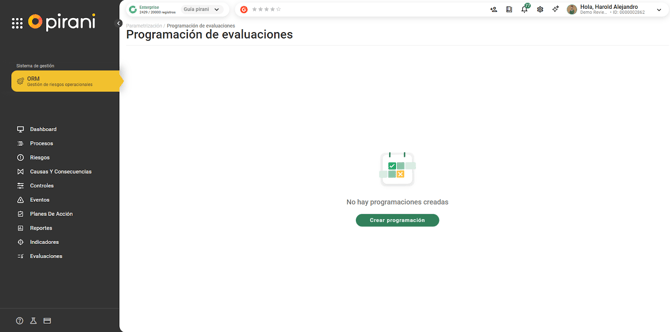
What Are the Scheduling States?
When creating a schedule, it can be in one of two states:
- Inactive
Assessment plans will not be generated automatically.
Active
The system will automatically generate assessment plans according to the defined configuration.
How to Create a Scheduled Assessment
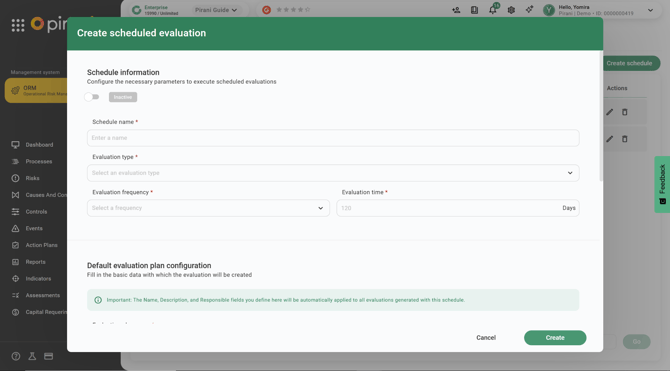
Step 1: Activate the Schedule
Activate the schedule using the toggle button to enable automatic generation of assessment plans.
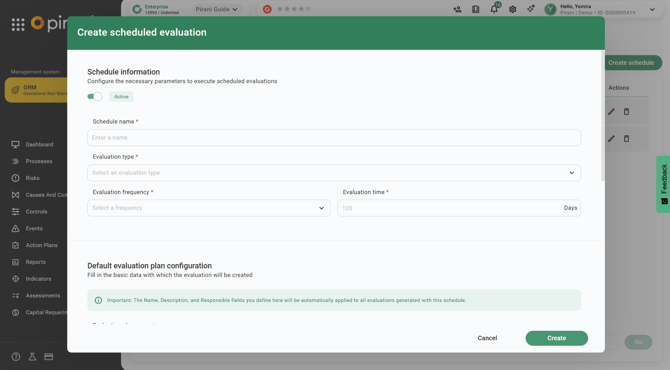
Step 2: General Configuration
Complete the required basic information for the schedule:
- Schedule Name
- Assessment Type: Select one of the options, such as Risks or Controls.
- Assessment Frequency: Define the frequency, which can be monthly, quarterly, semiannual, or annual.
- Assessment Period: Define the available period to complete the assessment. (Required field)
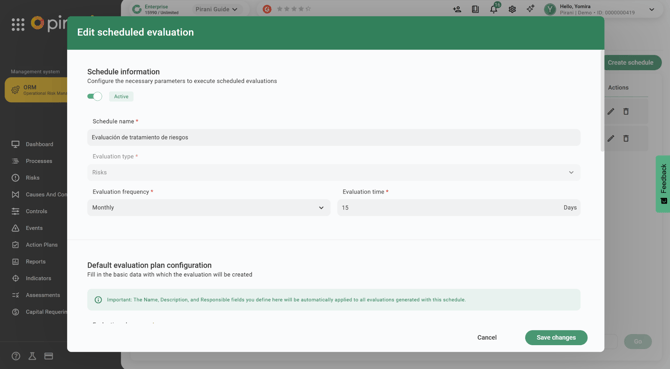
Step 3: Assessment Plan Configuration
Define the values that will be used to automatically create assessment plans:
- Assessment Plan Name: The name that will appear in the Assessments module.
- Assessment Plan Description: Required field.
- Assessment Plan Owner: User responsible for monitoring the plan.
- Responsible Groups: The selected groups will be associated with the assessment plan.
- Evaluators: Individuals responsible for assessing the risks or controls, such as:
- Risk Creator
-
- Specific User
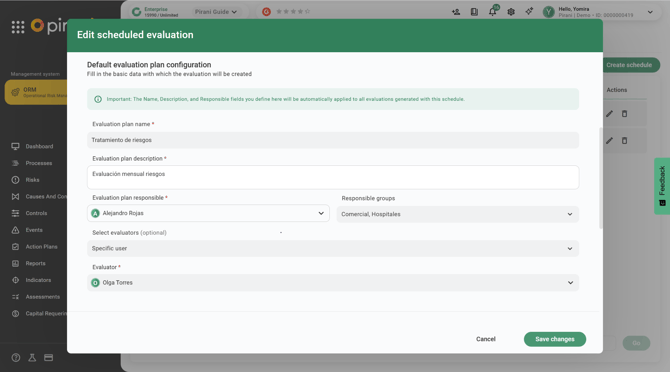
Step 4: Assessment Scope
Define which risks will be included in the assessment plan.
Scope Options
-
All Risks by Default: Includes all risks associated with the account and the management system where the schedule configuration is being performed.
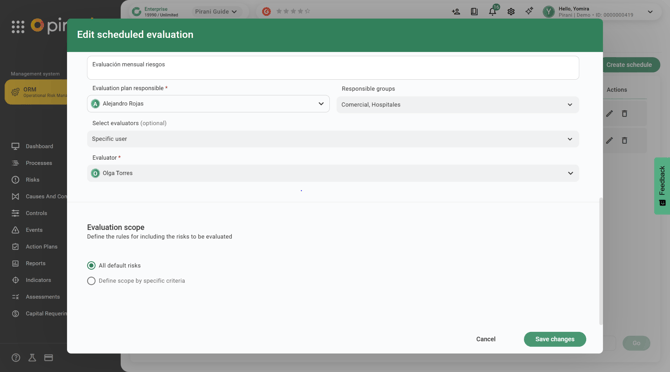
2. Define Scope by Specific Criteria
Allows filtering risks based on specific conditions.
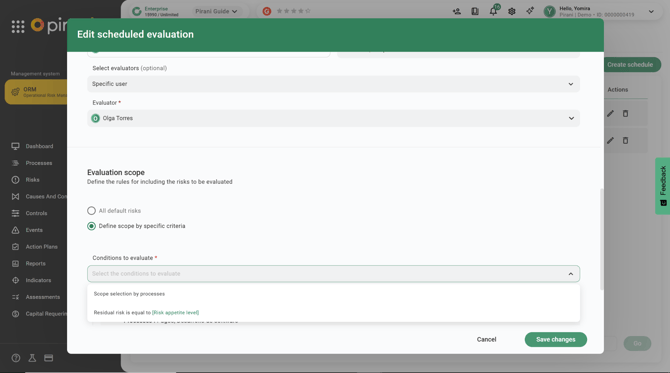
There are two conditions to define:
- Scope Selection by Processes
- Residual Risk Equals: (Risk Appetite Level)

If you select the scope condition by processes (applies to both risks and controls):
All selected processes will be displayed.
All risks and controls associated with these processes will be automatically included in the assessment plan.
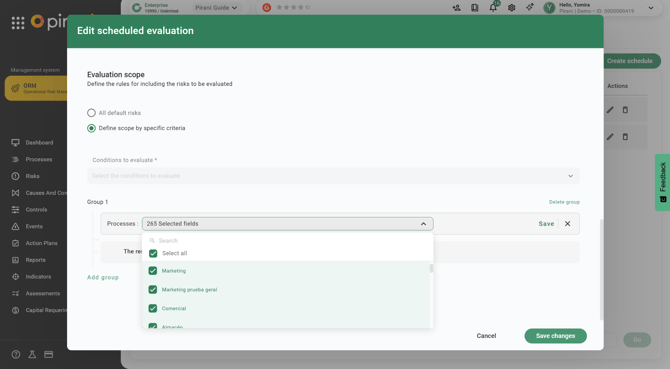
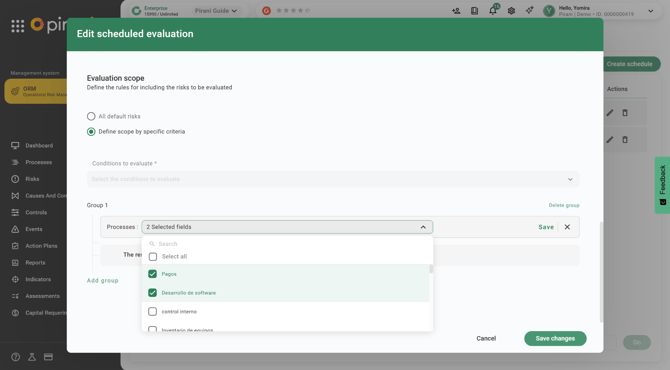
If you want to create an assessment plan with only specific risks, select only the processes to which those risks are associated and click “Save”.
If the selected processes have associated risks, only those risks will be evaluated.
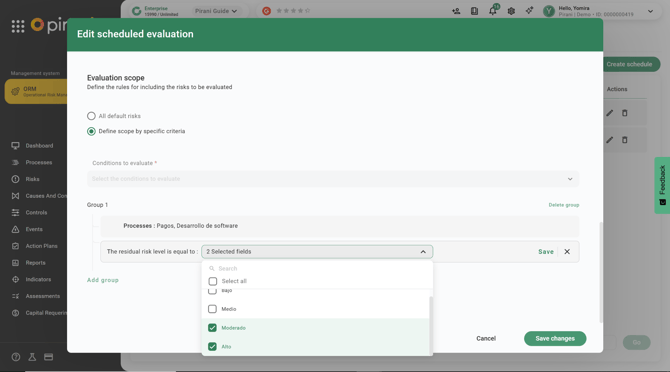
If you select the condition that residual risk equals one of the available options, it will set the conditions for a specific entity.
How Do the Conditions Behave?
Within the Same Group
Risks must meet all defined conditions.
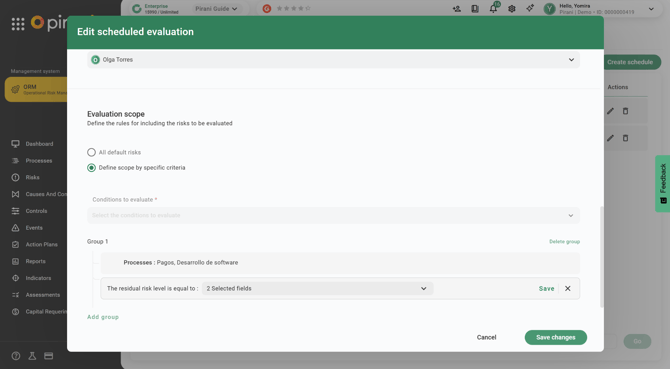
Within the Same Group
Risks must meet all defined conditions, and the groups must also satisfy the same condition.
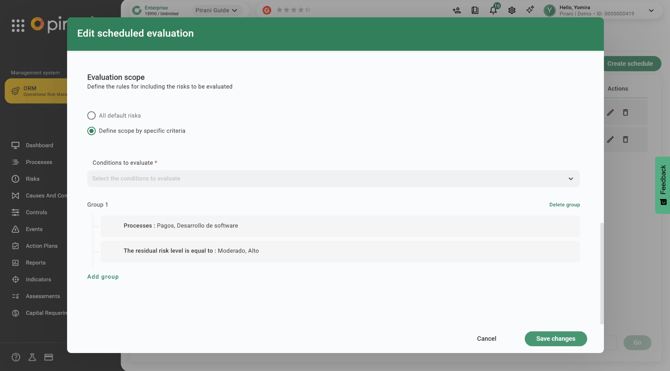
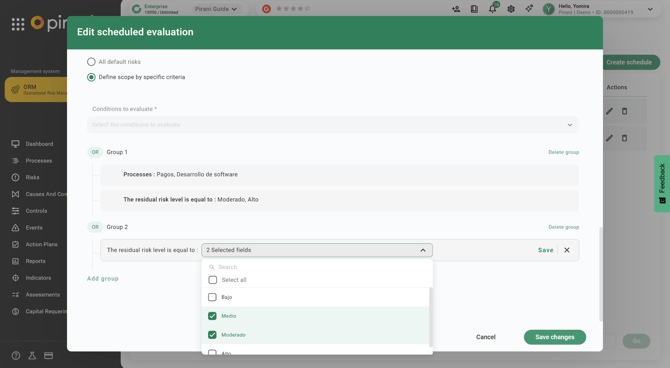
Across Different Groups
Risks must meet at least one condition.
Finally, click “Create”.
The assessment schedule will be created, and the columns will display “Last Execution”, “Next Execution”, and “Status”.