The system also includes preloaded survey and evaluation templates, developed in accordance with audit best practices. These templates can be used as-is or adapted to meet the organization’s specific needs. They are applicable both for evaluating audit teams and for collecting feedback on audit programs.
→ This functionality is available within the Audit system and can be used starting from the Starter plan.
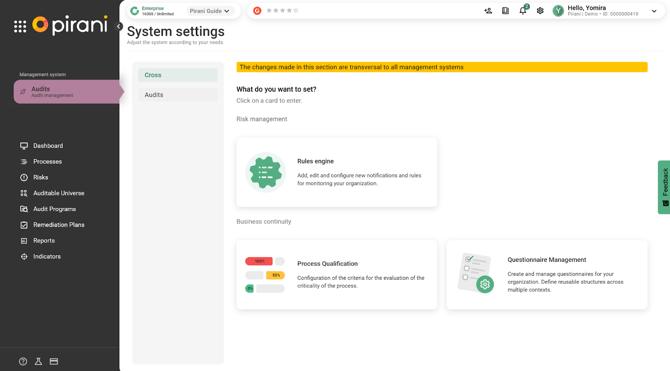
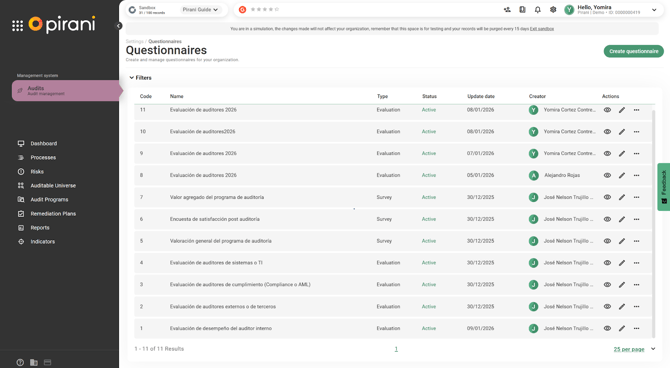
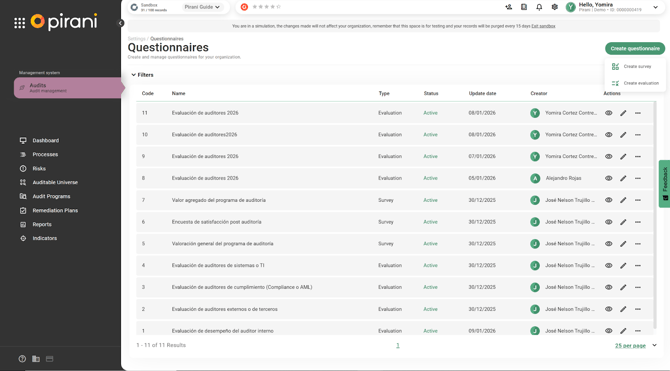
To access it, go to the system configuration by selecting the Settings icon ⚙️, then choose “Cross-functional” and “Questionnaire Management.”
How do preconfigured templates work?
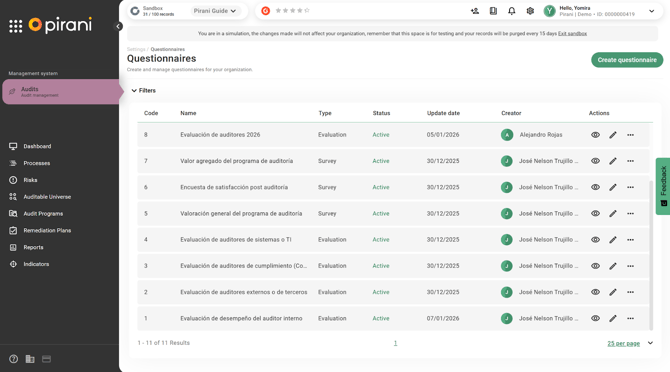
The system includes preloaded questionnaires and predefined evaluations that you can modify as needed, as well as the option to create a new one from scratch.
Template preview
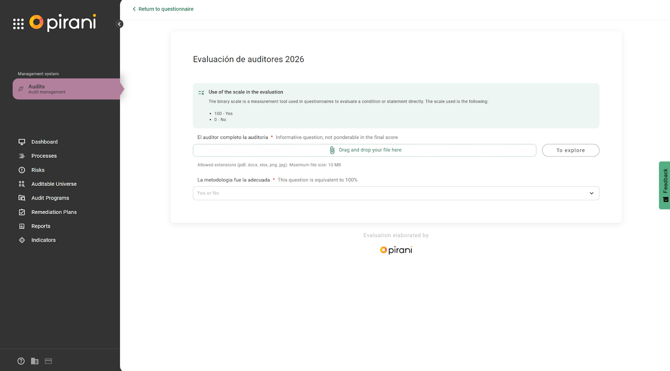
By accessing an evaluation or survey through the Preview icon 👁️, you can view how the questionnaire will be presented before it is used.
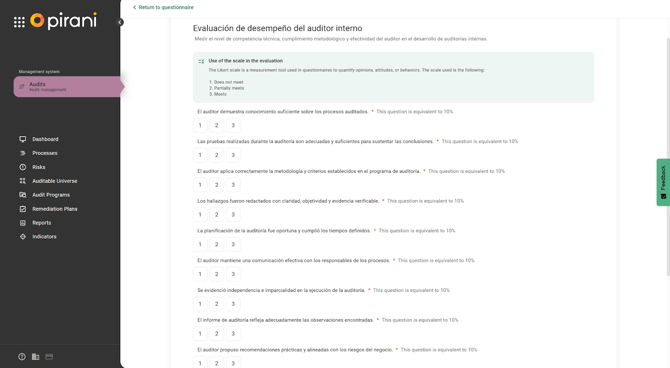
From there, select “Back to questionnaire” to return to the questionnaire settings.
You will return to the configuration section, where you can make adjustments or exit the form.
Template Management Options
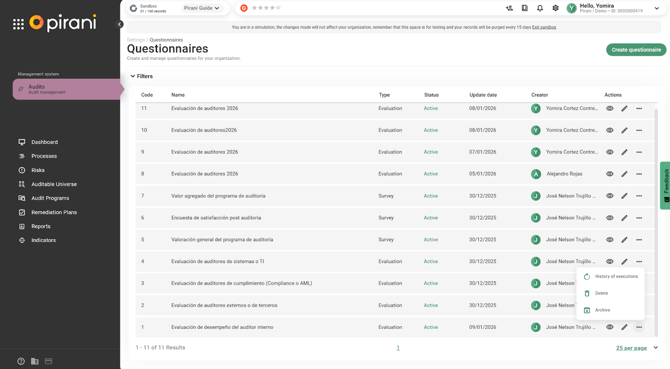
Each template includes several management options to simplify administration:
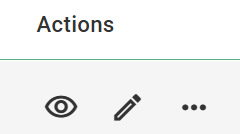
- Preview 👁️: Allows you to view the questionnaire exactly as the end user will see it.
- Edit ✏️: Lets you modify the template content at any time.
All changes are saved automatically. - Archive 📁: Hides the template, preventing it from being available for use without permanently deleting it.
- Delete 🗑️: Permanently removes the template from the system.
- Execution History 📊: Allows you to see which audit programs the template has been used in, helping track and trace its usage.
How to configure a preconfigured template
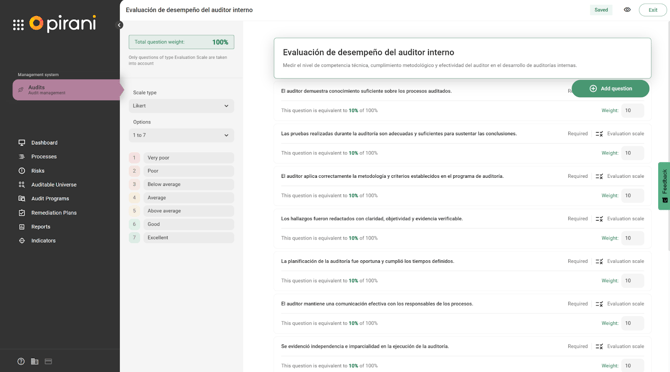
To configure an existing evaluation or survey, click the Edit icon.
All changes are saved automatically.
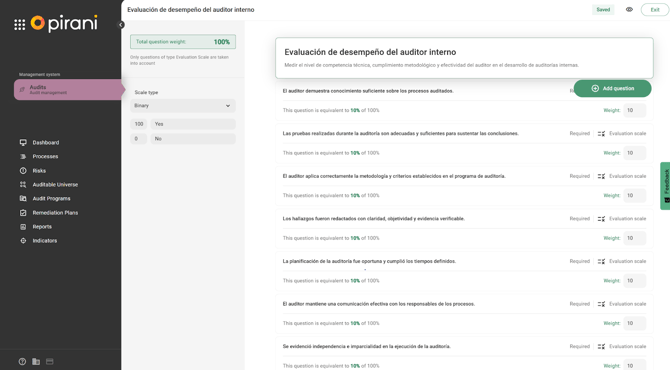
Question and Weight Configuration
Each question has a specific weight, and the total sum of all weights must equal 100%, which is required for the evaluation to be calculated correctly.
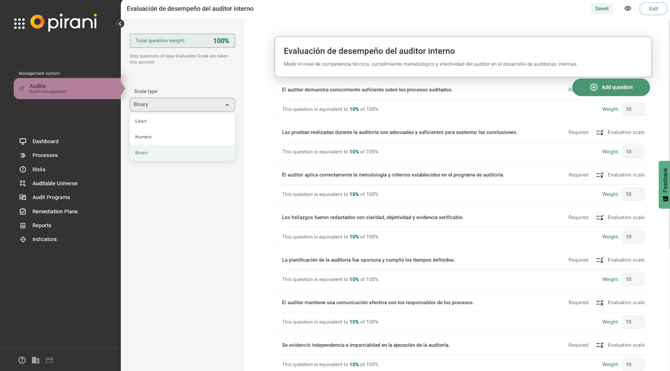
Available Scale Types in Templates
Preconfigured templates support the following scale types:
- Binary Scale
- Numeric Scale
- Likert Scale
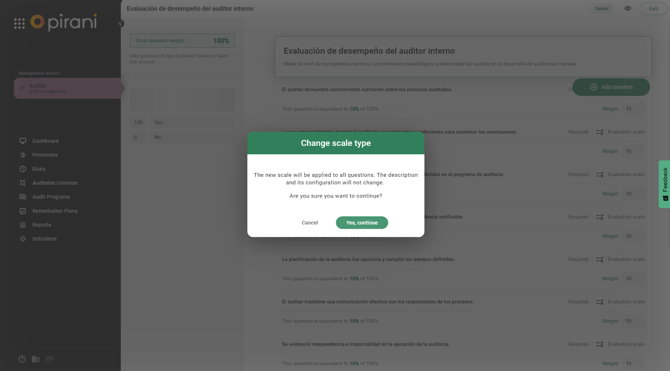
Any time the scale type is changed, the system will display a confirmation message before applying the adjustment.
Scale Details
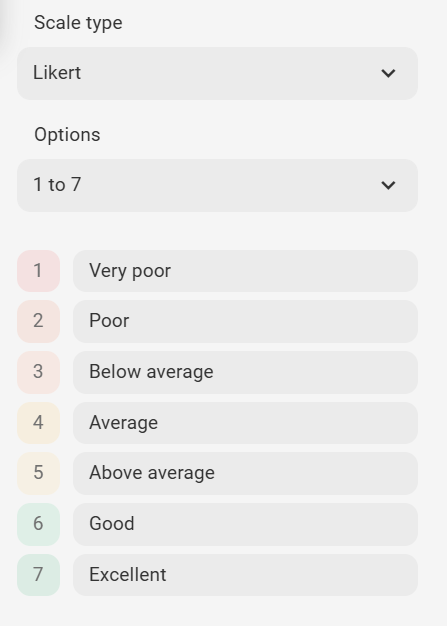
- Likert Scale: Allows ratings from 1 to 7, ranging from Very Poor to Excellent.
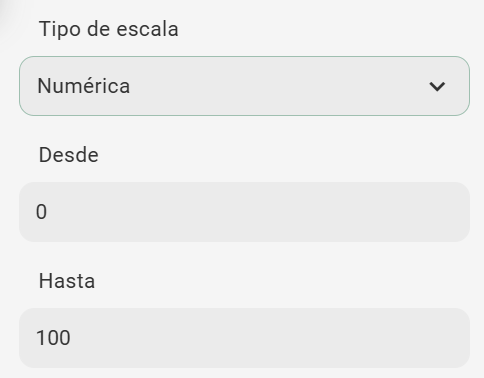
Numeric Scale: Allows assigning values between 0 and 100.
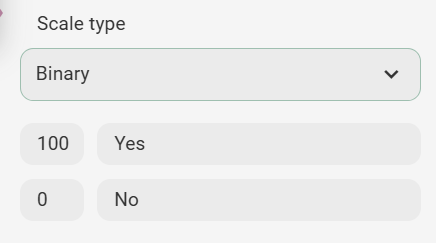
Binary Scale: Allows responses such as Yes / No or Pass / Fail, depending on the template configuration.
How to create a questionnaire
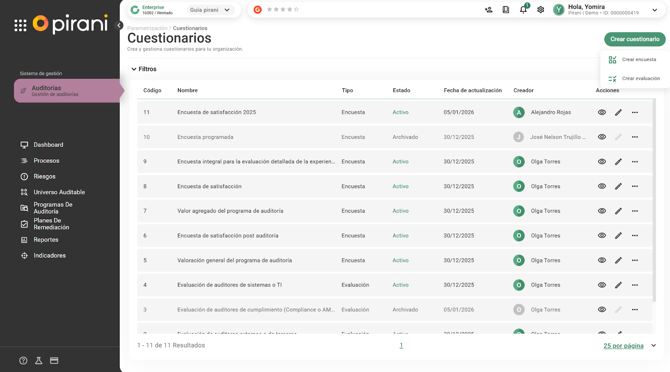
To create a questionnaire, go to the Questionnaire Management module and select whether you want to create an “Evaluation” or a “Survey.”
How to create an evaluation
To create a new evaluation, click the “Create Questionnaire” button and then select “Create Evaluation.”
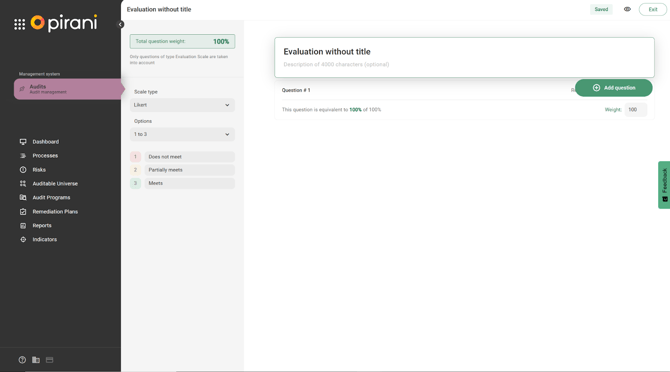
Assign a title and, if desired, a description.
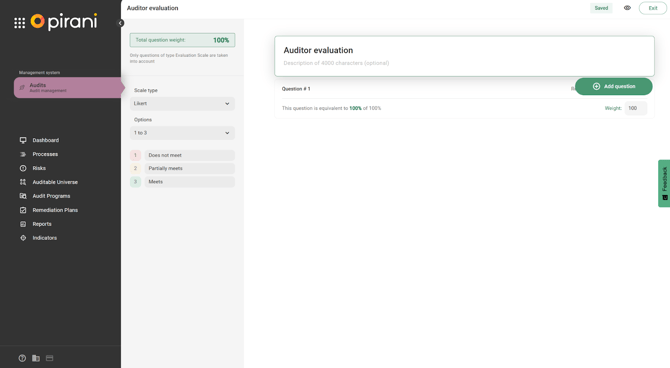
Next, add the corresponding questions.
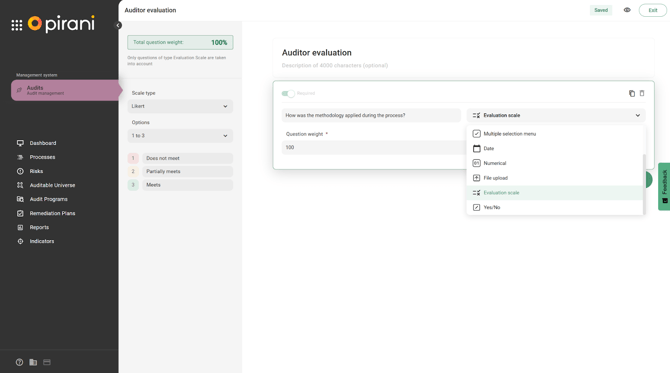
To allow the system to calculate results, it is required to use a “Evaluation Scale” field.
At any time, you can use the Preview icon to see how the evaluation will appear before it is used.
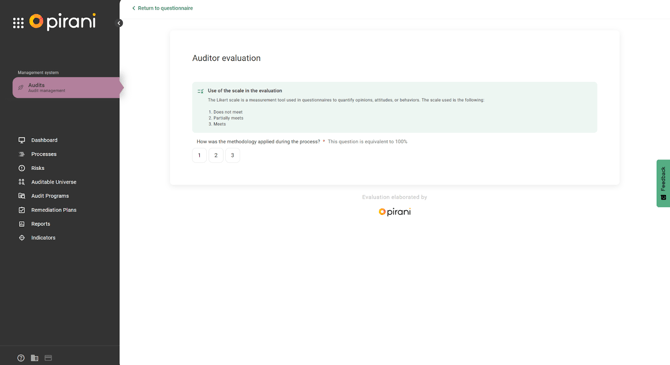
Likert Scale: This scale allows you to standardize responses, facilitate the quantification of results, and obtain a total percentage based on the number of options selected.
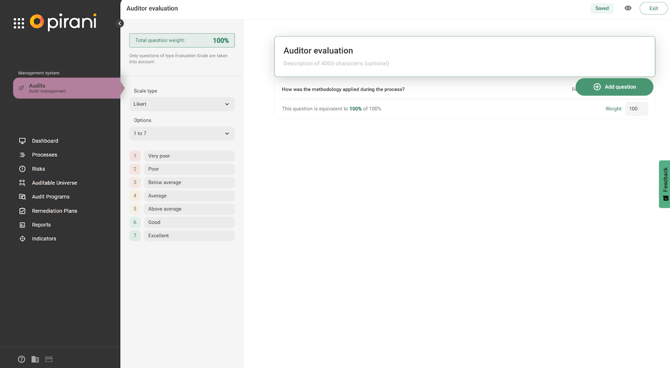
Numeric Scale: You can define the numeric value used for rating.
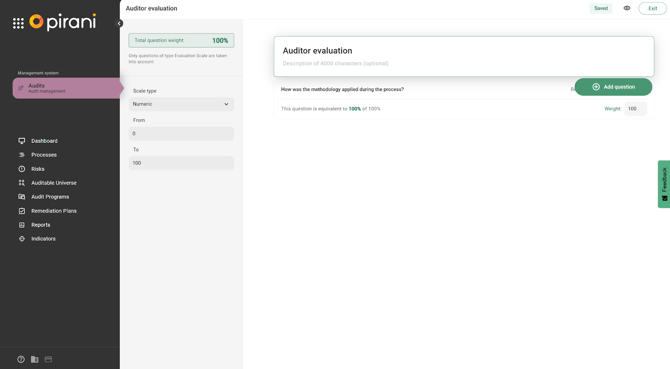
Select the Preview (eye) icon. You can also assign a rating from 0 to 100.
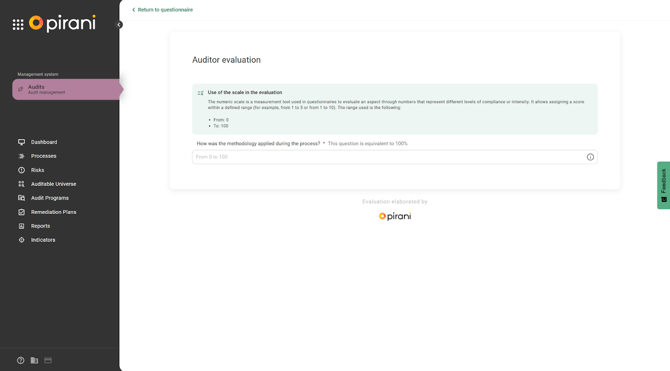
Binary Scale: You will only have two options to define.
*To calculate results based on the scale type, you must use an “Evaluation Scale” field.
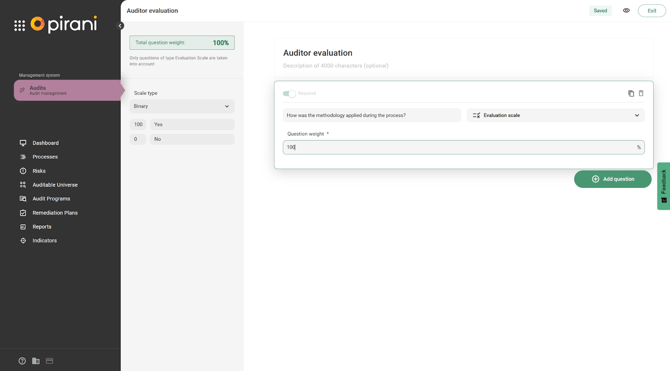
In addition to evaluation scales, the system allows you to include other field types, such as single or multiple choice lists, file uploads, long text, short text, date fields, and yes/no options. These fields are useful for collecting additional information or attaching evidence related to the audit process.
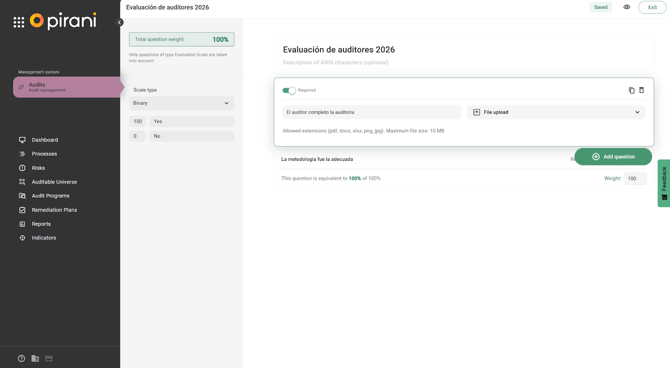
Select the Preview (eye) icon and attach a document as audit evidence.
Within the Audit Program module, there is the Audit Team section, where evaluations associated with the individuals who participated in the audit program are managed.
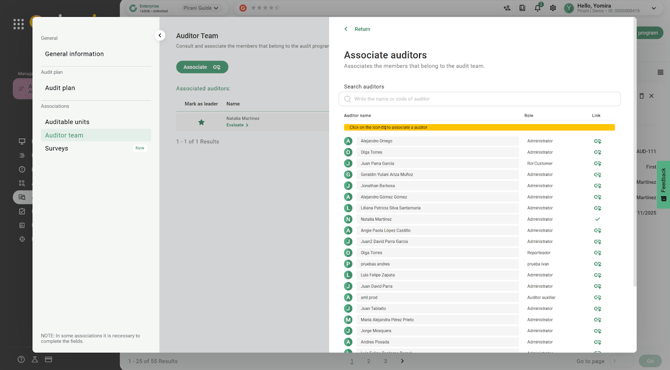
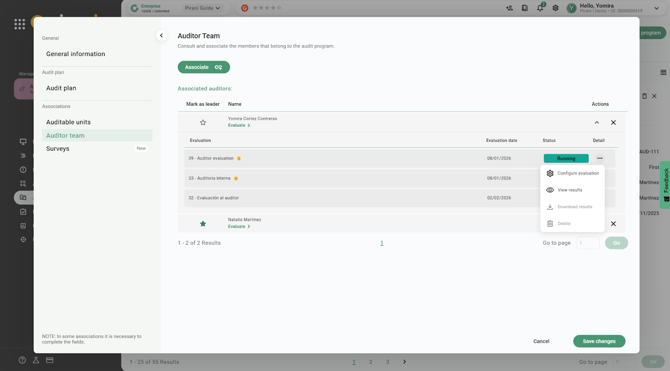
By selecting the Evaluate button, a section is enabled to configure the evaluation of the participants.
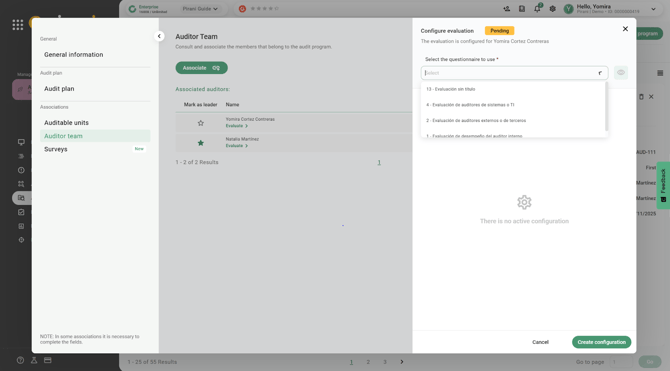
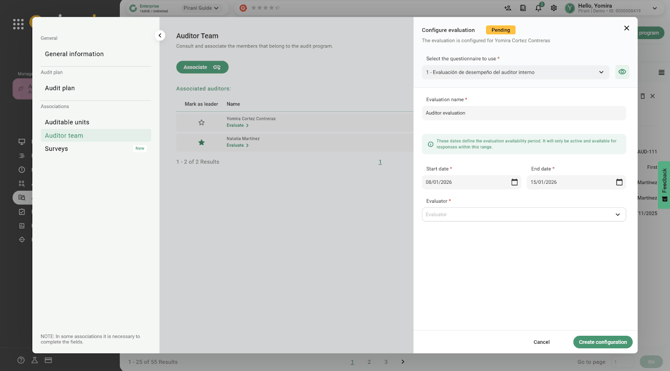
In this configuration, you need to assign the evaluation, set a name, define the dates that determine the availability period, and select the person to be evaluated.
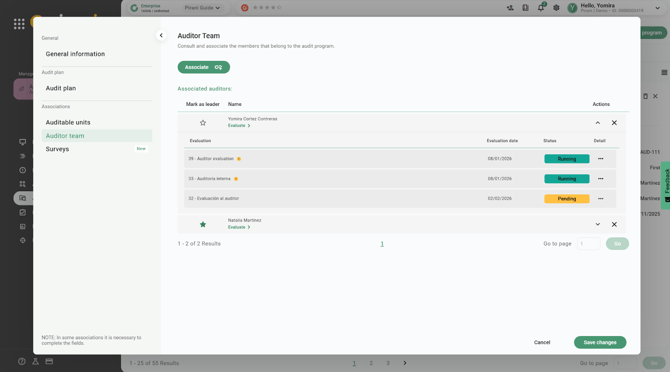
Once created, the evaluation assumes a specific status. Evaluations can only be conducted when the Audit Program is in the In Progress state and has not been completed.
At the time of assignment, the person being evaluated receives an email notification and an in-system notification, with the option to “Respond to Evaluation.”
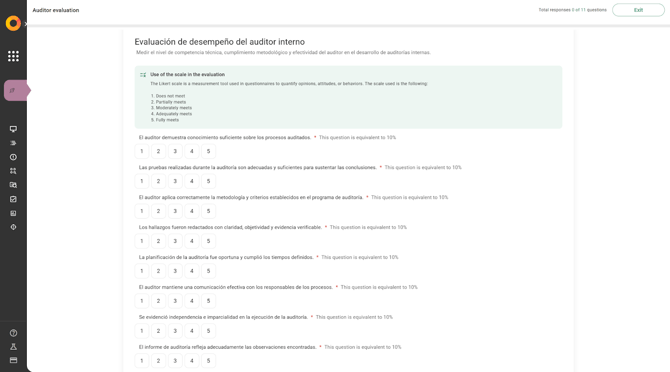
To view the results, select “View Results” from the status menu.
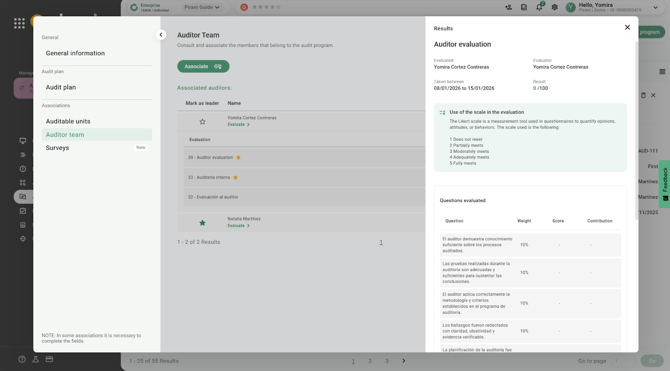
This will display the score obtained for each question and its contribution to the overall result.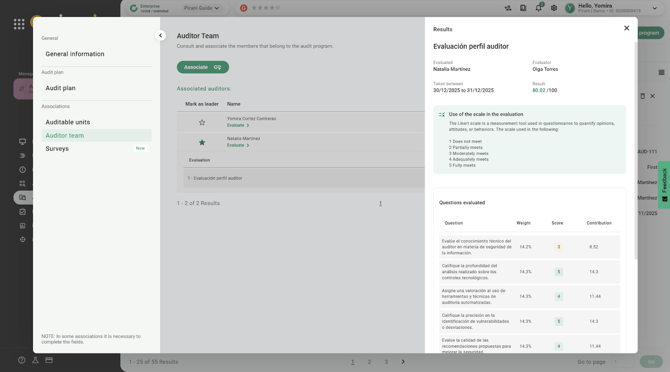
How to create a survey
The main difference between a survey and an evaluation is that a survey does not generate a score. Its purpose is to collect information and feedback on the execution of the audit program, in order to improve future audits, such as auditor assignments, processes, or responsibilities.
This process is usually carried out after an evaluation. To create a survey, go to the system settings and select “Create Questionnaire” > “Create Survey.”
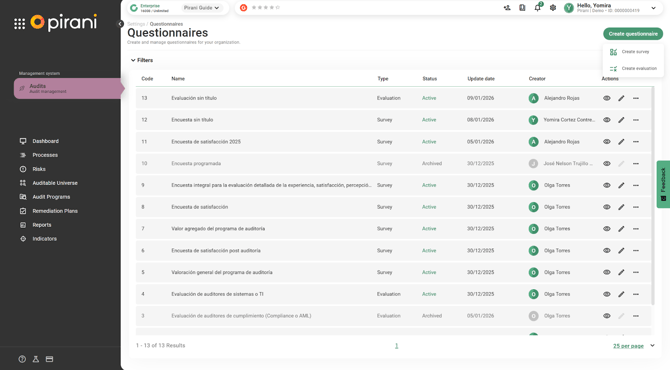
Or go to the Audit Program and then to the Audit Plan.
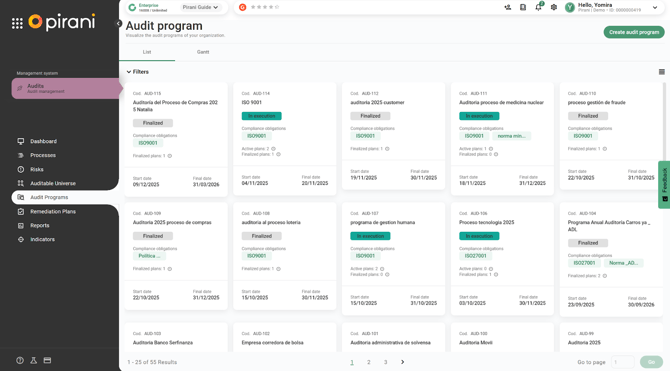
Select “Create Survey.”
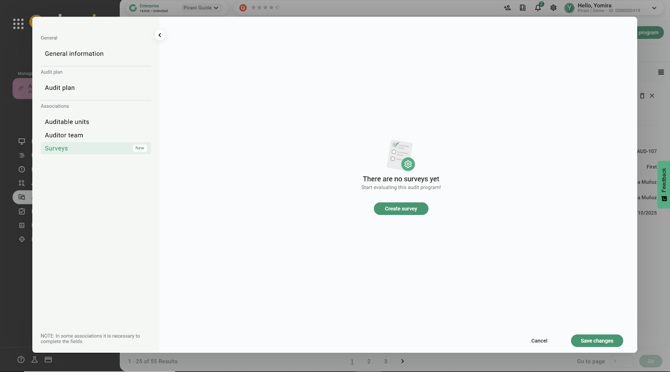
Next, choose one of the previously created surveys.
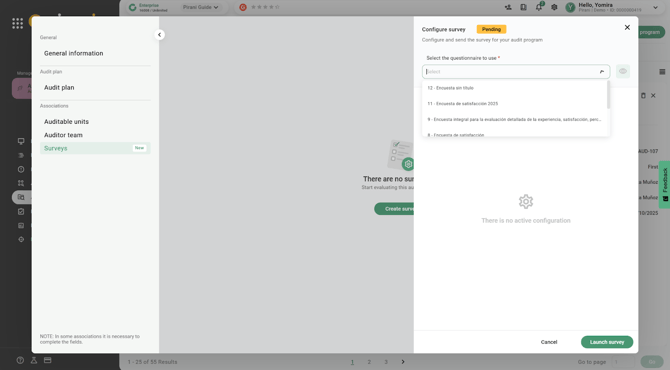
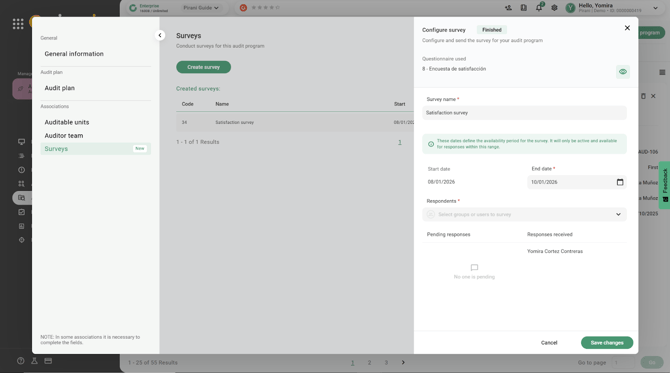
Assign a name, set the start and end dates, and select the group or individuals who will respond to the survey. There is no single responsible person, as the survey can be completed by multiple participants. The system will display both the respondents and those who are still pending. To start the process, select “Launch Survey.”
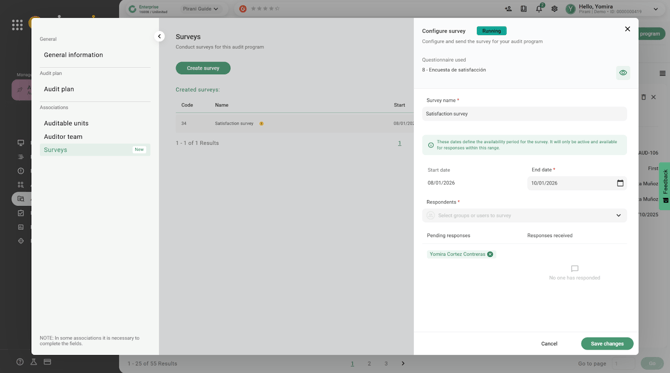
Participants will receive a notification by email and an in-system notification (bell icon), where they can respond to the survey.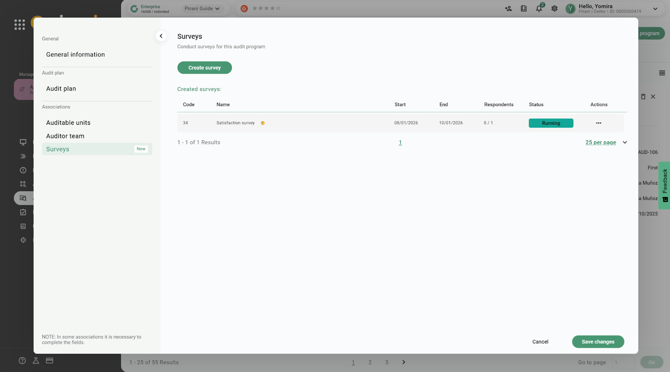
Once the responses are completed, participants must select “Submit Survey” to finalize the process.
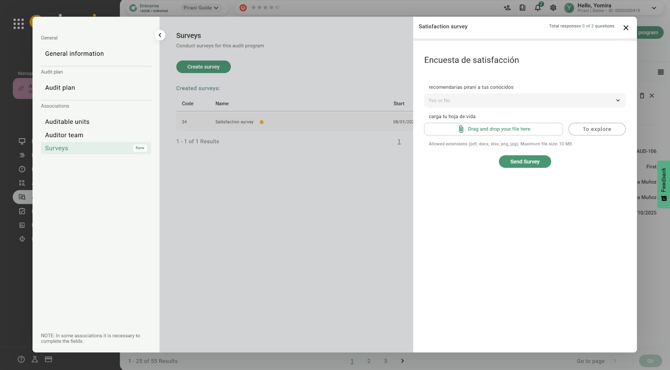
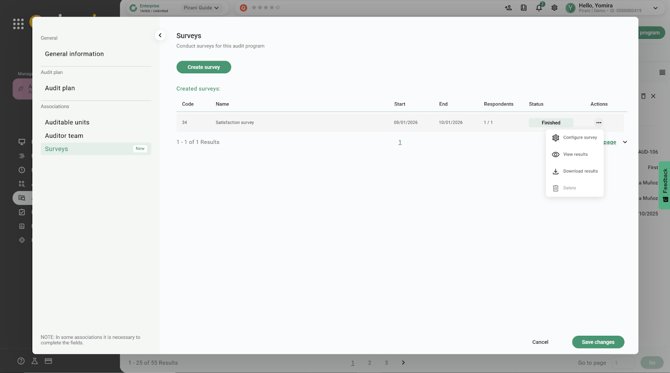
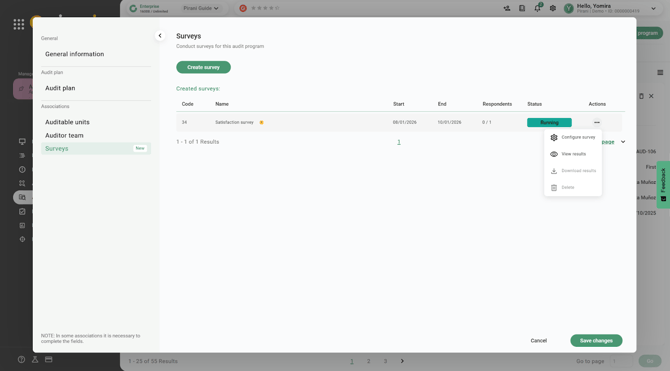
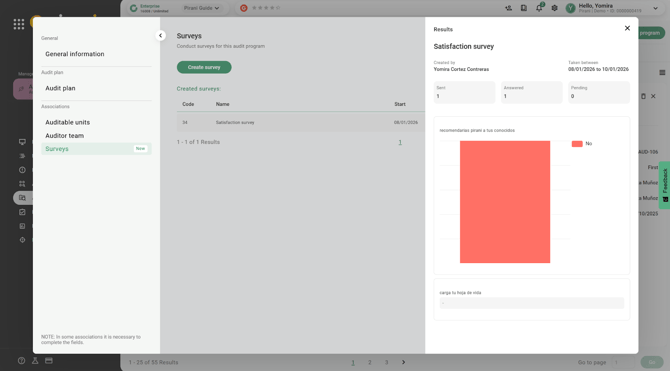
In the Actions column, the “View Results” option allows you to check the status of the survey.
The system displays the number of surveys sent, responded to, and pending.
How to configure a survey
From the additional options menu (represented by three dots), you can access the survey settings to make adjustments as needed.